

AlphaESS Devices
Bind your storage system to the current site. The steps below use Alpha 3600 AC as the example. To bind a grid meter, see Grid Meter. To bind a Shelly device, see Third-Party Devices.
Start adding a device
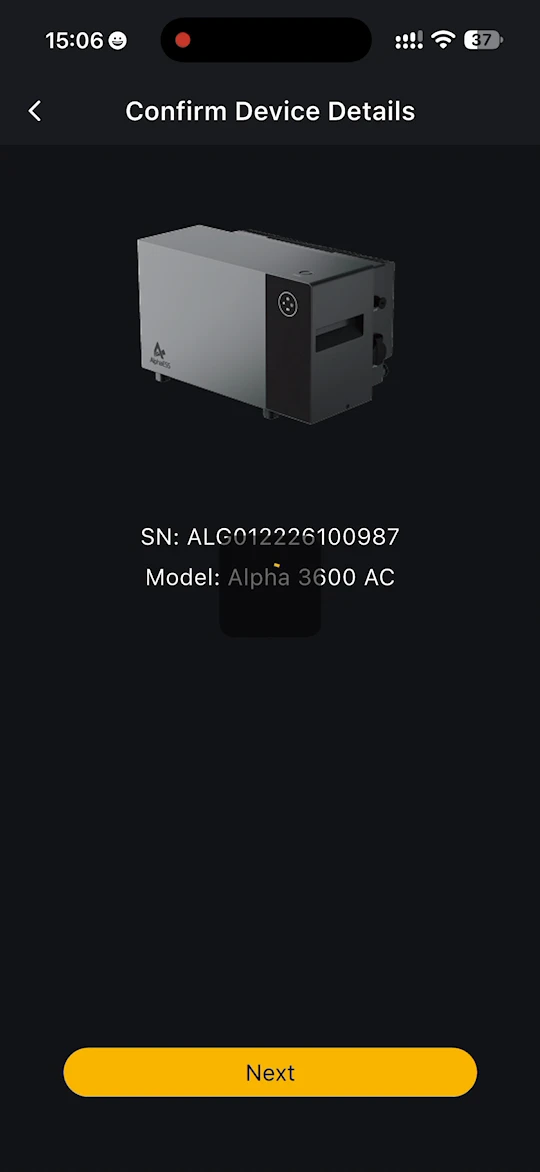
If no storage system is bound to the site yet, the home page shows Add your energy storage device to start managing your home energy. Tap Add Energy Storage Device.
You can also tap + in the top right corner of the home page or the device list, then choose:
- Add Device - search for the device over Bluetooth.
- Scan QR Code - scan the code on the device label.
Step 1: Find your device
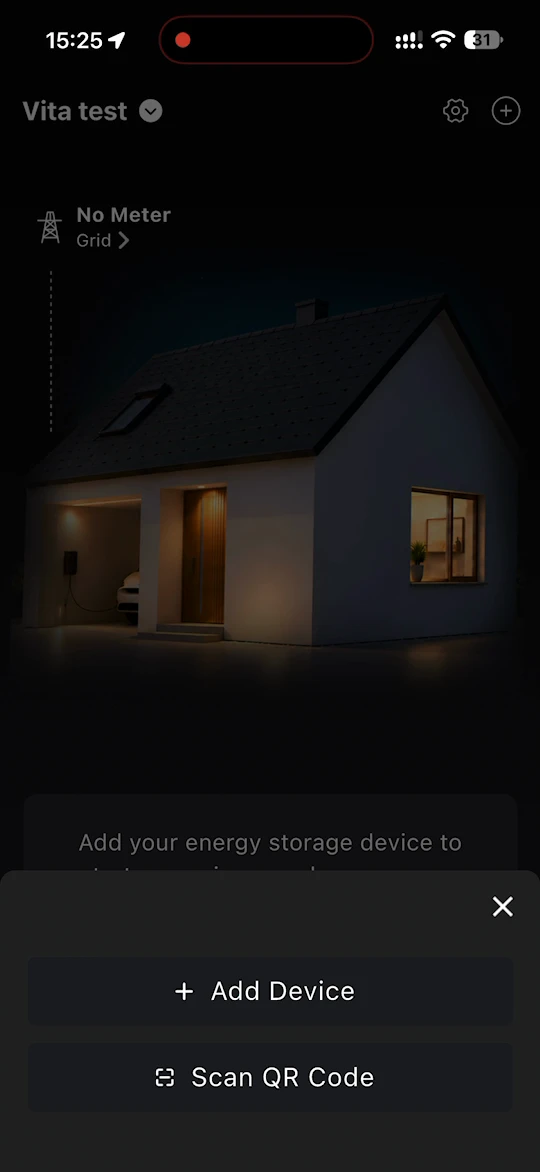
Over Bluetooth: place your phone near the device that is waiting to be connected. The devices found appear under Nearby devices. Tap Configure beside your device.
If your device does not appear, tap Wi-Fi direct connection under Try another method.
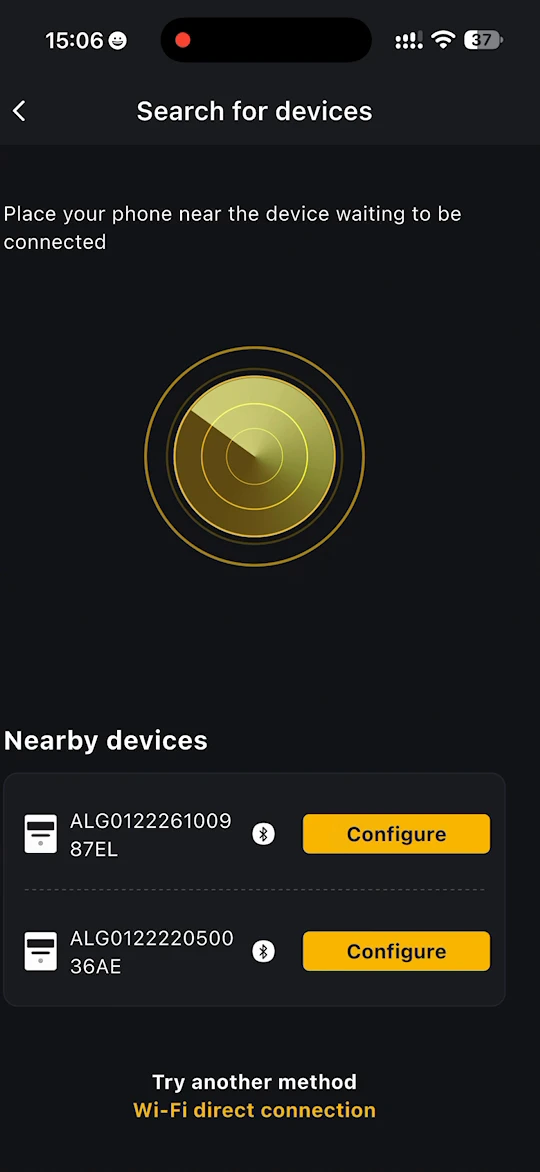
By QR code: tap Scan QR Code and point the camera at the QR code or barcode on the label on the side of the device. Tap Torch if it is dark, or Photos to choose a picture of the label you have already taken.
Step 2: Confirm the device
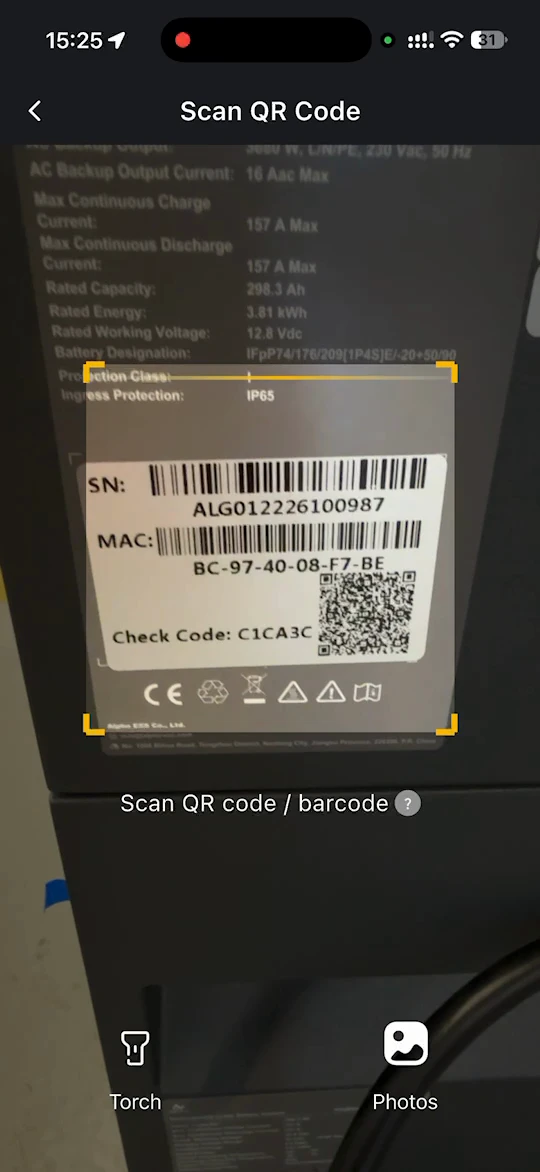
The app shows the SN and Model of the device it found. Check that they match your device, then tap Next.
Step 3: Set the installation address and grid code
- On Select Location, choose Auto to find your address from your current location, or Enter Manually to type it in. Select your address in the list and tap Confirm.
- Under Where is your device installed?, check the Installation Address and the Grid Code Country, then tap Next.
- A Confirm Country/Region message tells you which country's grid code the device will use. Tap Confirm.
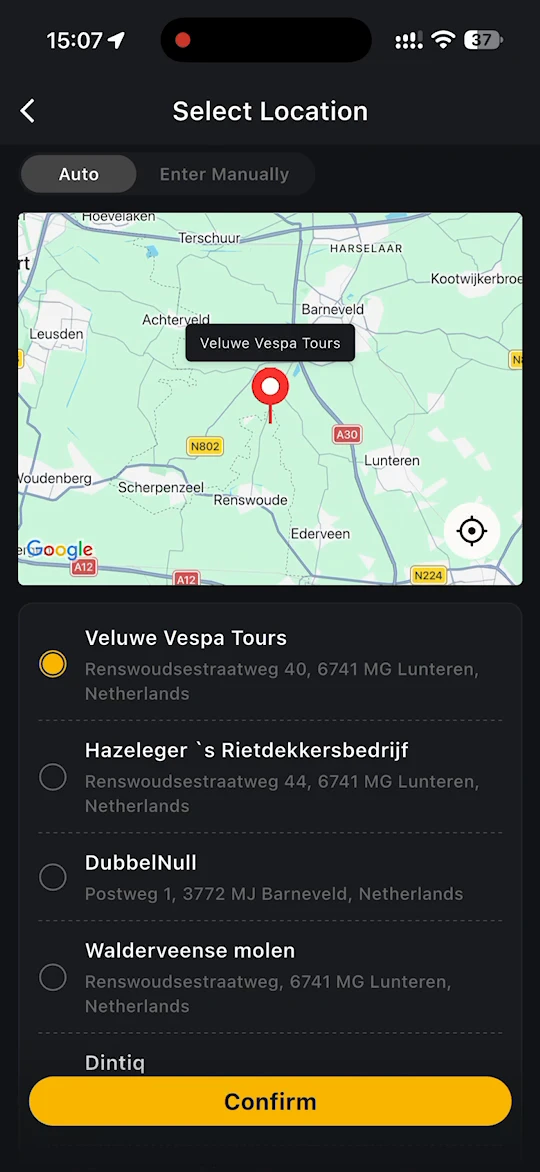
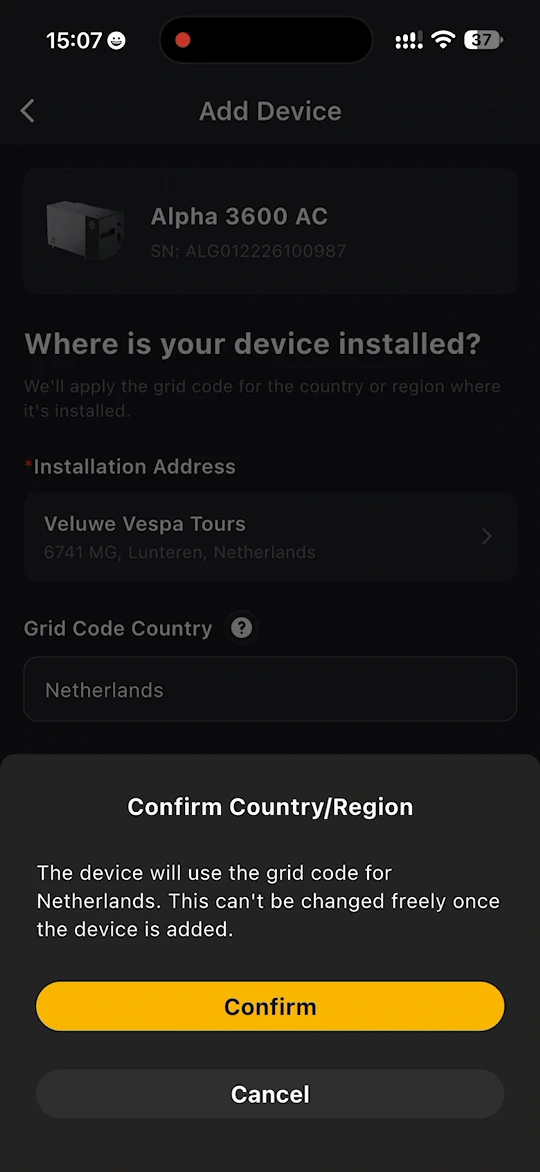
WARNING
The device applies the grid code of the country or region where it is installed. This cannot be changed freely once the device is added, so make sure the country is correct before you tap Confirm.
Step 4: Connect the device to your Wi-Fi
- On Set Up Wi-Fi, select your home network under Wi-Fi Network (2.4 GHz only) and enter its Password. Tap the refresh icon if your network is not in the list.
- Select Remember this Wi-Fi network if you want the app to fill it in next time.
- Tap Next.
The app then shows its progress through four steps: Connecting your device to Wi-Fi..., Connecting to network, Connecting to Cloud and Waiting for device to go online. When all four are ticked, the app confirms that the device has been successfully connected to AlphaCloud. Tap Next.
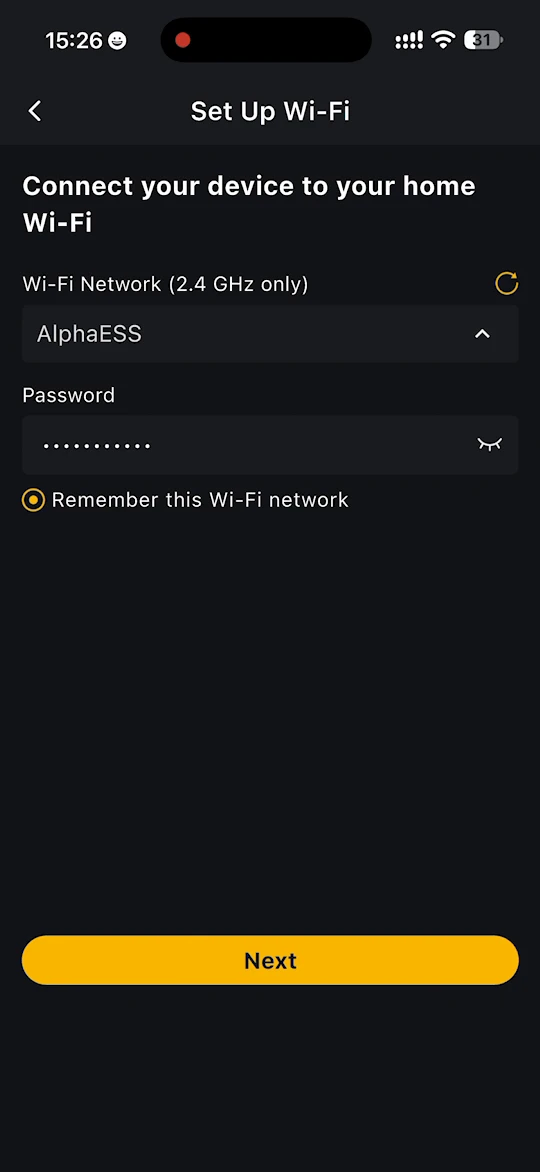
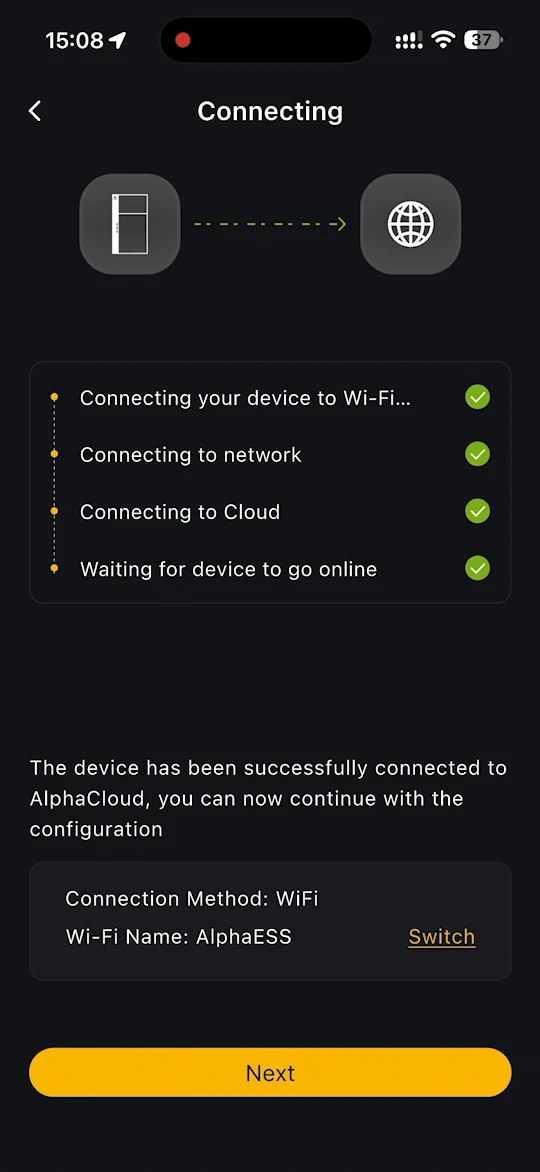
INFO
- Your device can only join a 2.4 GHz Wi-Fi network.
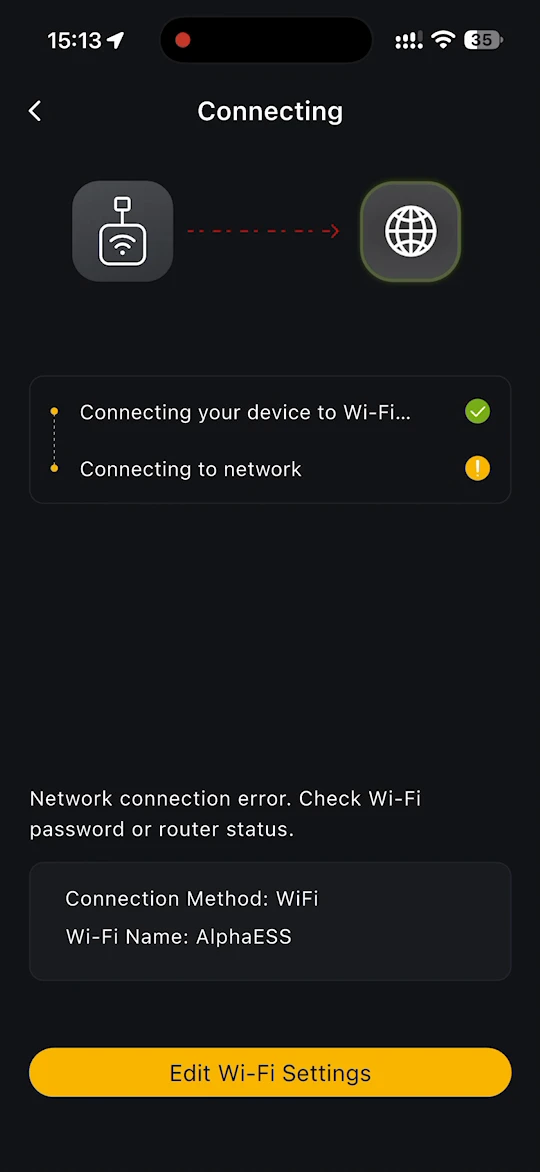
- If the connection fails, the app shows Failed to configure Wi-Fi. Check device connection status or Wi-Fi password and try again. Tap Edit Wi-Fi Settings, check the network and password, and try again.
- To use a different network, tap Switch beside the Wi-Fi name.
Step 5: Finish
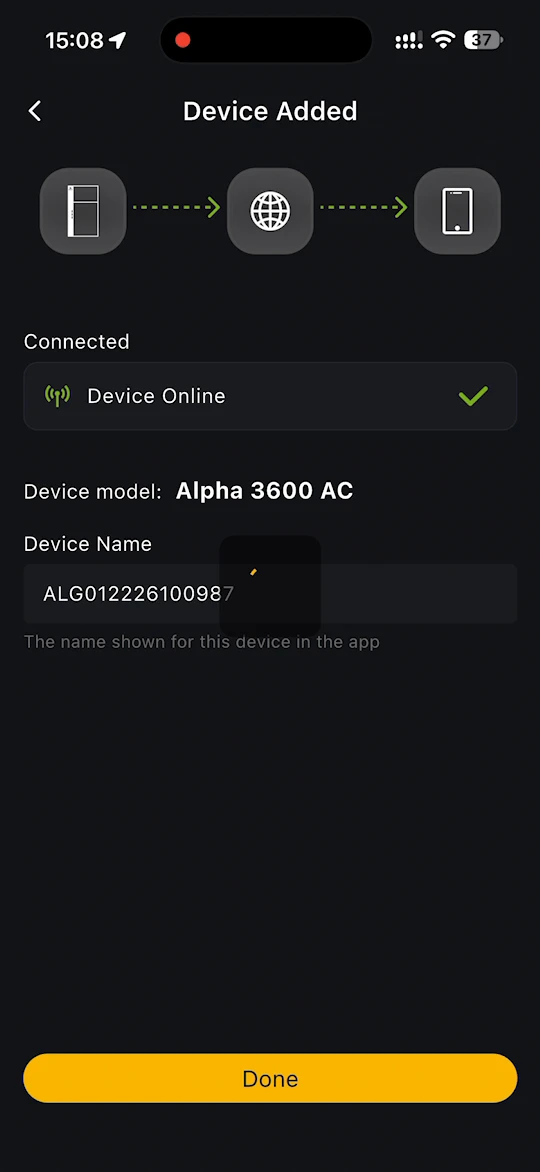
On Device Added, the device shows as Device Online. You can change the Device Name, which is the name shown for the device in the app. Tap Done.
The Device Overview page of your storage system opens. See Device Monitoring.
If something goes wrong
| What you see | What to do |
|---|---|
| Your device does not appear under Nearby devices | Move your phone closer, check that Bluetooth and location are on, and check that the device is powered on and waiting for network configuration. Or use Wi-Fi direct connection or Scan QR Code. |
| Failed to configure Wi-Fi. Check device connection status or Wi-Fi password and try again. | Tap Edit Wi-Fi Settings. Check that the network is 2.4 GHz and that the password is correct, then try again. |
| Network connection error. Check Wi-Fi password or router status. | Check the password and that your router can access the internet. Tap Edit Wi-Fi Settings and try again. |
| Please confirm whether to exit the installation process? | This appears if you go back part-way through. Tap Cancel to carry on, or OK to leave and start again later. |
| The app says the device is already bound | Unbind the device from the original site first, then add it again. |
If you still need help, go to Me > About Energy Life > Contact Us.
Other AlphaESS devices
Bind VT1000, P1 Meter and Smart Plug through Add Device in the same way, and follow the steps in the app.
Devices supporting Bluetooth binding: VT1000, Alpha 3600 AC, P1 Meter, Smart Plug, SMILE-A-AECP1-R12-WB.