

Price-based Control
Price-based Control charges and discharges your battery based on your tariff prices. You decide what the system does when electricity is expensive, cheap or negative, and the system follows the prices of your contract through the day.
Price-based Control is an advanced mode, so it needs a grid meter. See Grid Meter. It also needs your electricity prices. See Electricity Prices.
INFO
Electricity Prices, Price-based Control and AI Mode are in a limited beta and are currently available to selected users only. They are not yet available to all users, so they may not be available in your app.
Open the settings
- On the home page, tap Smart Mode.
- Select Price-based Control, then tap Settings under it.
The Price-based Control Settings page has the sections described below. When you have finished, tap Save, then tap Save on the Smart Mode page to start the mode.
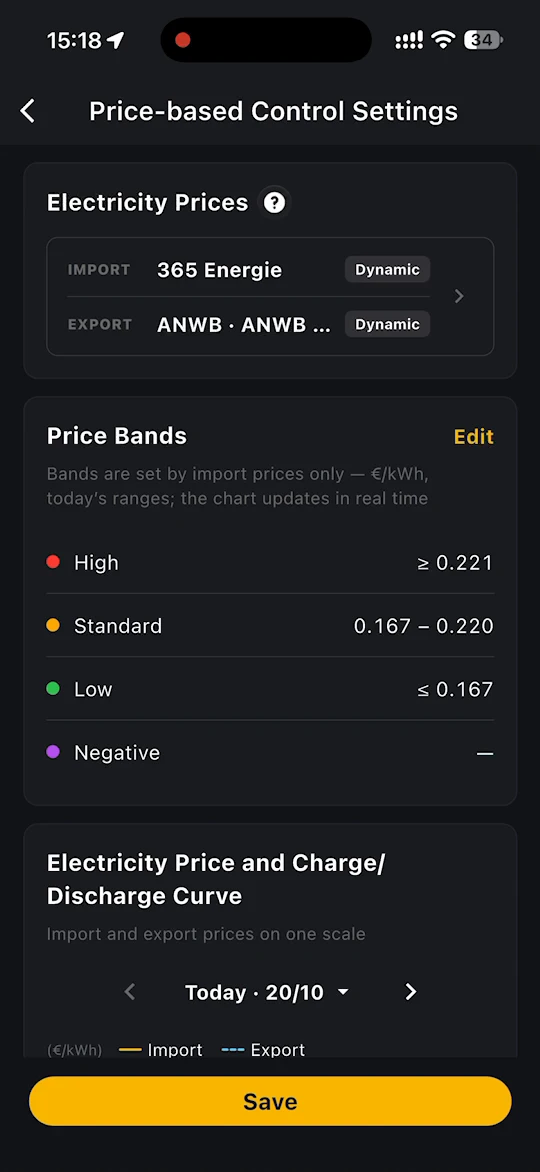
Electricity Prices
Shows the providers of your IMPORT and EXPORT tariffs. Tap it to view or change them. See Electricity Prices.
Price Bands
Each day's import prices are sorted into four bands: High, Standard, Low and Negative. The card shows today's price range for each band in €/kWh, and the chart updates in real time.
Tap Edit to change where the bands start and end. The bands rank each day's prices from cheapest to dearest in 15-minute steps. Drag the sliders, or tap - and +, to set the percentages for High and Low. Standard covers the range between them. For example, with High at 62% – 100% and Low at 0 – 30%, the dearest 38% of the day is high and the cheapest 30% is low.
The percentages stay fixed from day to day. The matching € ranges for today are shown on the Price Bands card. One set of bands applies to both buying and selling.
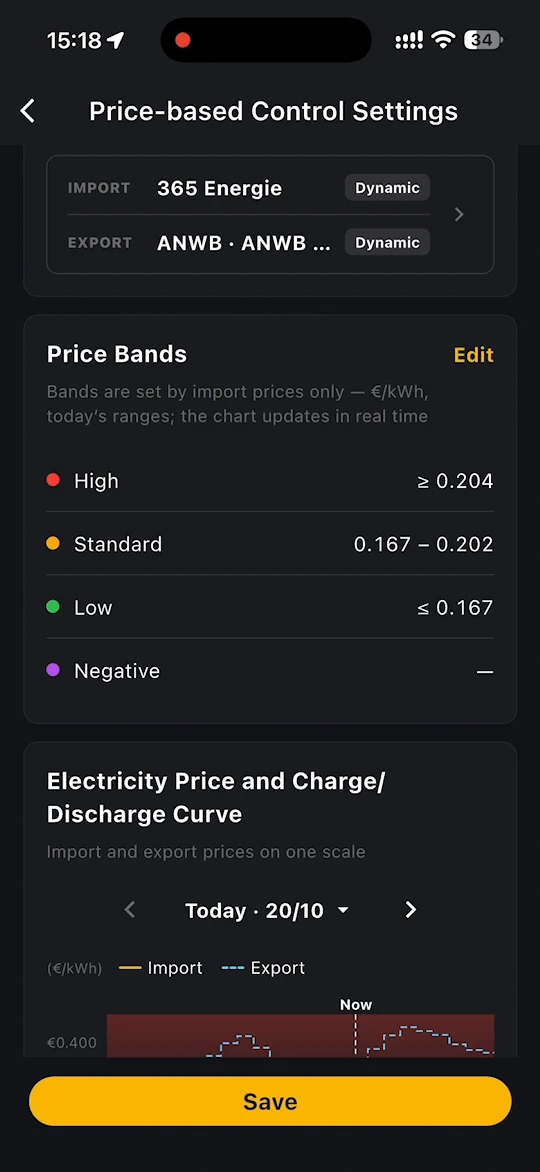
Electricity Price and Charge/Discharge Curve
Shows import and export prices on one scale, with the price bands in the background and the planned charging and discharging periods below. Use the arrows to move between days.
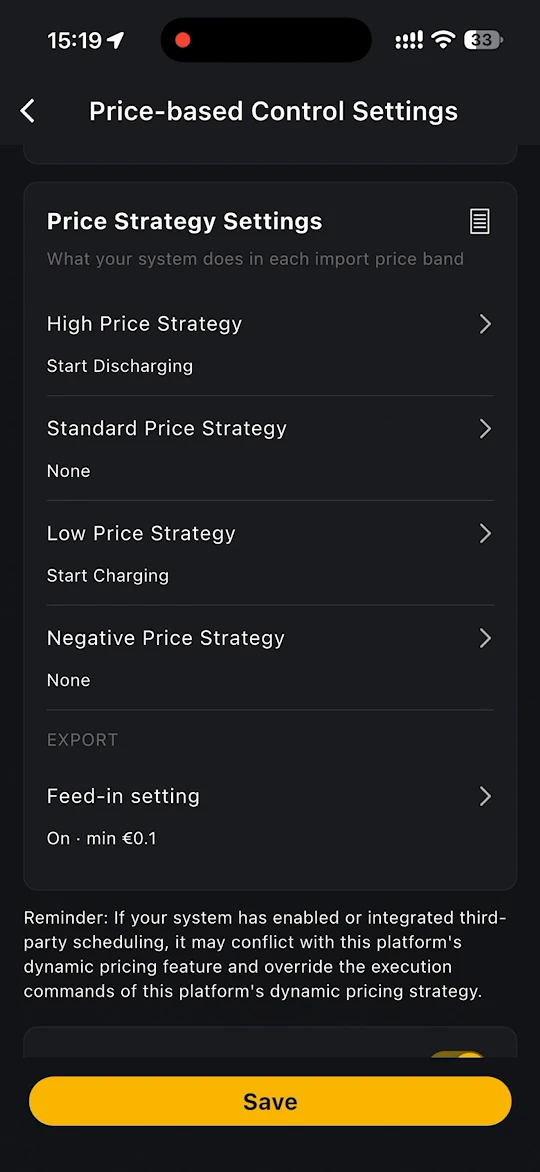
Price Strategy Settings
Choose what your system does in each import price band:
- High Price Strategy
- Standard Price Strategy
- Low Price Strategy
- Negative Price Strategy
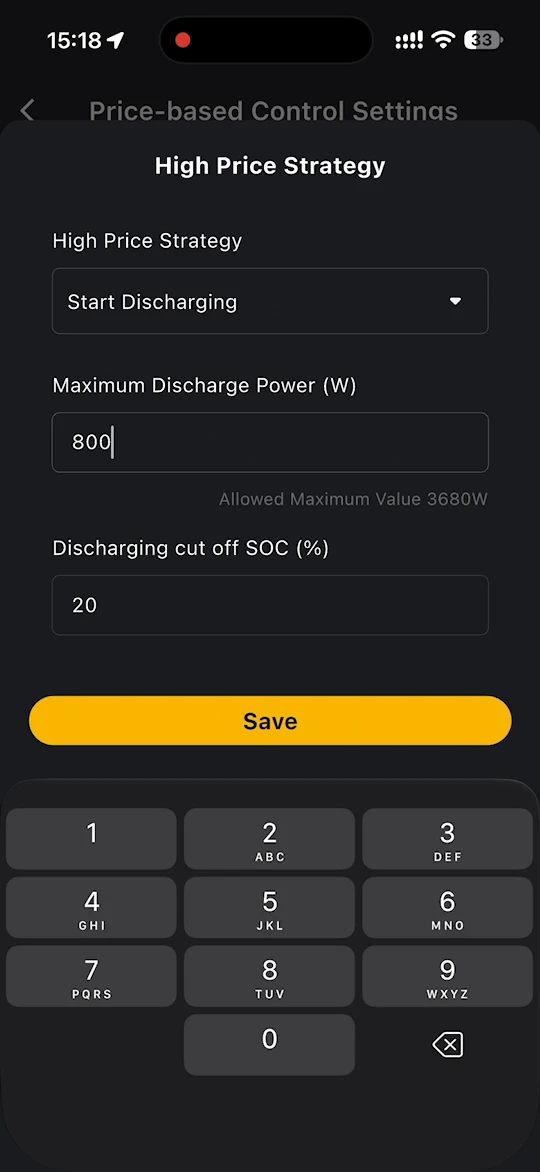
For each strategy, choose None, Start Charging or Start Discharging.
- For Start Discharging, set the Maximum Discharge Power (W) and the Discharging cut off SOC (%).
- For Start Charging, set the Maximum Charge Power (W) and Charging stops at SOC (%).
The app shows the Allowed Maximum Value for the power, for example 3680W. Tap Save to keep the strategy.
A typical setup:
| Strategy | Setting |
|---|---|
| High Price Strategy | Start Discharging, for example at 3680W down to 20% SOC |
| Standard Price Strategy | None |
| Low Price Strategy | Start Charging, for example at 3680W up to 95% SOC |
| Negative Price Strategy | Start Charging, so that you use electricity when you are paid to take it |
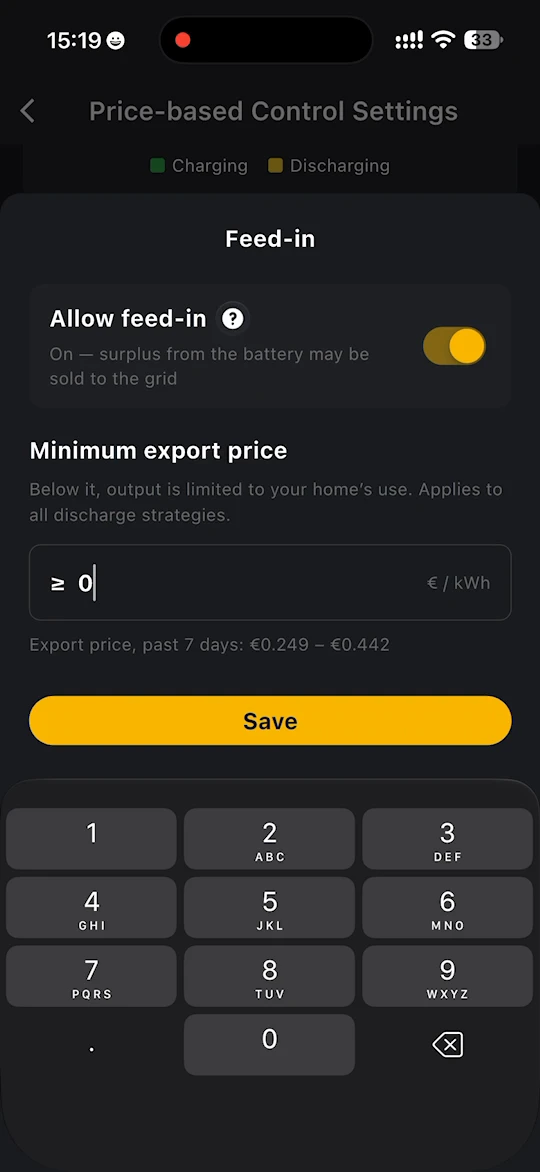
Feed-in setting
Under EXPORT, tap Feed-in setting:
- Allow feed-in - when switched on, surplus from the battery may be sold to the grid.
- Minimum export price - below this price, output is limited to your home's use. It applies to all discharge strategies. The app shows the range of export prices over the past 7 days to help you choose.
Tap Save to apply.
Show strategy on Home
Switch on Show strategy on Home to add a summary card to your home page. It shows the current band and its time range, for example Low 10:15 – 15:30, with the current import and export prices. Tap the card to open these settings.
WARNING
If your system has enabled or integrated third-party scheduling, it may conflict with this platform's dynamic pricing feature and override the execution commands of this platform's dynamic pricing strategy.