

Device Settings
Change the settings of your storage system from its device details.
- On the home page, tap Battery, or tap your storage system on the device list, to open Device Overview.
- Tap More Details.
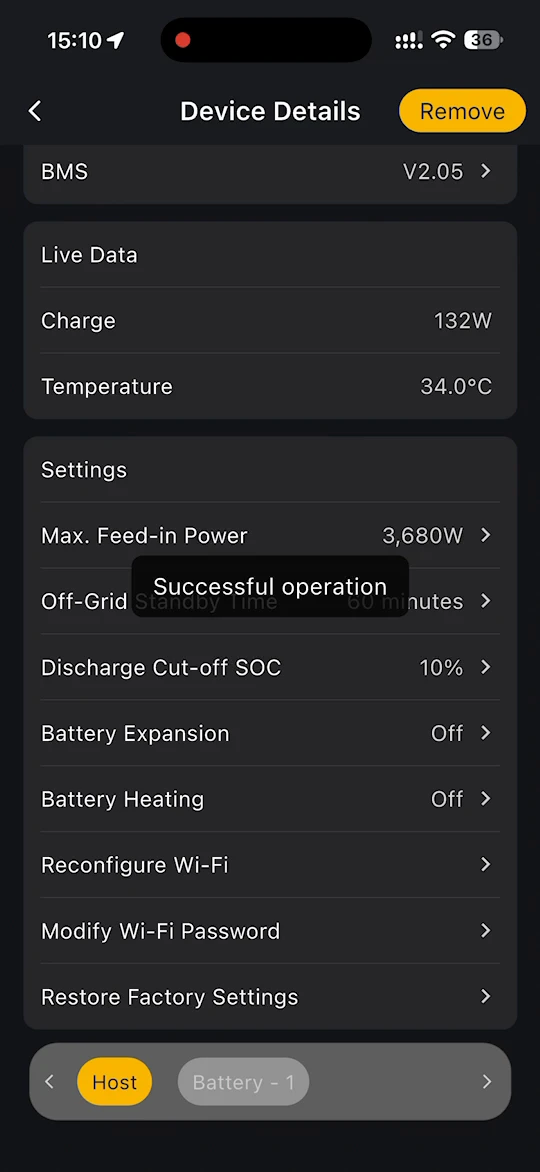
- On the Host tab, scroll down to Settings.
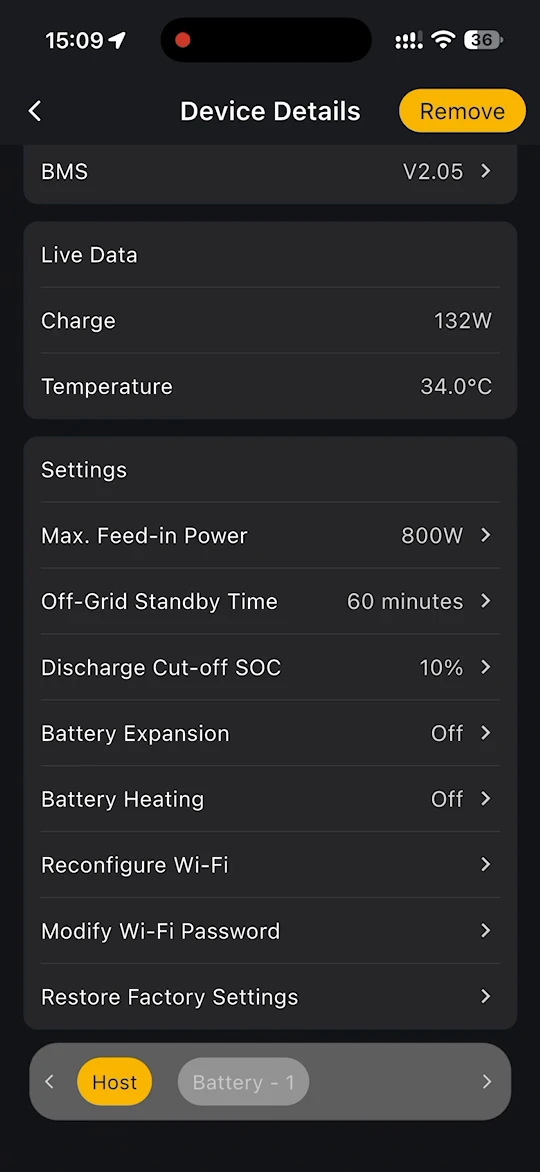
| Setting | What it does |
|---|---|
| Max. Feed-in Power | The maximum power the storage system feeds into the grid. 800W by default. To go above 800W you need an unlock code. See Unlock the Maximum Feed-in Power. |
| Off-Grid Standby Time | How long the system stays on standby while off-grid AC is on. See Off-Grid Standby Time. |
| Discharge Cut-off SOC | The battery stops discharging when its SOC falls to this level, for example 10%. |
| Battery Expansion | Adds another battery to your system. See Battery Expansion. |
| Battery Heating | Warms the battery in cold weather. See Battery Heating. |
| Reconfigure Wi-Fi | Connects the system to a different Wi-Fi network. |
| Modify Wi-Fi Password | Updates the Wi-Fi password the system uses. |
| Restore Factory Settings | Returns the system to its factory settings. |
Unlock the Maximum Feed-in Power
By default, your storage system feeds at most 800W into the grid. This is the limit set by the relevant regulations for plug-in systems. If your home circuits have been checked and approved by a qualified electrician, you can unlock a higher limit with an unlock code: up to 3,680W on Alpha 3600 AC, and up to 2000W on VT1000.
DANGER
According to the relevant regulations, the grid output of the device must be 800W or less. Before you unlock a higher limit, your home circuits must be evaluated and modified by a qualified electrician to ensure safe electricity use. After unlocking, the grid feed-in may exceed 800W, which can result in legal and safety risks. Only unlock the limit if this is permitted where you live and your installation has been approved.
Before you start
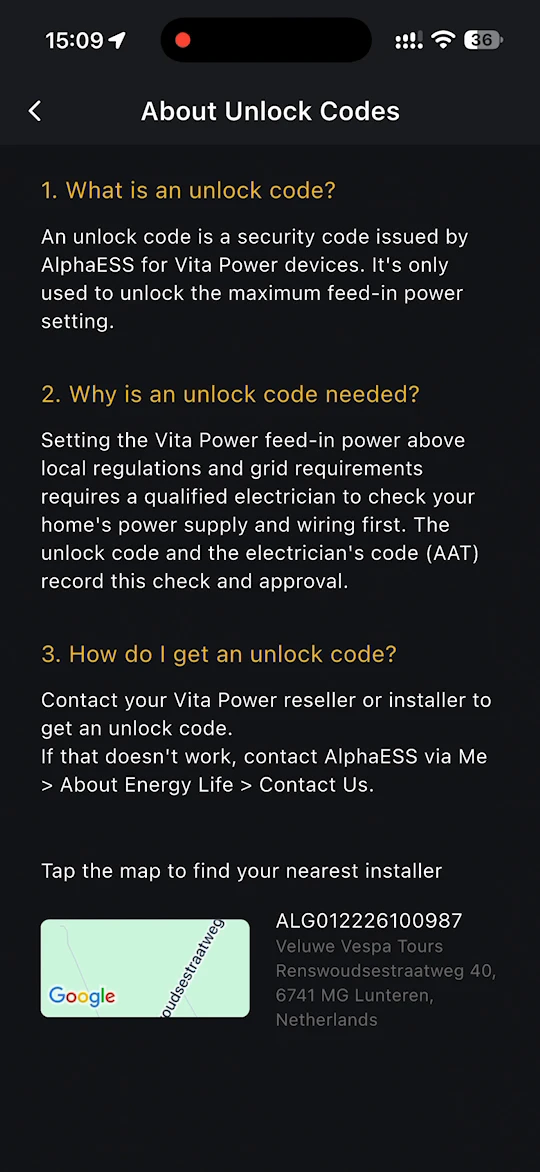
Get an unlock code. An unlock code is a security code issued by AlphaESS, and it is used only to unlock the maximum feed-in power setting. The unlock code and the electrician's code (AAT) record that your home's power supply and wiring have been checked and approved.
- Contact your reseller or installer to get an unlock code.
- If that does not work, contact AlphaESS from Me > About Energy Life > Contact Us.
Step 1: Open Grid Output
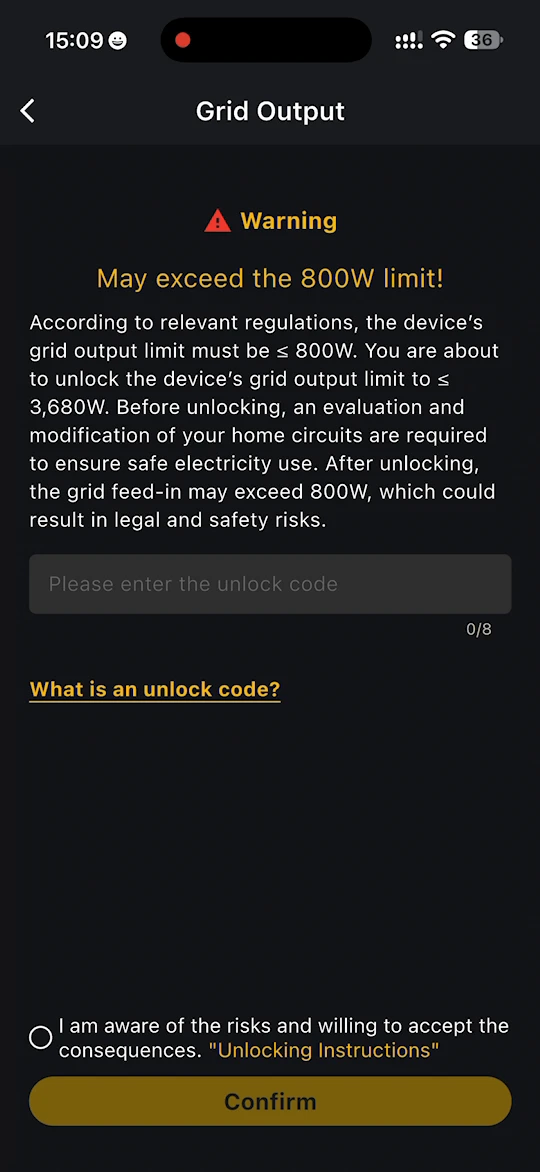
On the Host tab of Device Details, tap Max. Feed-in Power (800W). The Grid Output page opens with the warning May exceed the 800W limit!. Read the warning carefully.
Tap What is an unlock code? to open About Unlock Codes, which explains what an unlock code is, why it is needed and how to get one. Tap the map on that page to find your nearest installer.
Step 2: Enter the unlock code and confirm
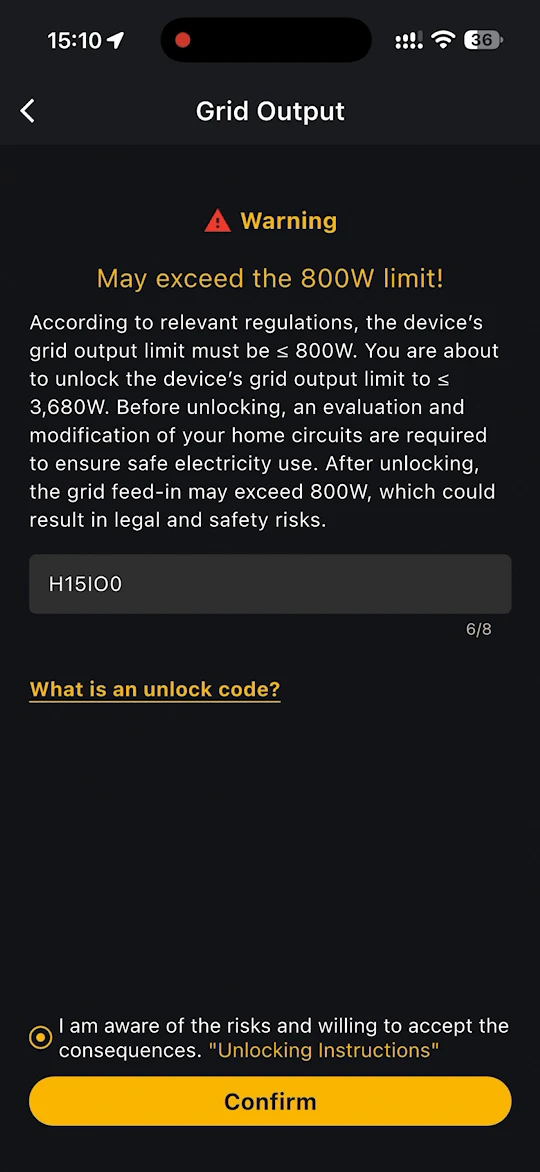
- Enter your unlock code in the field. It has up to 8 characters.
- Select I am aware of the risks and willing to accept the consequences. Tap "Unlocking Instructions" to read the instructions first.
- Tap Confirm. The button only becomes available once you have entered a code and selected the checkbox.
Step 3: Check the result
The app returns to Device Details and shows Successful operation. Max. Feed-in Power now shows the unlocked limit, for example 3,680W on Alpha 3600 AC.
INFO
- Once the limit is unlocked, the fixed grid feed-in power in Load Priority and Custom can also be set above 800W. See Modes Switch.
Off-Grid Standby Time
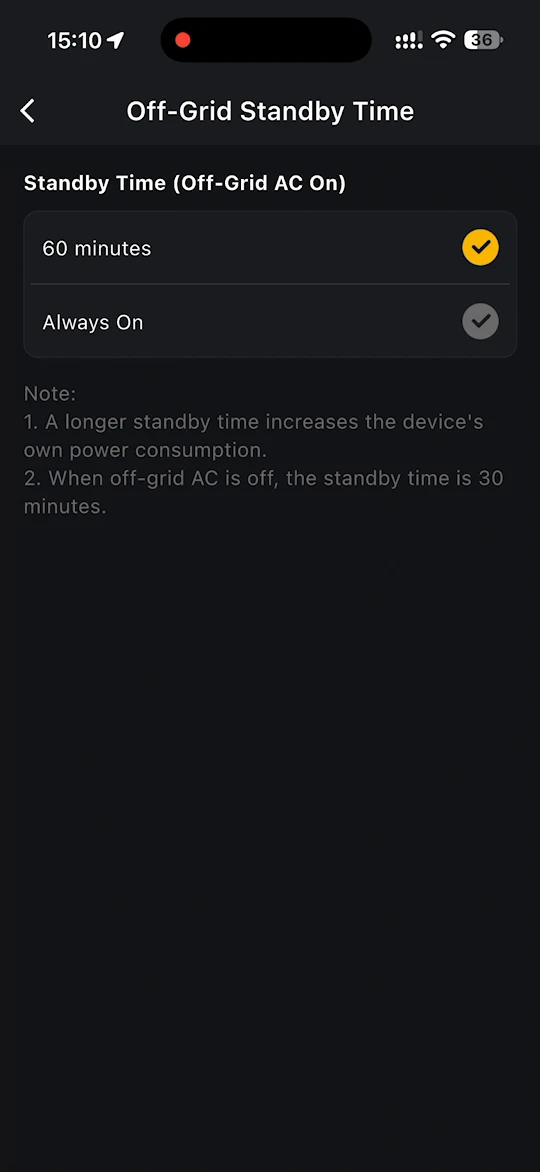
Under Standby Time (Off-Grid AC On), choose how long the system stays on standby while it is off-grid: 60 minutes or Always On.
- A longer standby time increases the device's own power consumption.
- When off-grid AC is off, the standby time is 30 minutes.
Remove the device
To unbind the storage system from the site, tap Remove in the top right corner of Device Details. The app explains that the scenarios where the device is used will no longer take effect. Tap Confirm to remove it.