

Electricity Prices
Connect your energy supplier and the app follows the exact rates of your contract for prices, savings and charging strategy. Electricity prices are powered by FlatPeak, which has a growing supplier network.
INFO
Electricity Prices, Price-based Control and AI Mode are in a limited beta and are currently available to selected users only. They are not yet available to all users, so they may not be available in your app.
Price-based Control and AI Mode use these prices. See Price-based Control and AI Mode. Not sure which to use? See Price-based Control or AI Mode?.
- Import is the price you pay for electricity you take from the grid.
- Export is the price you are paid for electricity you feed into the grid.
The app reads the prices for today and, where your supplier publishes them, for tomorrow.
Open Electricity Prices
Tap the gear icon in the top right corner of the home page to open Site Settings, then tap Electricity Prices. You can also tap the electricity prices row in the Price-based Control or AI Mode settings.
Connect your import tariff
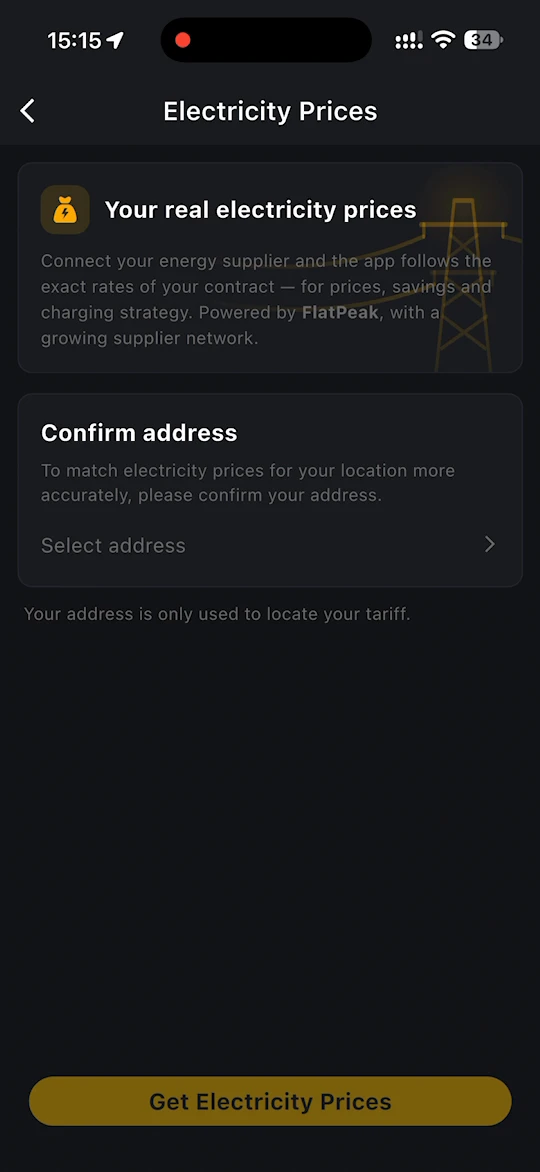
- Under Confirm address, tap Select address and choose your address on Select Location. Your address is only used to locate your tariff.
- Tap Get Electricity Prices.
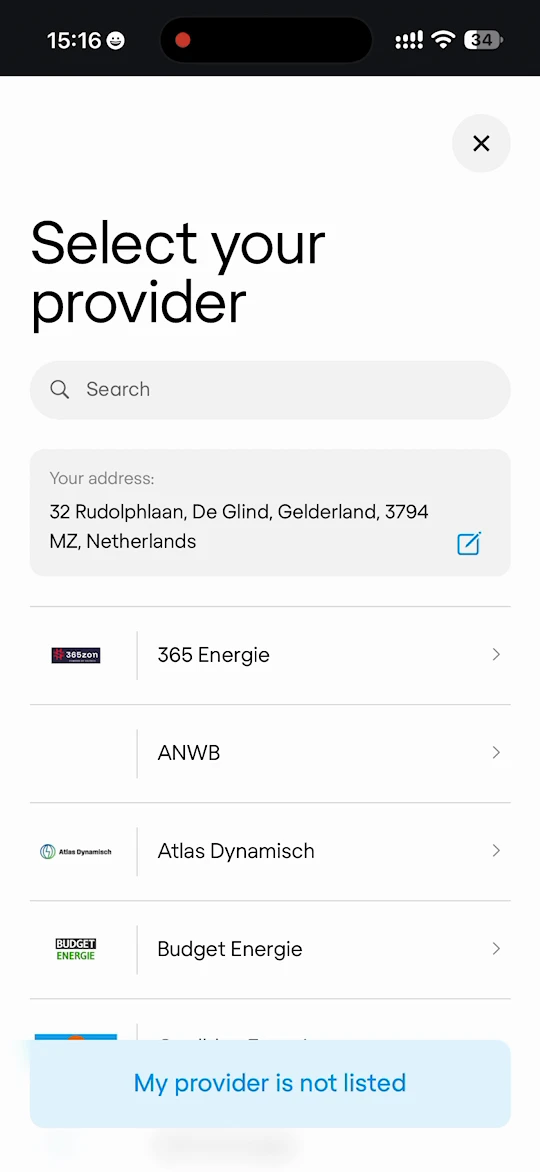
- On Select your provider, check Your address, then search for your energy supplier or select it in the list. If your supplier is not in the list, tap My provider is not listed.
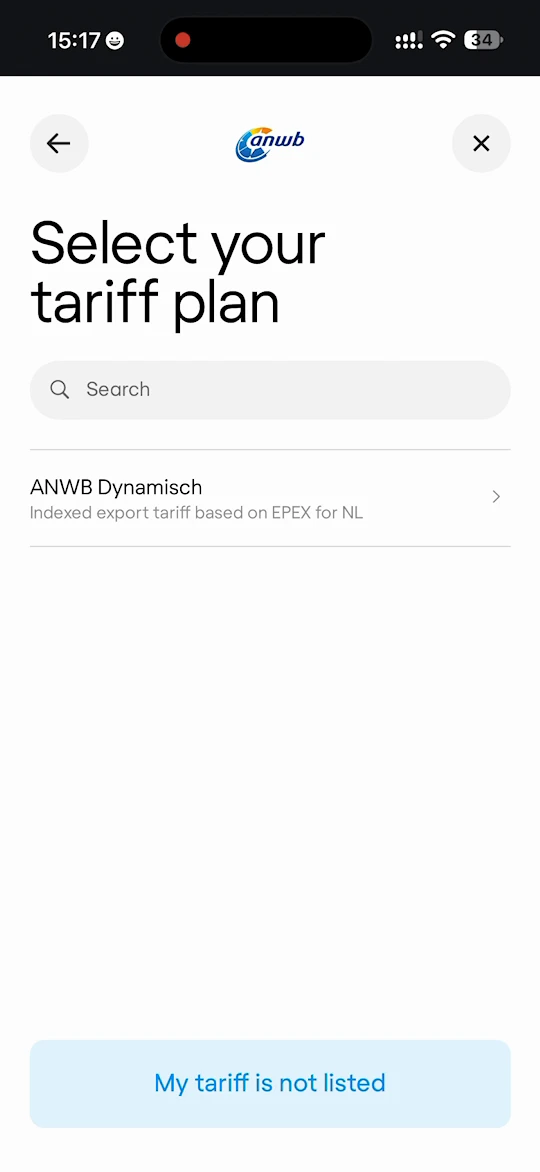
- If your supplier offers more than one tariff, select your tariff on Select your tariff plan. If yours is not in the list, tap My tariff is not listed.
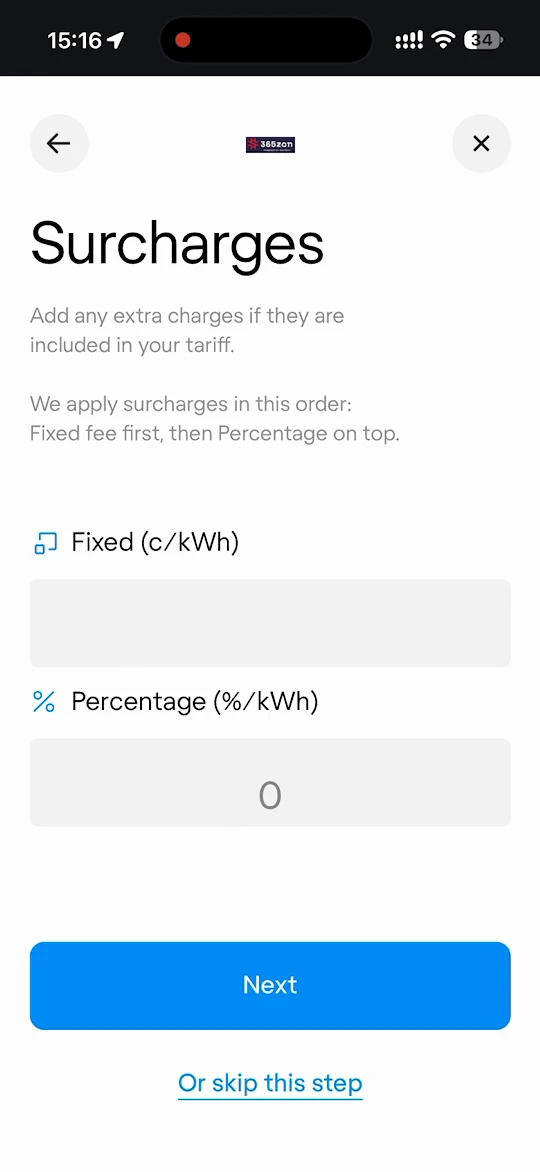
- On Surcharges, add any extra charges that are not already included in your tariff: Fixed (c/kWh) and Percentage (%/kWh). The fixed fee is applied first, then the percentage on top. Tap Next, or tap Or skip this step.
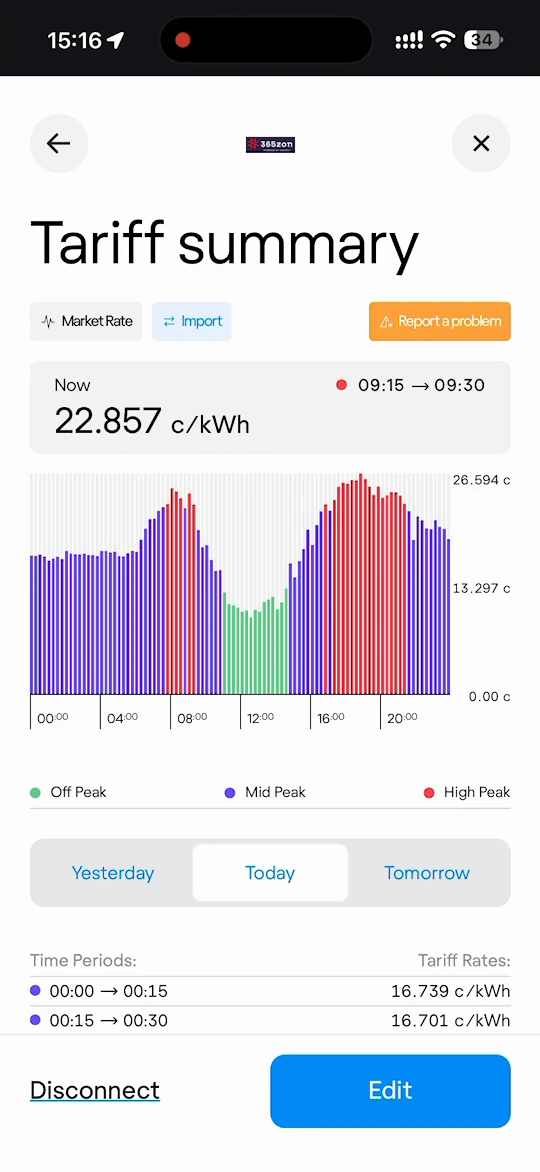
- Tariff summary shows your tariff: the current rate, a chart of the rates through the day marked Off Peak, Mid Peak and High Peak, and the time periods with their rates. Switch between Yesterday, Today and Tomorrow to check the rates.
On the Tariff summary, tap Edit to change your tariff, Disconnect to remove it, or Report a problem if the rates look wrong.
Add an export tariff
Your import and export tariffs can be with different providers. On the Electricity Prices page, tap Add export tariff under EXPORT and follow the same steps to choose the provider and tariff for the electricity you feed into the grid.
View your electricity prices
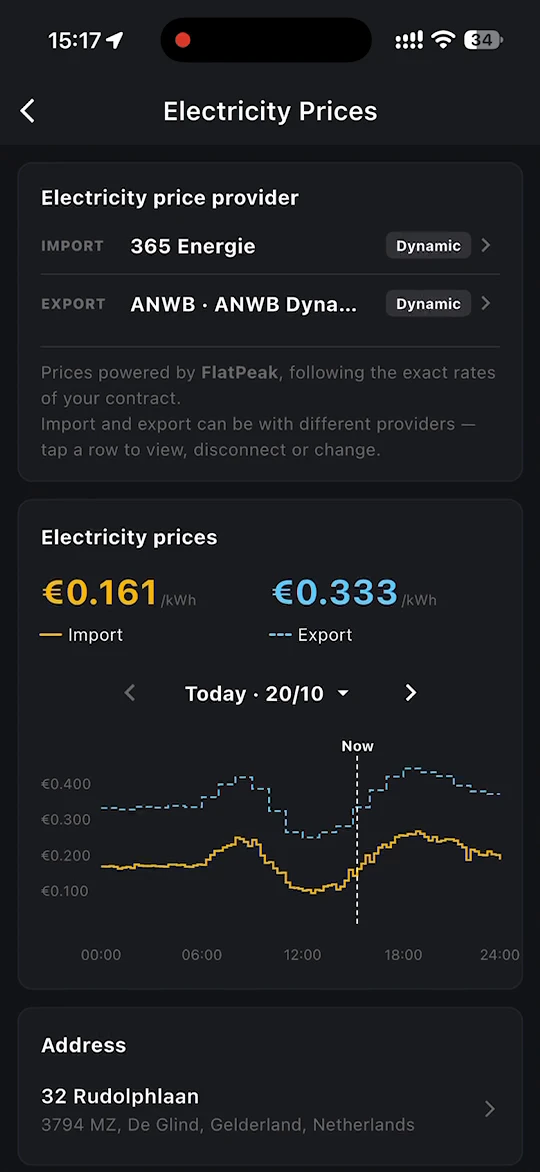
Once your tariffs are connected, the Electricity Prices page shows:
- Electricity price provider - your IMPORT and EXPORT providers, marked for example Dynamic for a dynamic tariff. Tap a row to view, disconnect or change it.
- Electricity prices - the current import and export prices, with a chart for the day. Use the arrows to move between days.
- Address - the address used to find your tariff.
TIP
If you move house, update the address on the Electricity Prices page so that the app finds the right tariff.