

Device Monitoring
The app has three tabs at the bottom: the home page, the device list, and Me. The home page and the device list show the site that is currently selected. See Sites.
On Home Page
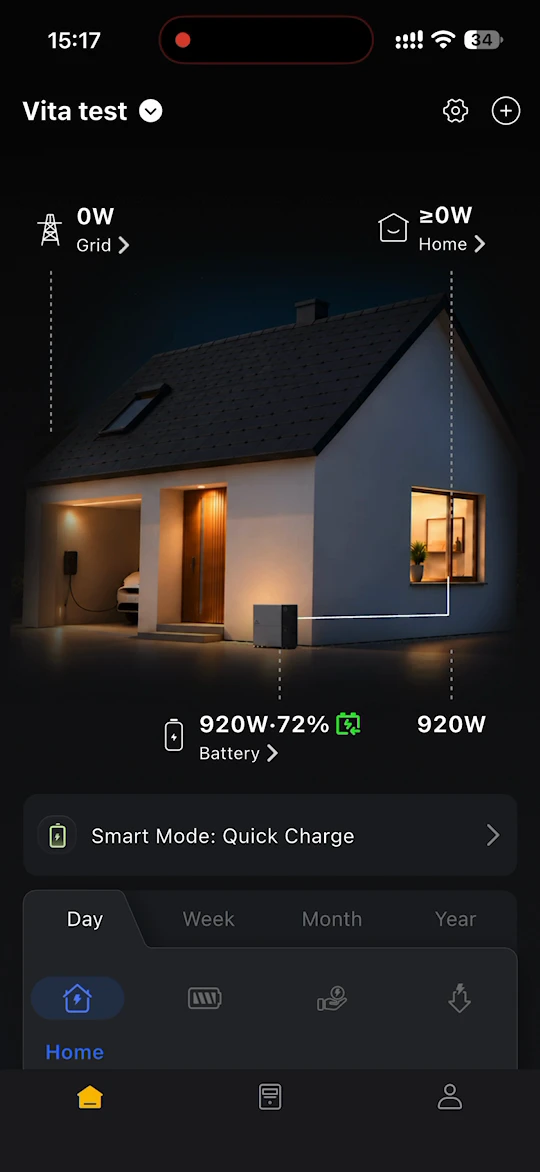
The home page shows the live operating data of your home energy system:
- Grid - the power you are buying from or feeding into the grid. If no grid meter is connected, this shows No Meter. Tap it to add one. See Grid Meter.
- Home - the power going into your home.
- Battery - the charging or discharging power and the SOC (state of charge) of your battery.
Tap Grid, Home or Battery to see the details of the device in that position.
Below the diagram, Smart Mode shows the mode your storage system is running. Tap it to change the mode. See Modes Switch.
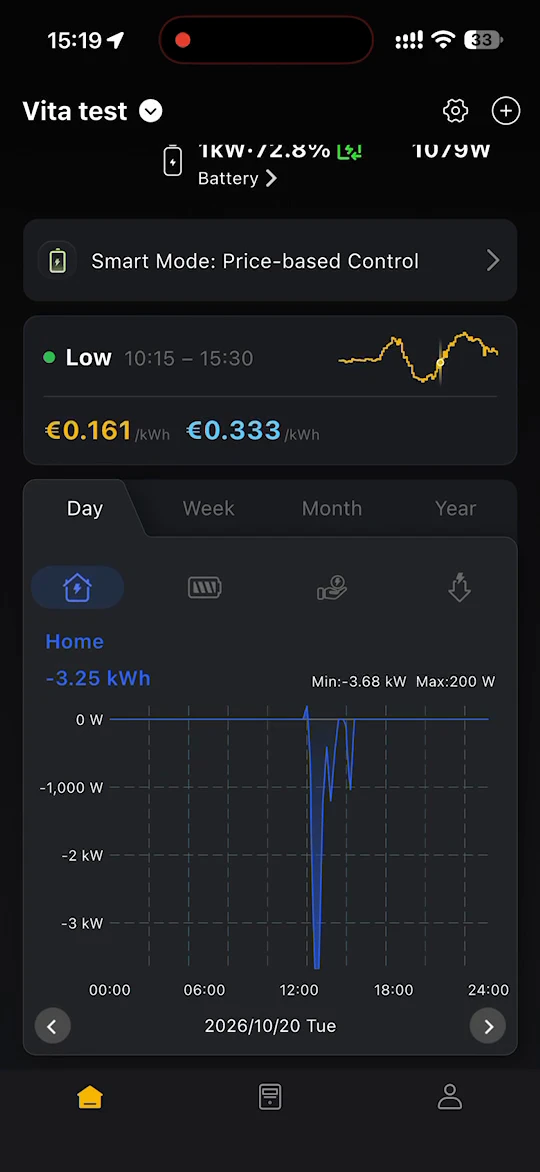
If Price-based Control is running with Show strategy on Home switched on, a card also shows the current price band, its time range, and the current import and export prices. See Price-based Control.
The chart at the bottom can be viewed by Day, Week, Month or Year. Tap the icons above the chart to switch between home, battery and grid data.
On Device List Page
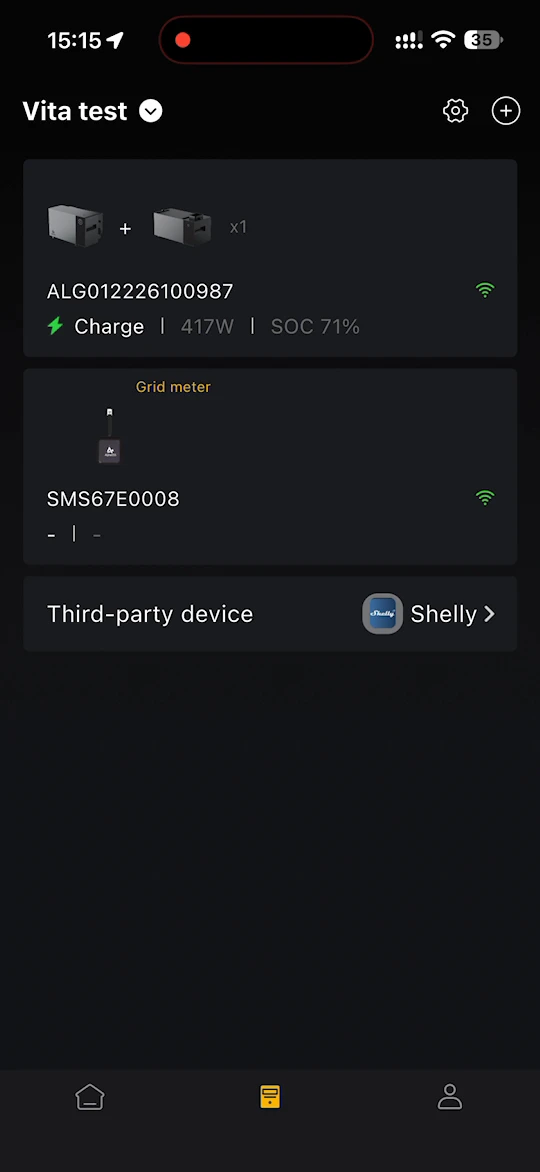
The device list shows every device bound to the site:
- your storage system, with the number of batteries, its name, whether it is charging or discharging, its power and its SOC
- your grid meter, or No grid meter added with an Add link
- Third-party device, where you can bind Shelly devices
Tap a device to open its details.
On Device Overview Page
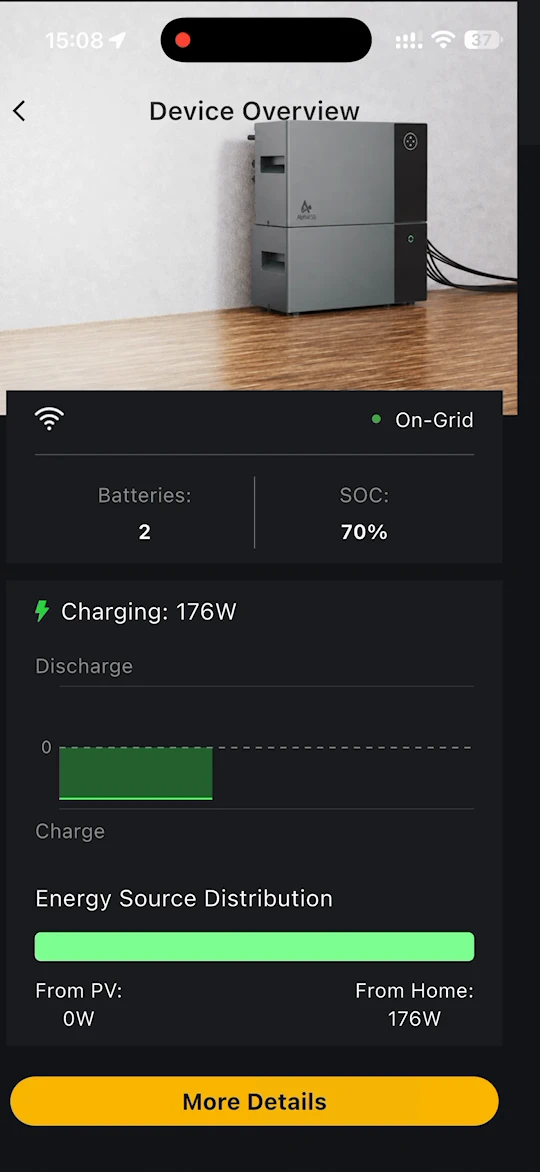
Tap your storage system to open Device Overview. Here you can see:
- whether the system is online and connected to the grid, for example On-Grid
- Batteries - the number of batteries
- SOC - the state of charge
- the current charging or discharging power, with a chart of the day
- Energy Source Distribution while the battery is charging, showing how much comes From PV and From Home
- Power Distribution while the battery is discharging, showing how much goes To Home and To Backup
Tap More Details to open the device details.
On Device Details Page
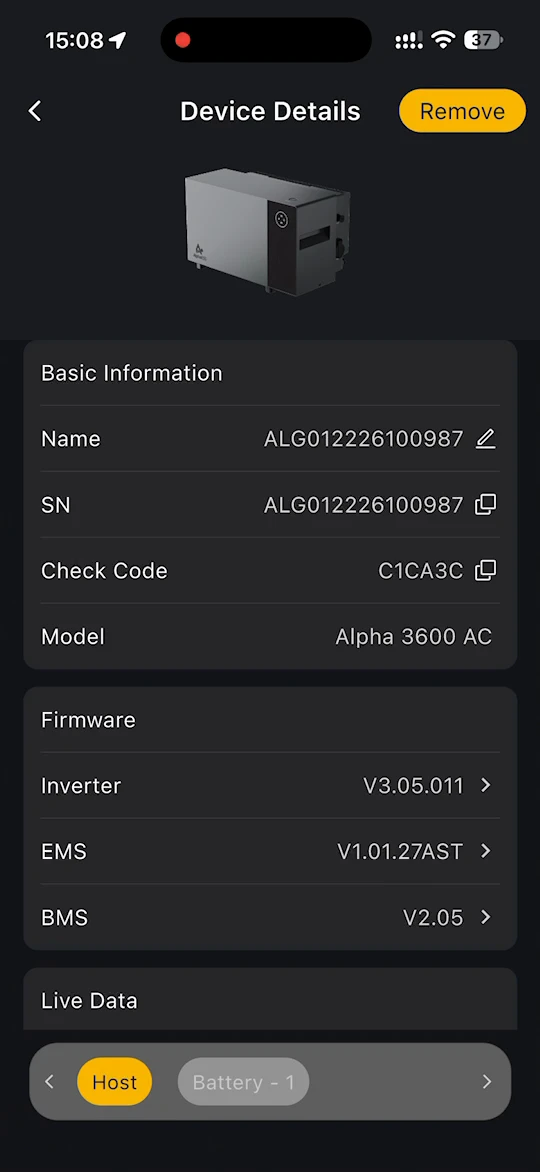
Use the tabs at the bottom of the page to switch between Host, the storage system itself, and each battery, for example Battery - 1.
Host shows:
- Basic Information - Name, which you can edit, plus SN, Check Code and Model. Tap the copy icon to copy the SN or check code.
- Firmware - the Inverter, EMS and BMS versions.
- Live Data - the current Charge or discharge power and the Temperature.
- Settings - see Device Settings.
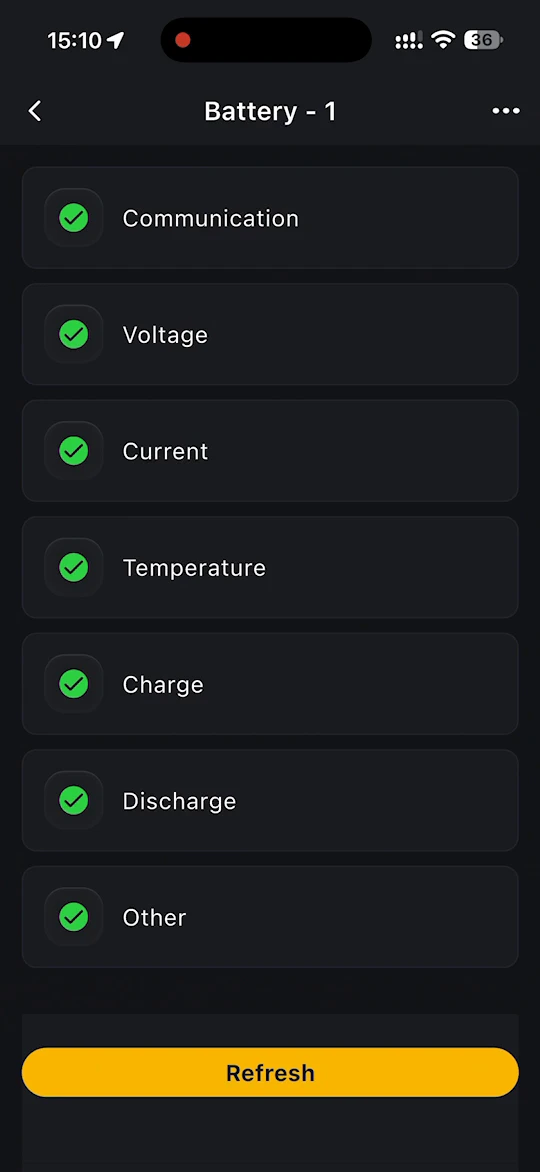
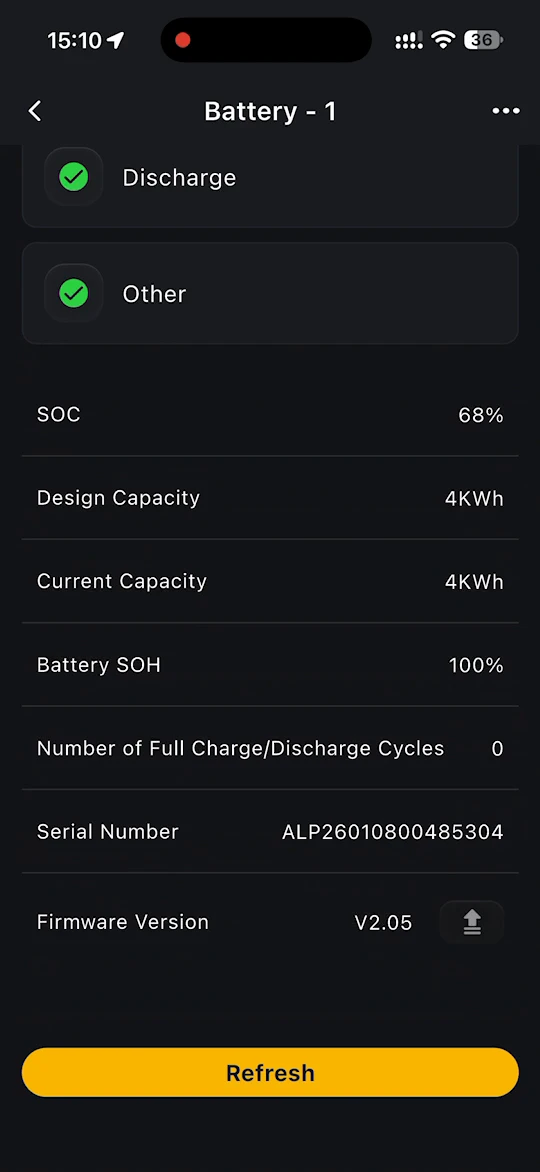
Battery - 1 (and any further batteries) shows:
- status checks for Communication, Voltage, Current, Temperature, Charge, Discharge and Other
- SOC, Design Capacity, Current Capacity and Battery SOH (state of health)
- Number of Full Charge/Discharge Cycles
- Serial Number and Firmware Version
Tap Refresh to read the latest values from the battery.
Meter and Smart Plug details
For a grid meter, see Grid Meter. For a P1 Meter or Smart Plug, the details page shows whether the device is online, graphs of the power used and the power fed into the grid, and historical electricity consumption statistics.