Standalone Installation
Prerequisites
- Device side: The energy storage system is powered on, the Wi-Fi communication stick is properly inserted, and the POWER indicator is on steadily.
- Home router: The network name and password are known, the 2.4GHz band is enabled, and the signal covers the device installation location.
- Mobile phone: Both Wi-Fi and Bluetooth are enabled, and location permission has been granted (required on Android for Wi-Fi scanning and silent connection). Stand within a few metres of the device.
- Phone connectivity: We recommend enabling mobile data — when falling back to a direct AP connection, the phone temporarily switches to the device hotspot and loses internet access.
Network Configuration
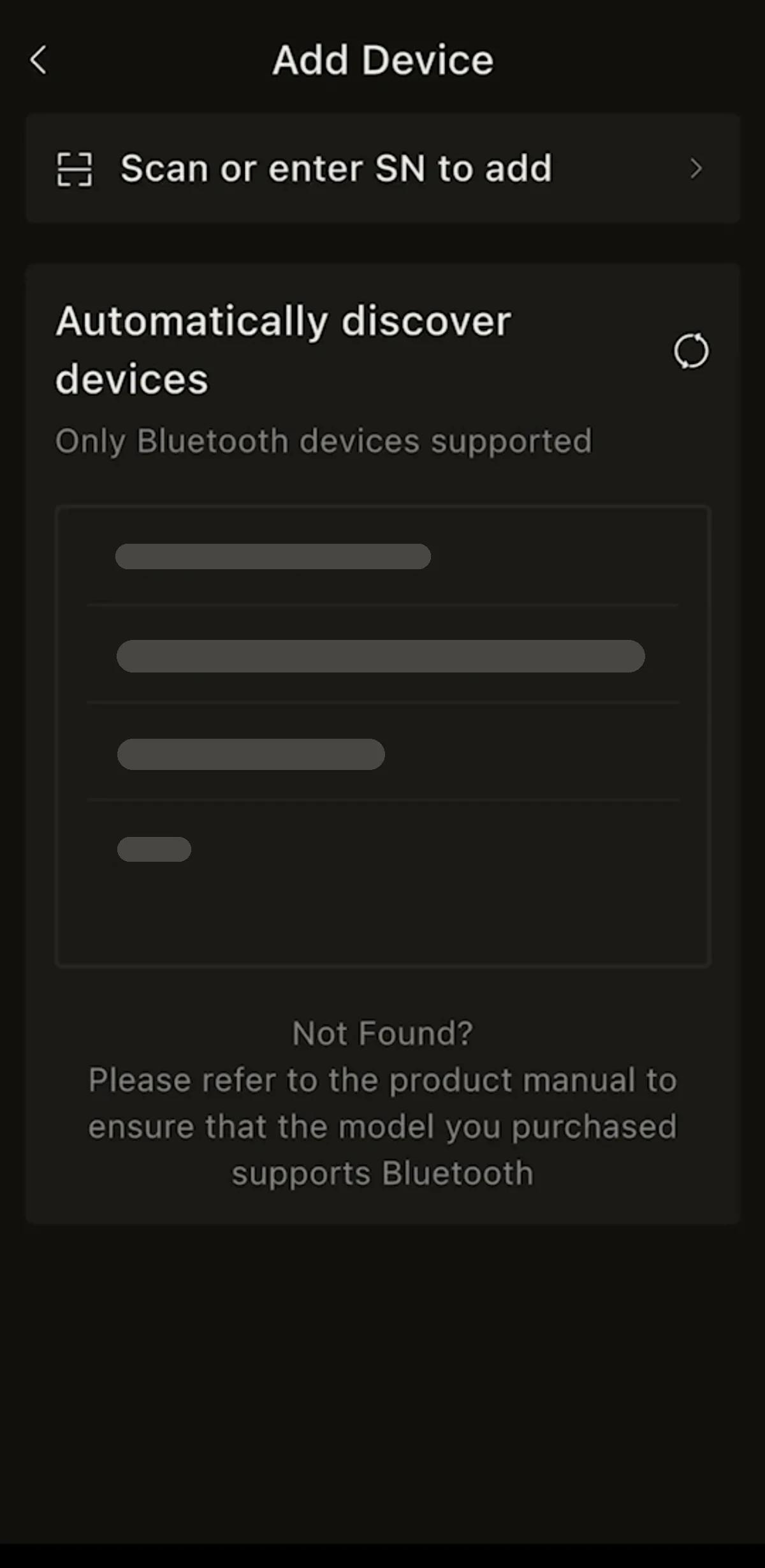
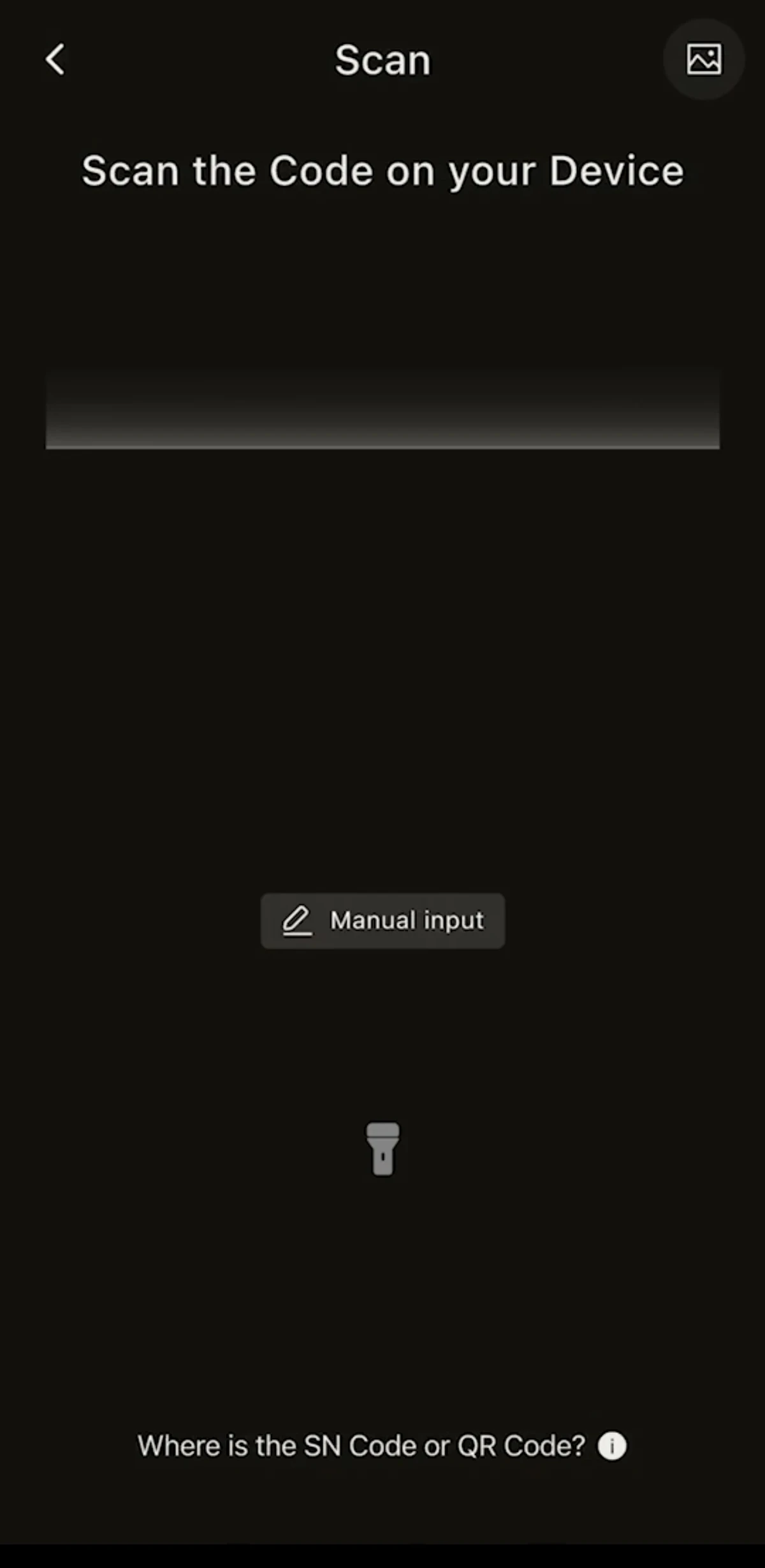
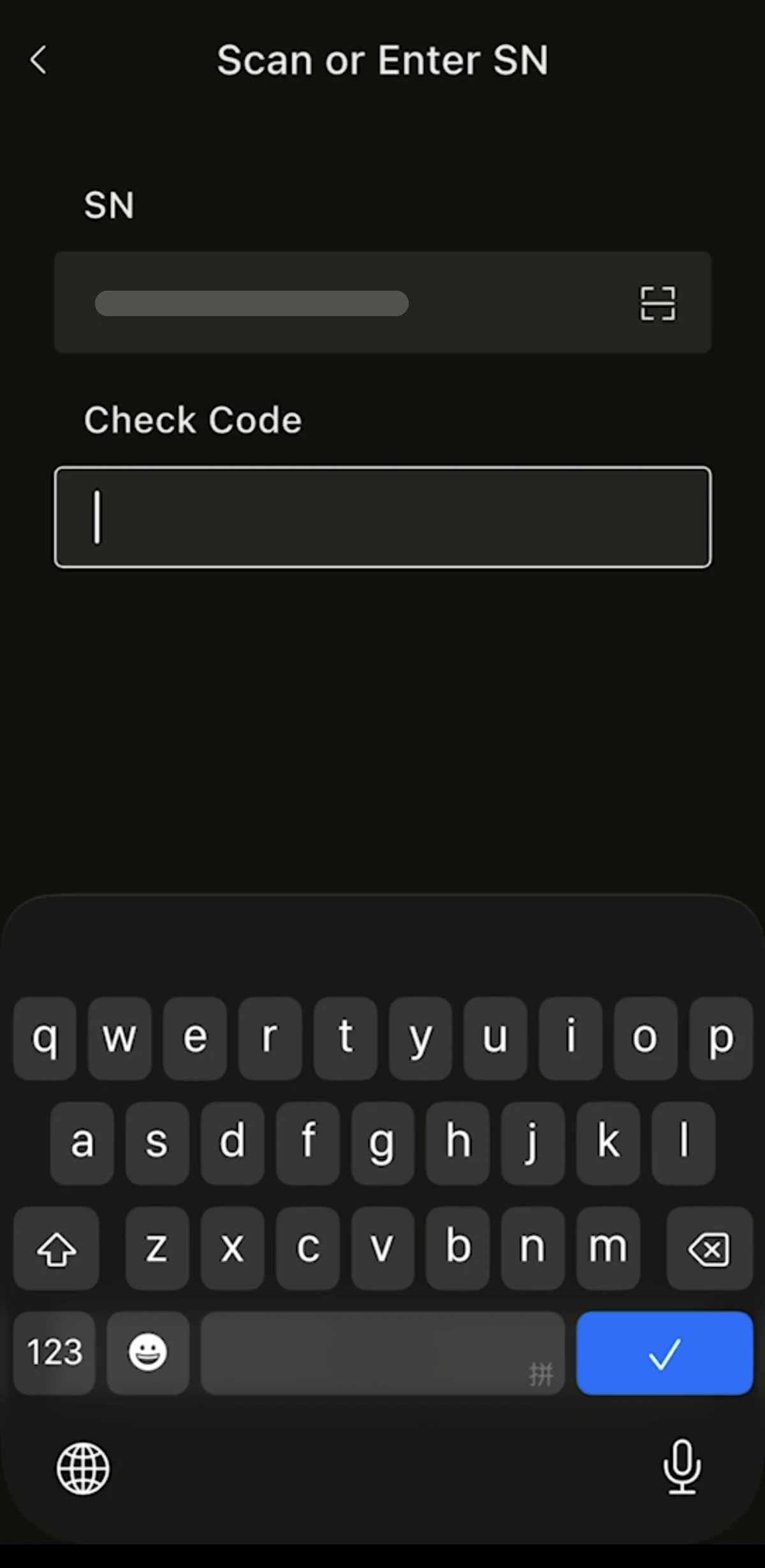
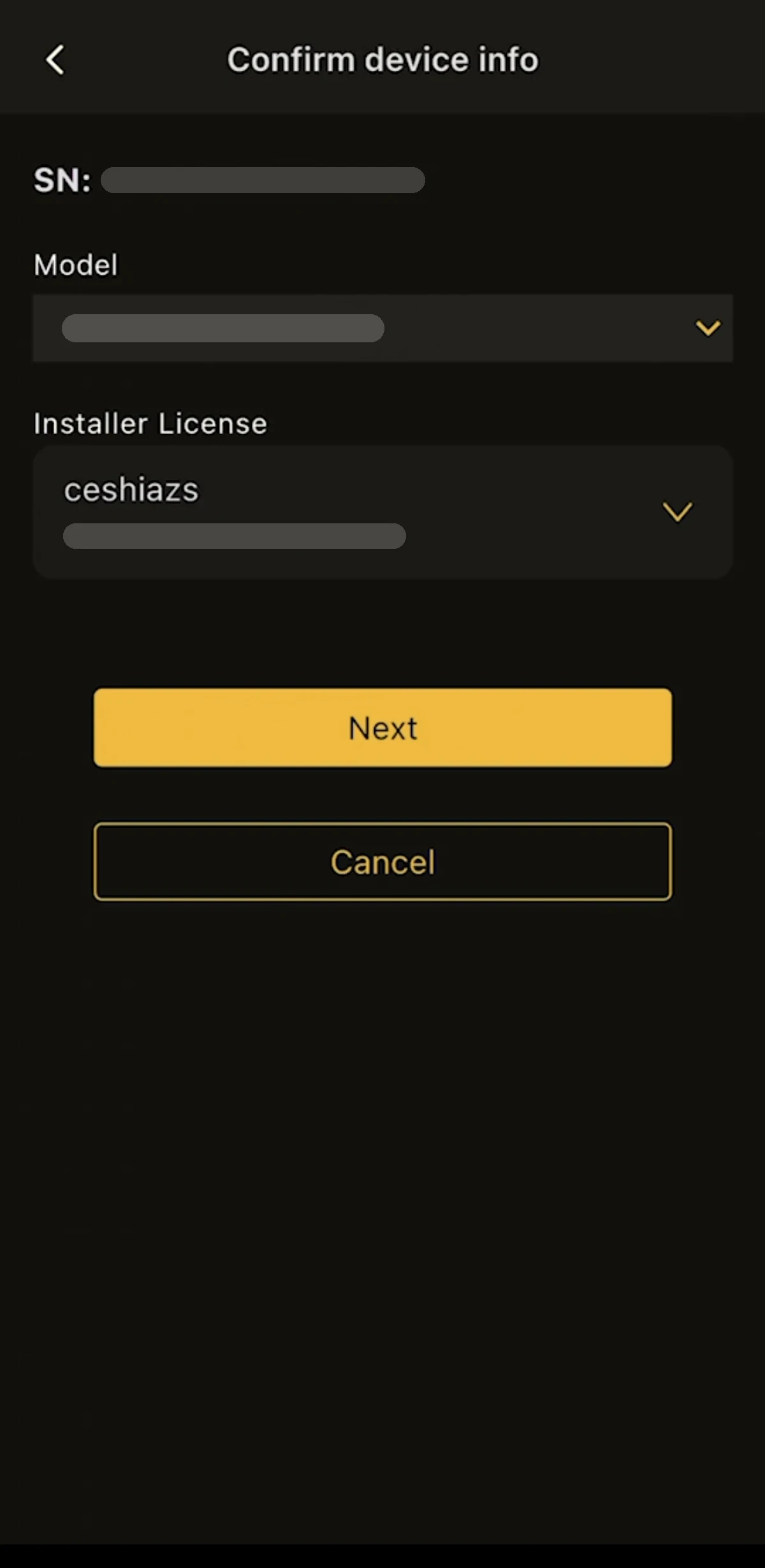
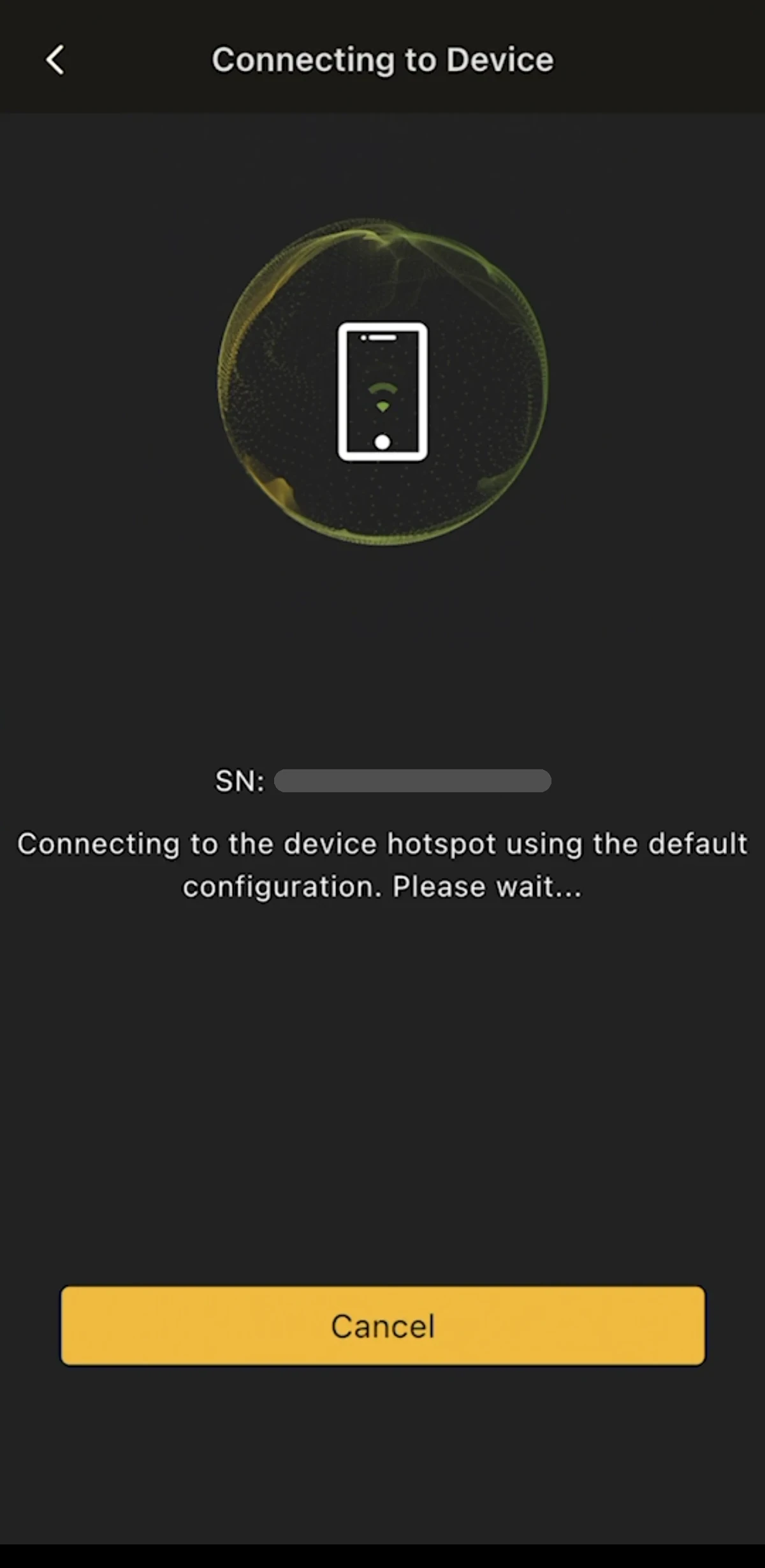
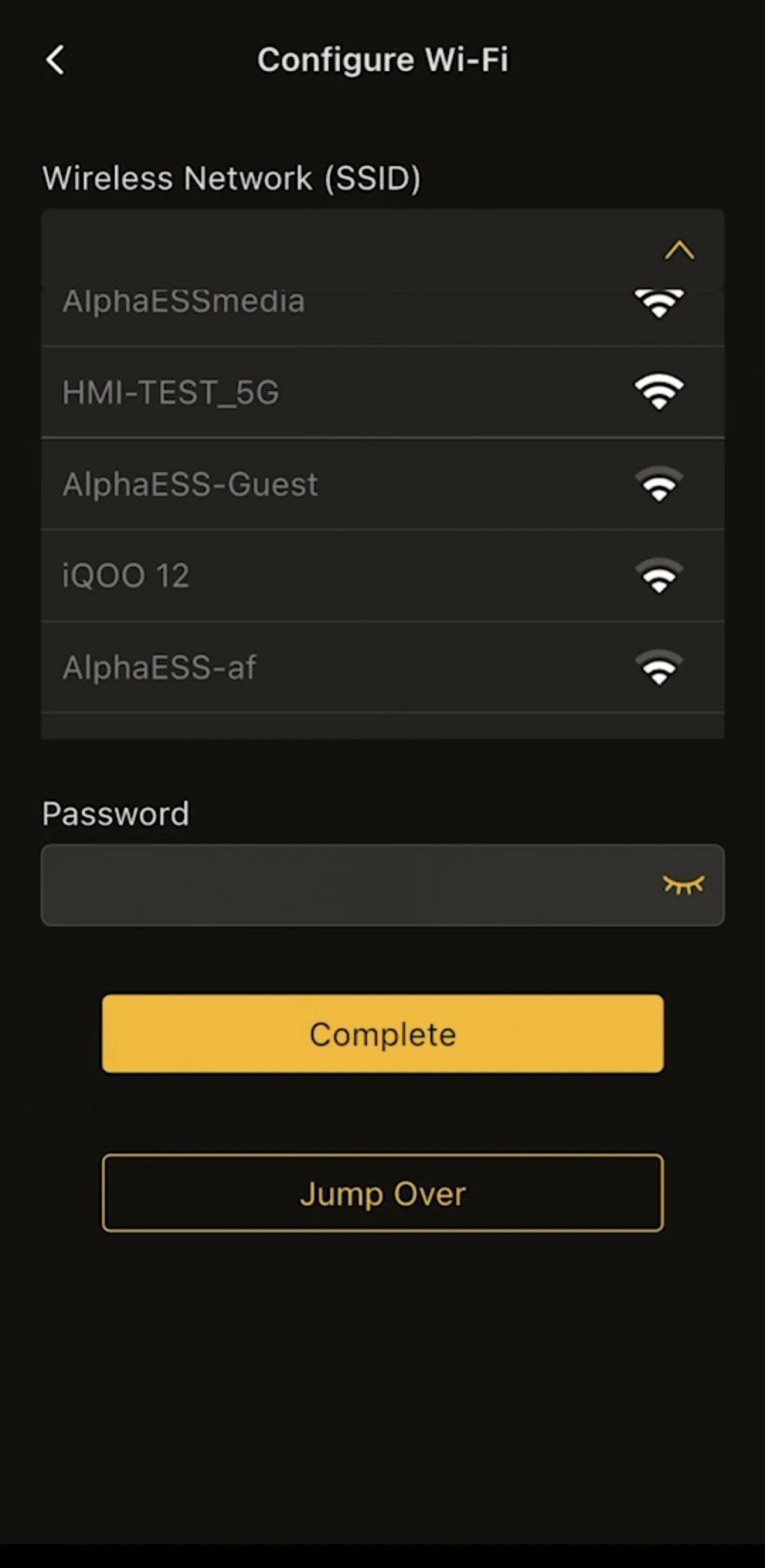
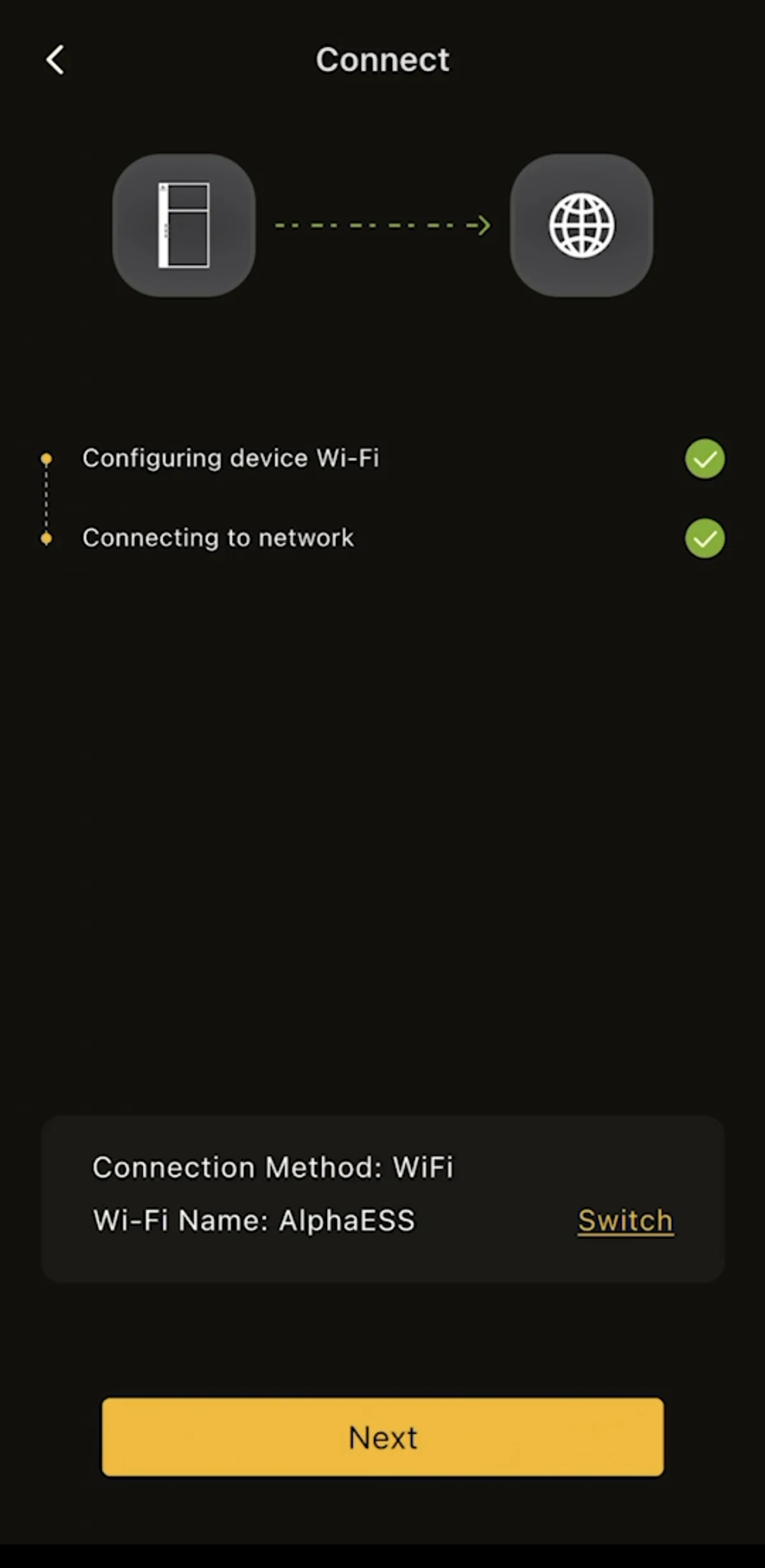
The screenshots below follow steps 1–7. Please view them from left to right and top to bottom.
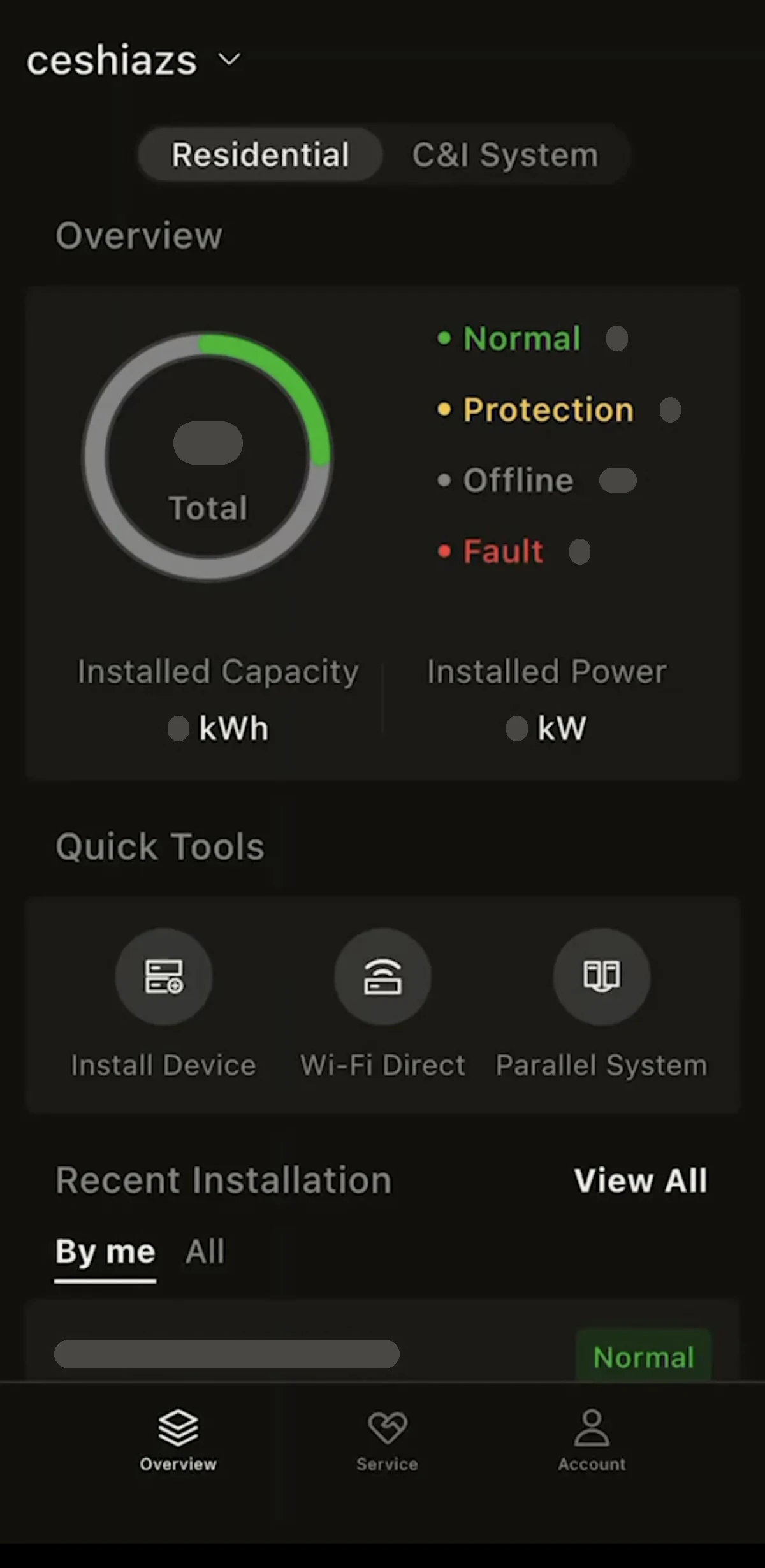
- In Quick Tools, tap Install Device.
- On the Add Device page, the app automatically discovers nearby devices over Bluetooth, usually named beginning with "AL", matching the device SN. (Only Bluetooth devices are supported; if your device does not support Bluetooth, it will not be found.) Select your device, or tap Scan or enter SN to add to scan the code on the device (tap Manual input to type it instead).
- On the Scan or Enter SN page, check the SN and enter the device Check Code.
- On the Confirm device info page, check the SN, Model and Installer License, then tap Next.
- Wait for the phone to connect to the device hotspot (Connecting to Device).
- On the Configure Wi-Fi page, select the home Wi-Fi the device needs to connect to under Wireless Network (SSID), enter the correct Password, then tap Complete.
- Wait until Configuring device Wi-Fi and Connecting to network are both complete and the device is online in the cloud, then tap Next.
Entering Basic Information
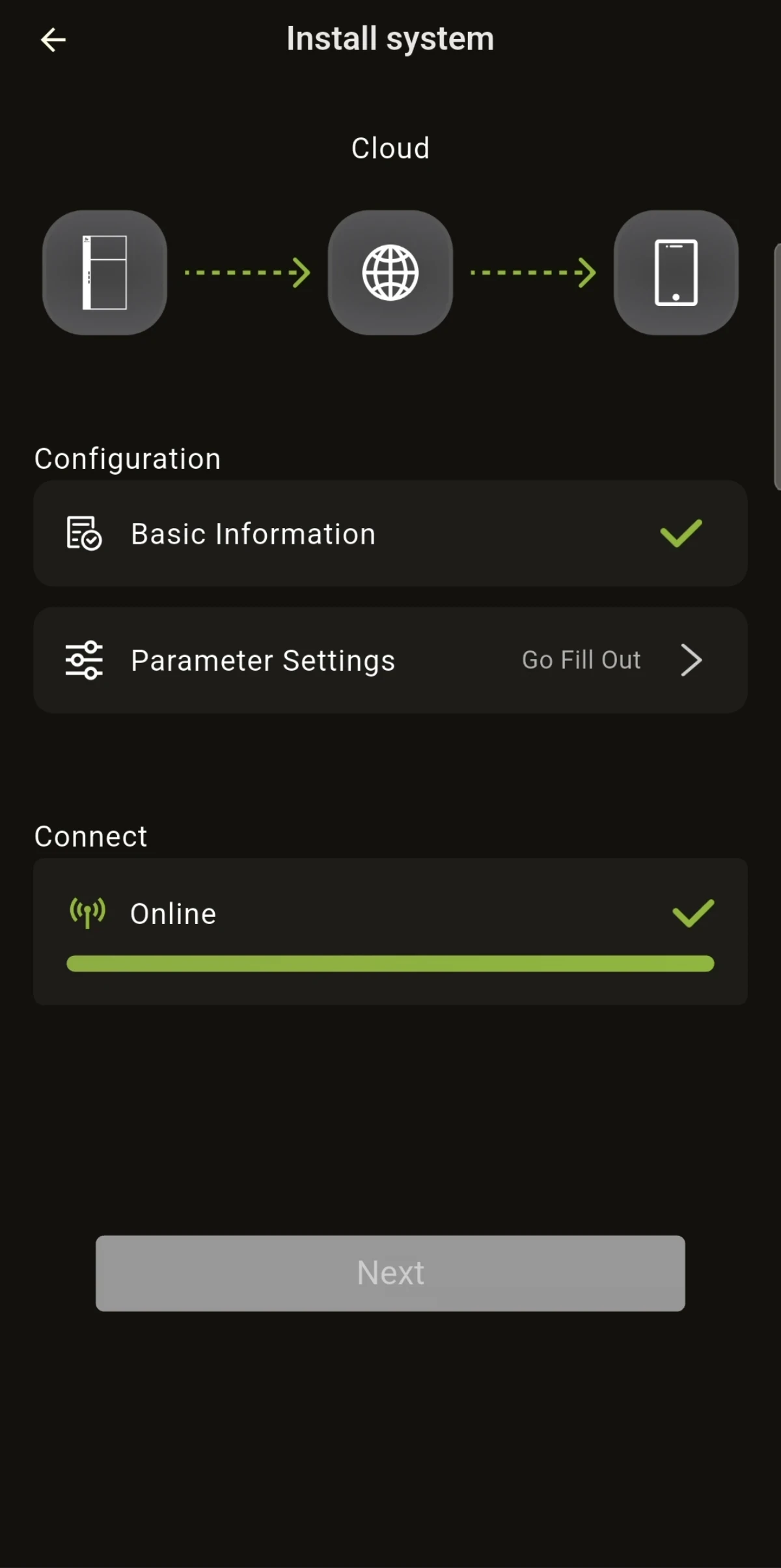
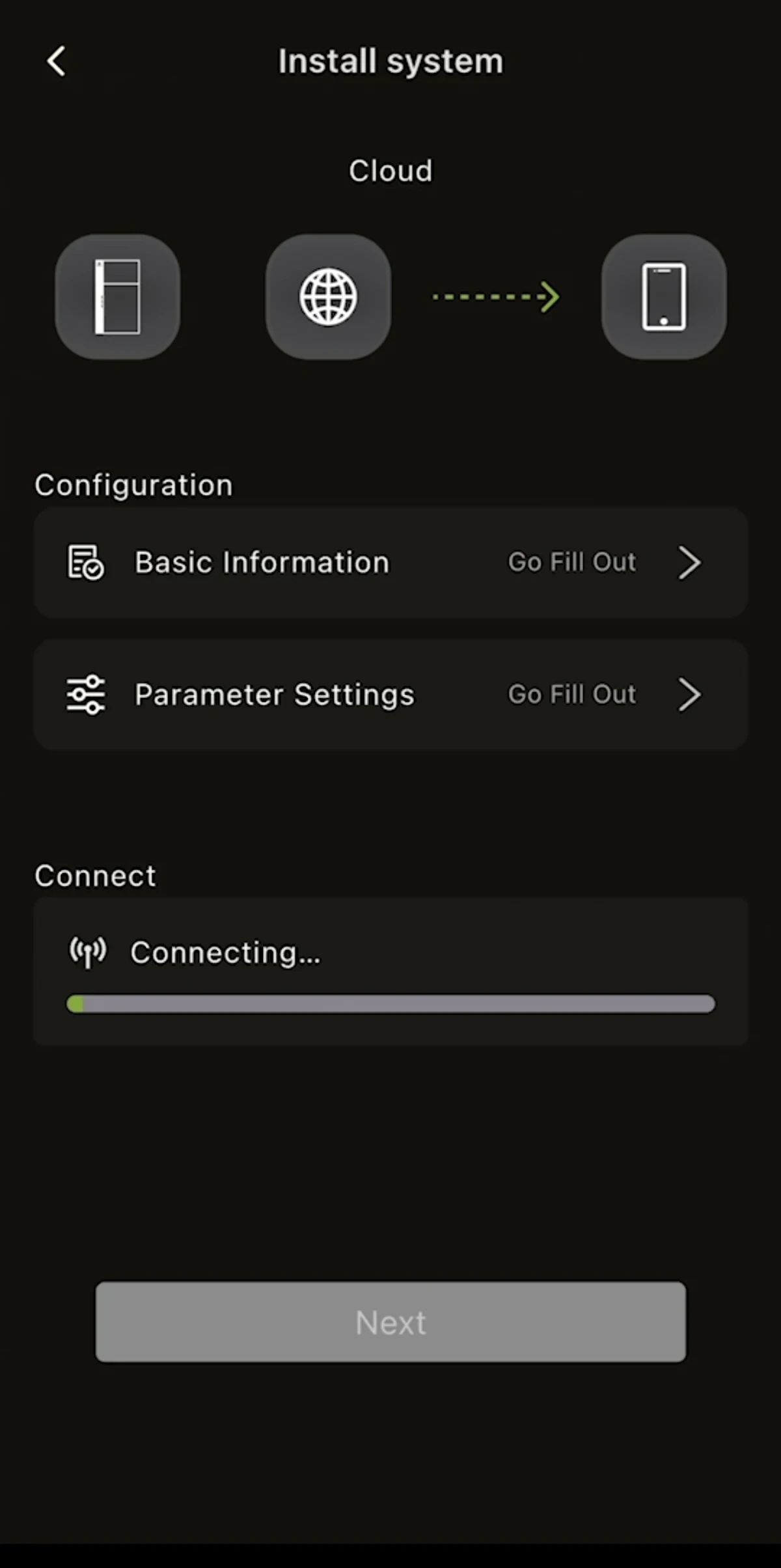
Once the device is online, the Install system page opens. Under Configuration it lists two items, Basic Information and Parameter Settings; under Connect it shows the connection status. Tap Go Fill Out next to each item to complete it. When both items are ticked, tap Next.
- Tap Go Fill Out next to Basic Information.
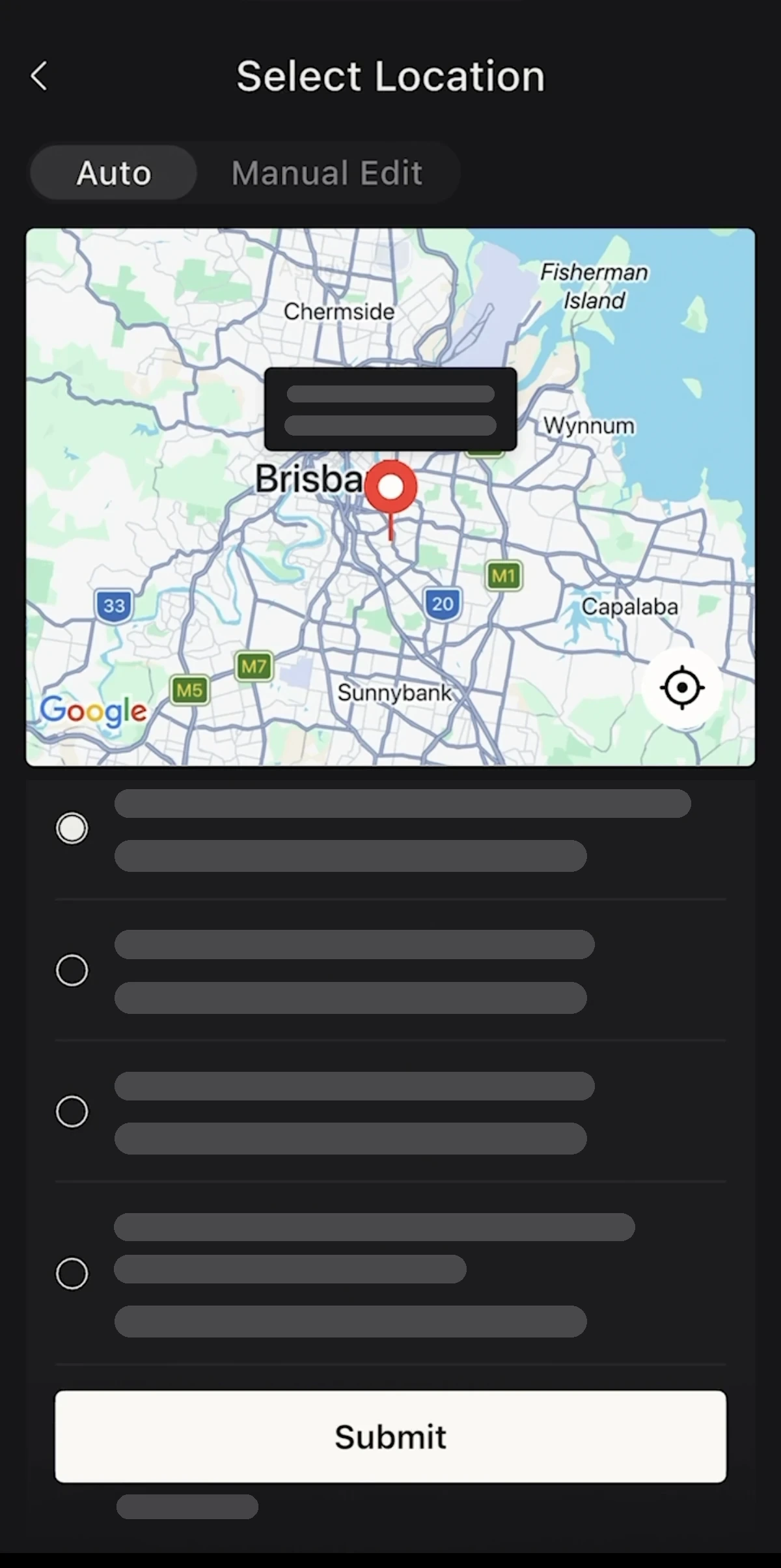
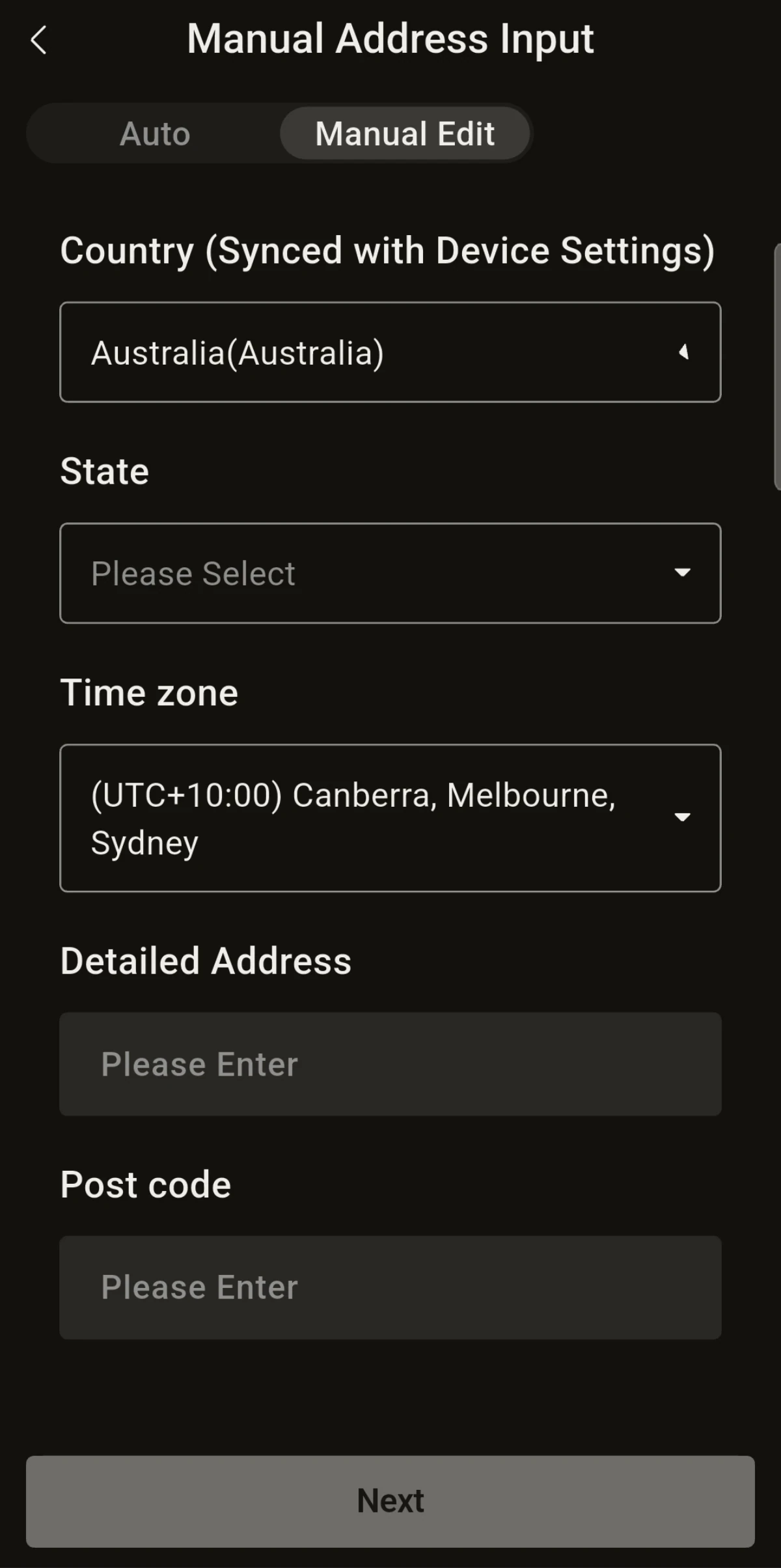
- Set the installation address:
- Auto: locate the site on the map, select the address from the list, then tap Submit.
- Manual Edit: Country is synced with the device settings; fill in State, Time zone, Detailed Address and Post code, then tap Next.
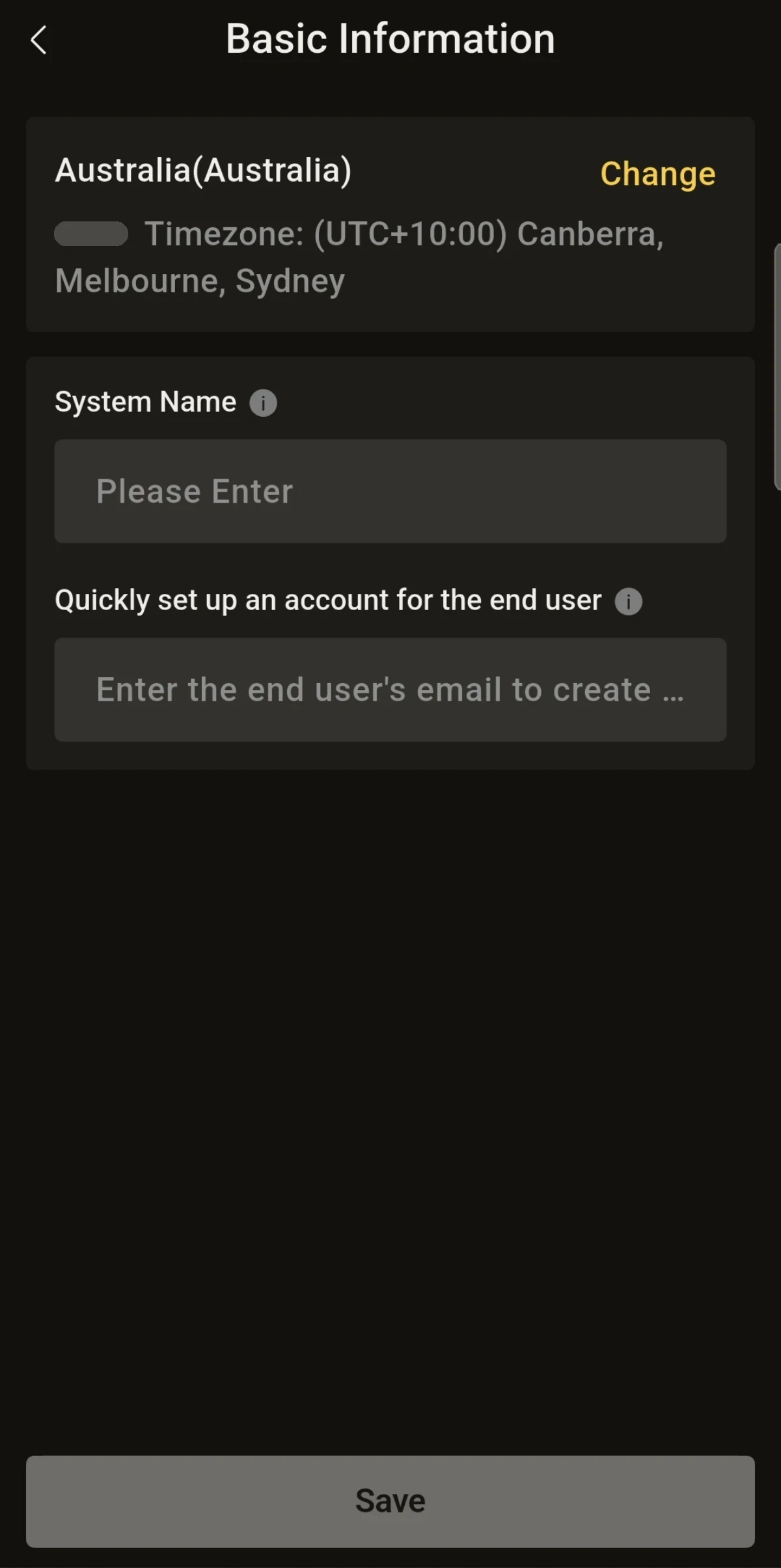
- On the Basic Information page, check the country and time zone (tap Change to edit them), enter the System Name, and enter the end user's email under Quickly set up an account for the end user to create their account. Then tap Save.
Device Parameter Configuration
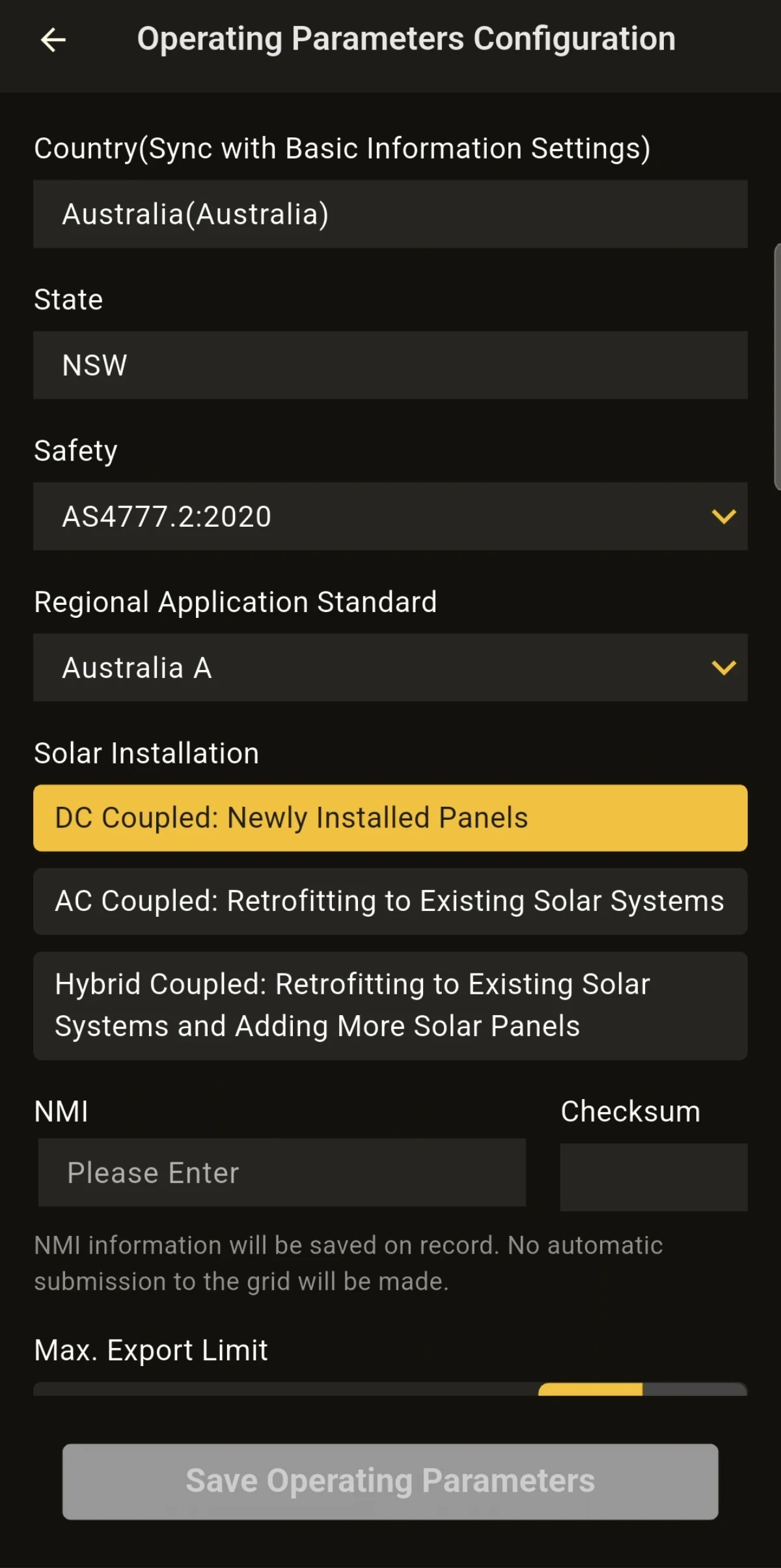
- Tap Go Fill Out next to Parameter Settings. On the Operating Parameters Configuration page, fill in Country (synced with Basic Information), State, Safety, Regional Application Standard, Solar Installation (DC / AC / Hybrid Coupled), NMI and Checksum (AU), Max. Export Limit and other information, then tap Save Operating Parameters.
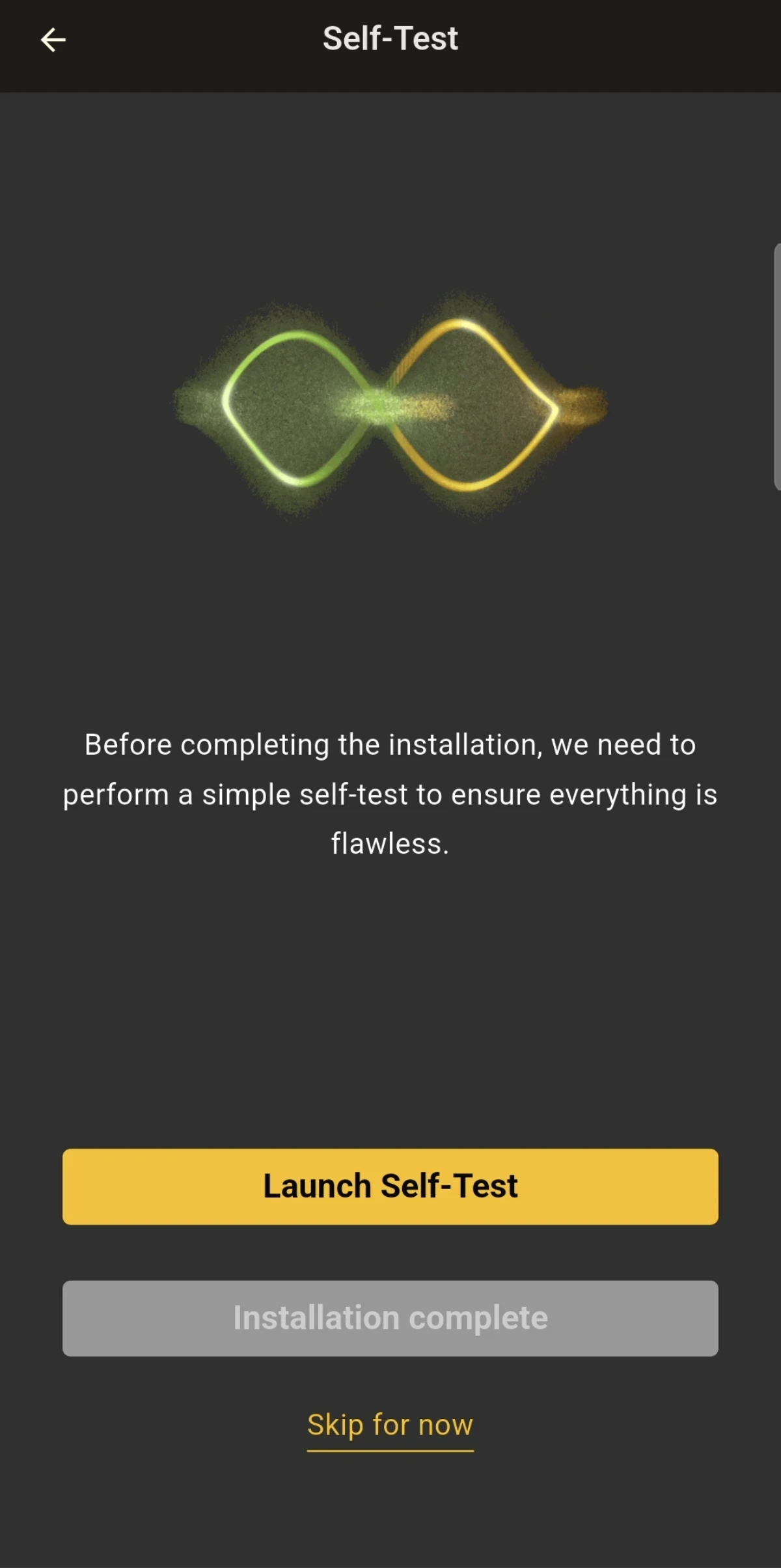
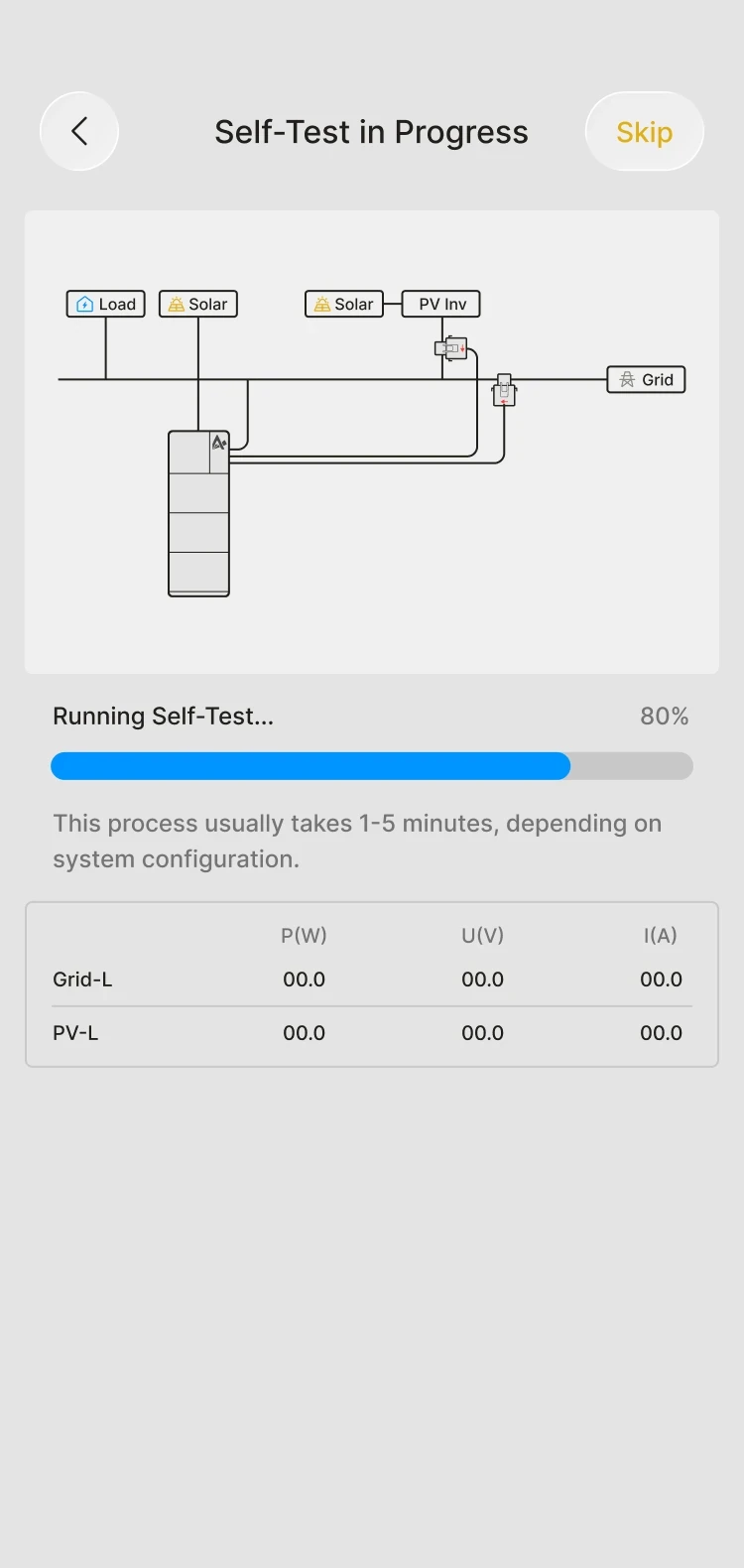
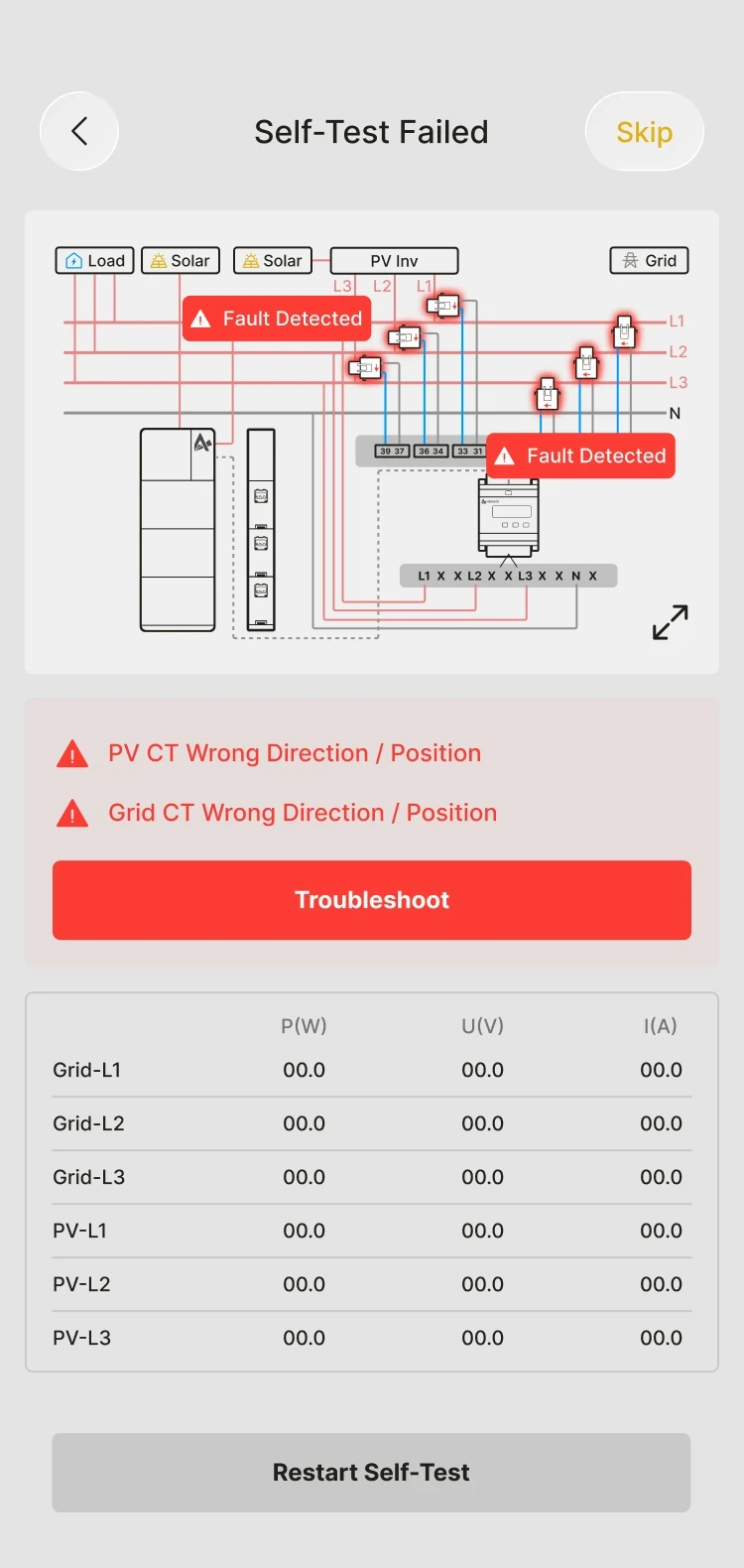
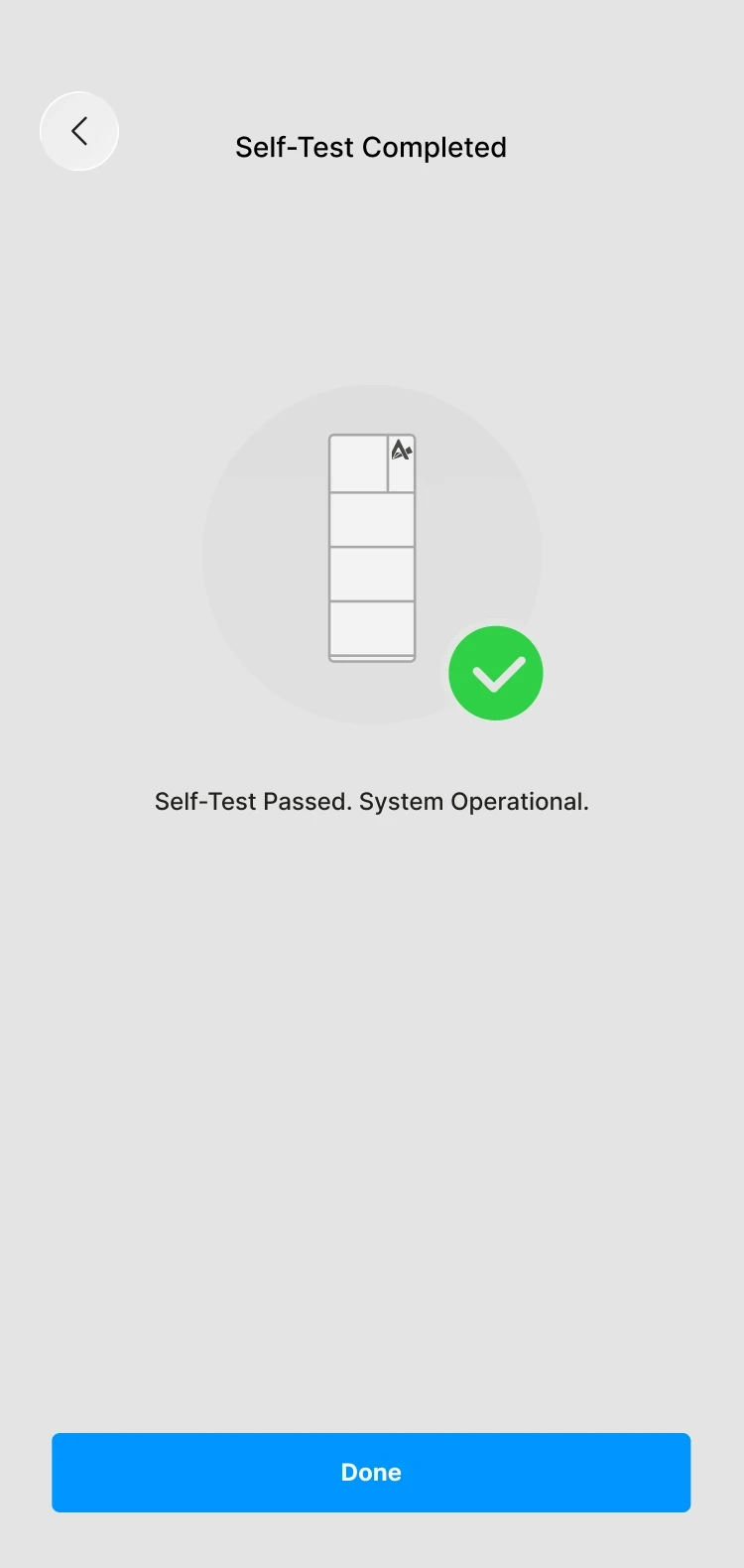
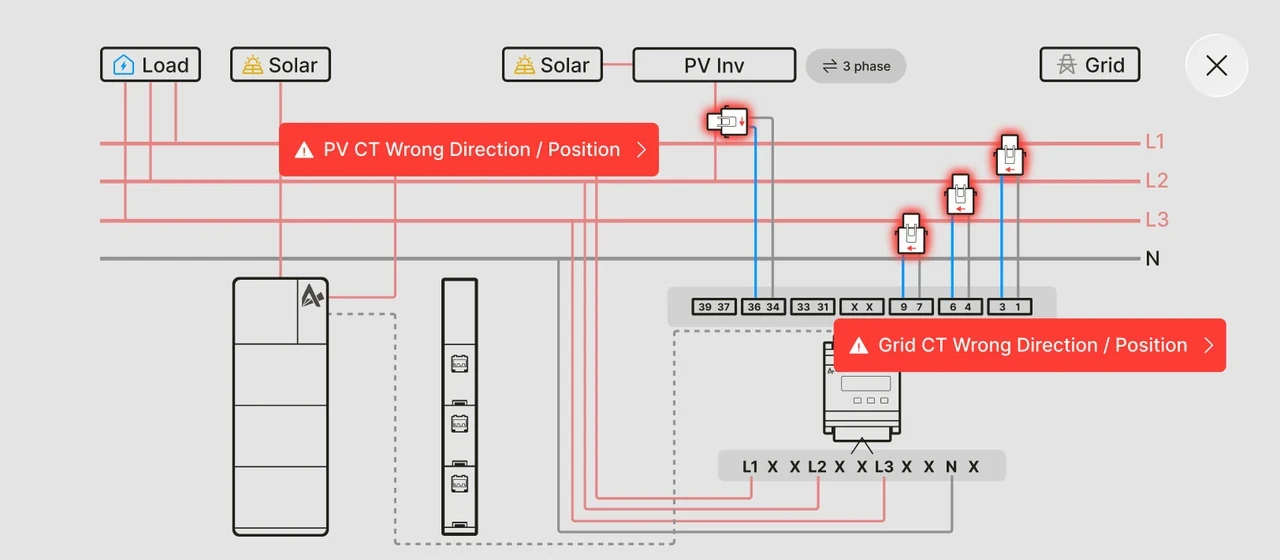
- Choose to run a device self-test or skip it (only some models support the self-test).
Models that support the self-test: SMILE-G3 series, SMILE-M series.