Parallel Installation
Parallel System Installation
- Install each unit individually, one after another (see Standalone Installation).
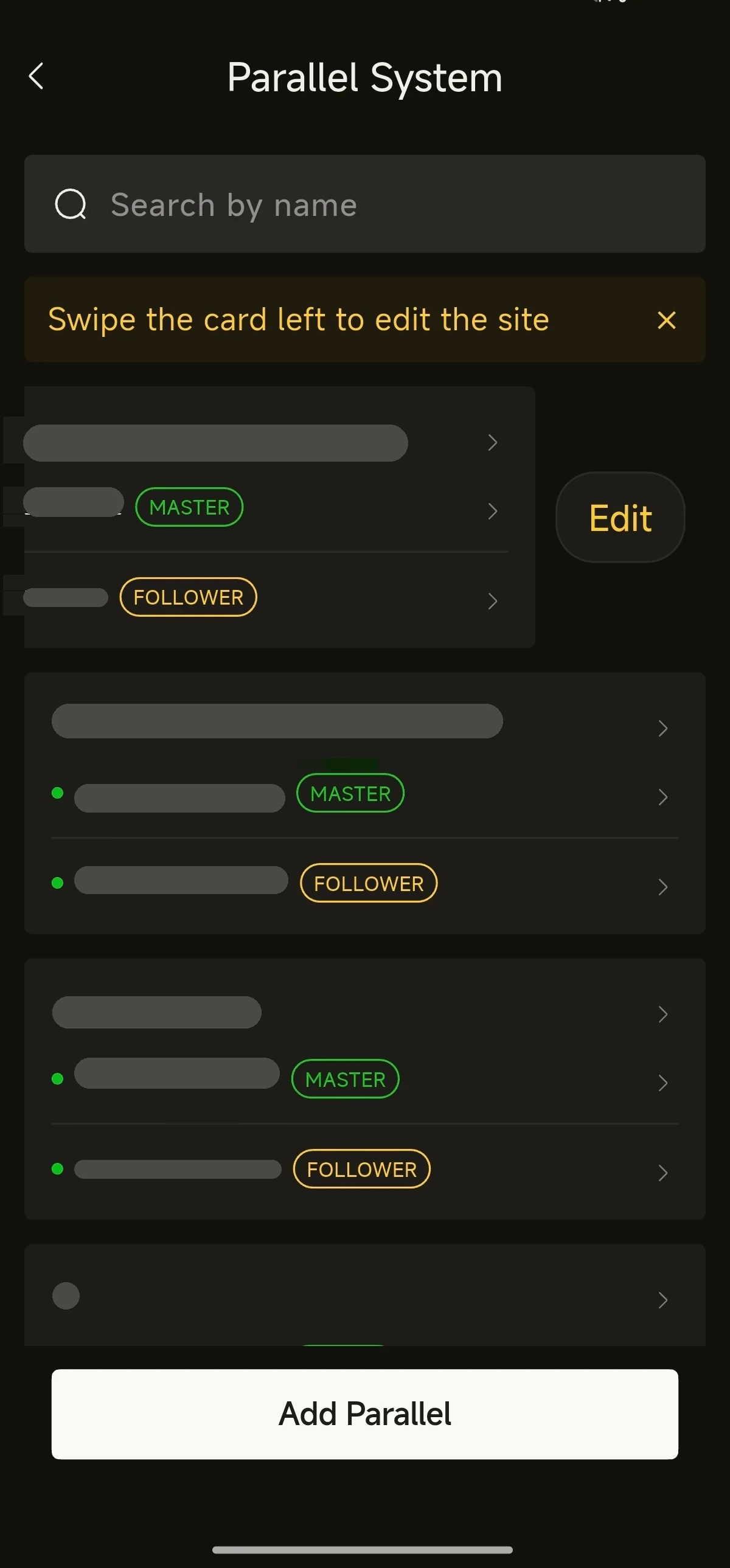
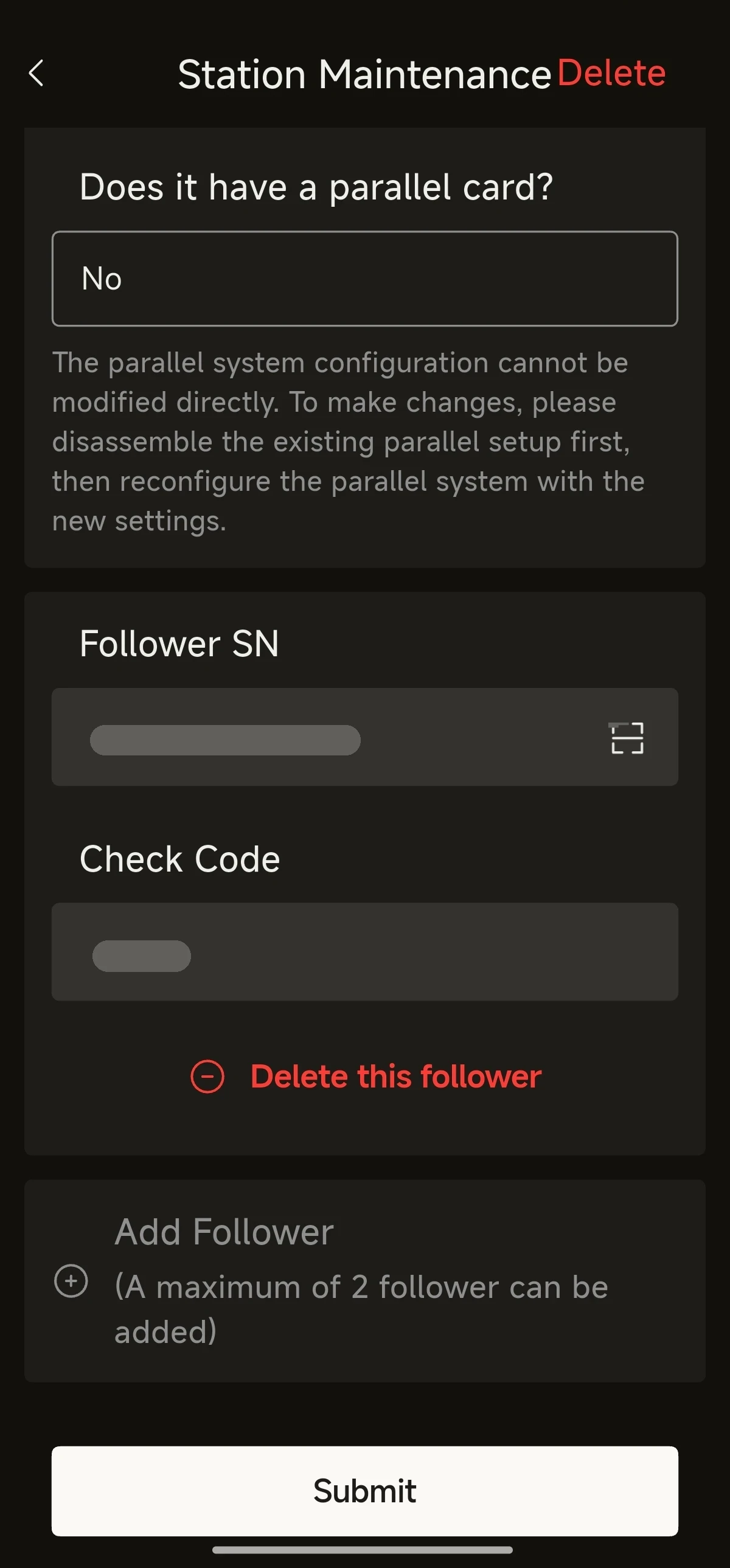
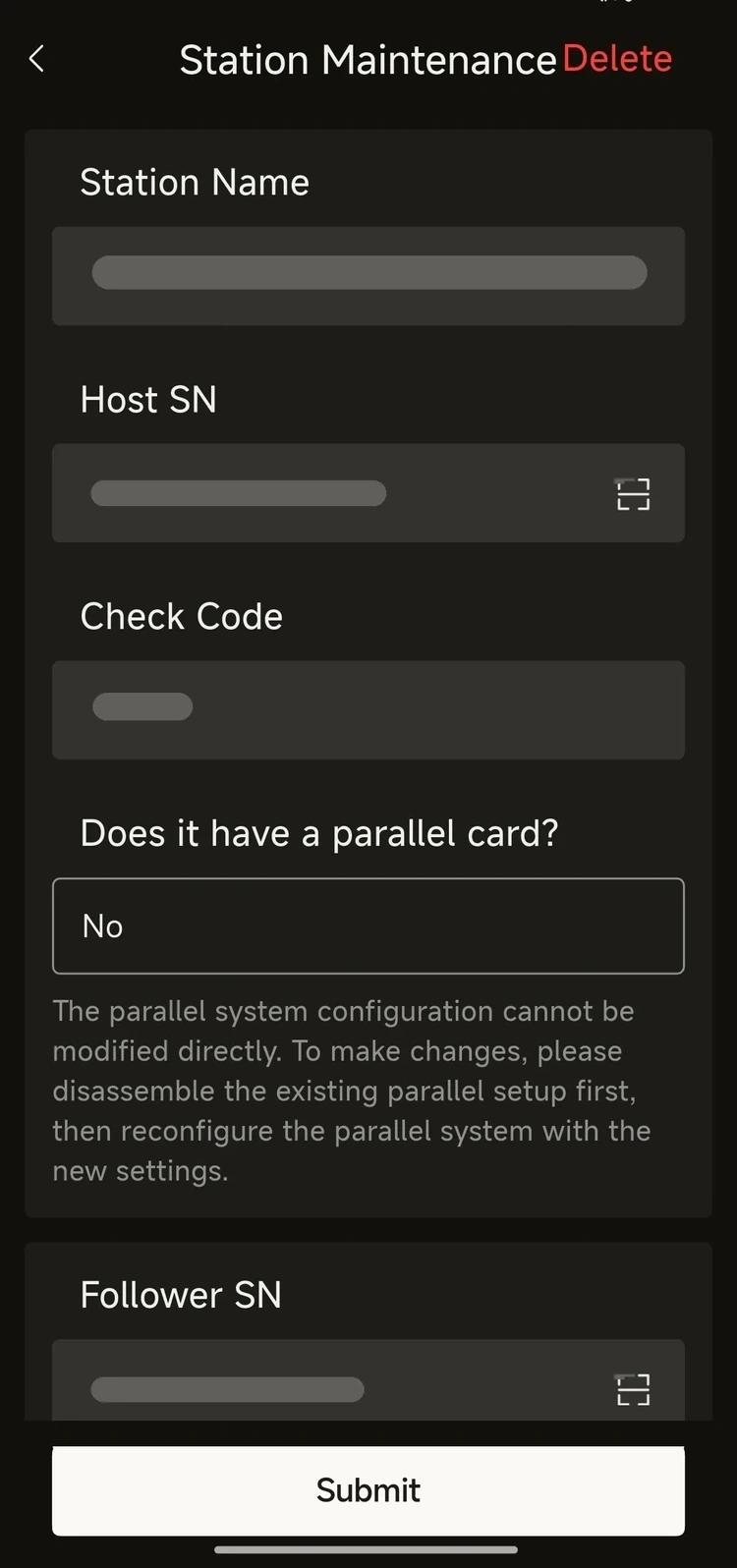
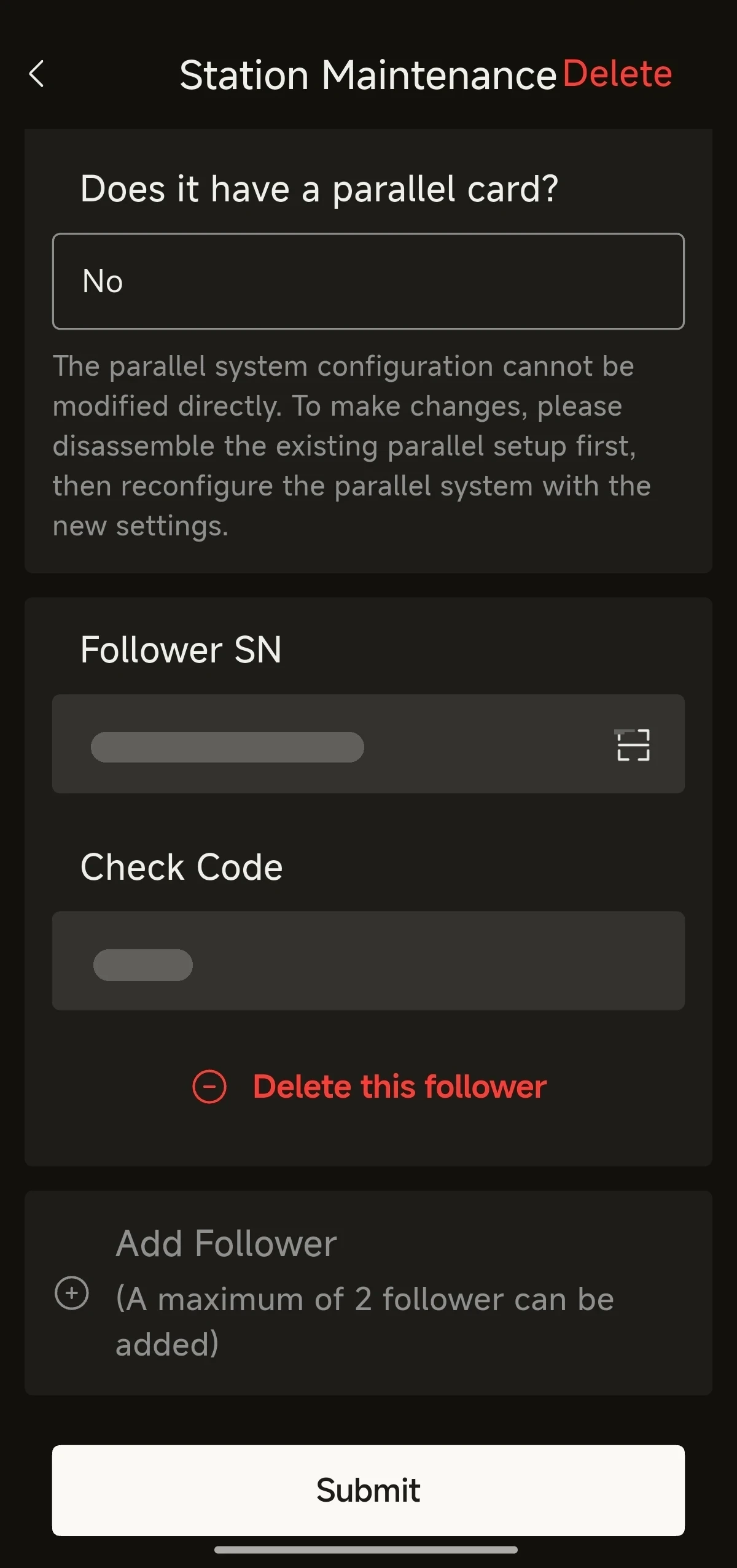
- Select Parallel System in the quick tools, then tap Add Parallel. Enter the Host SN and Check Code of the master unit, then add each follower unit under Follower SN with its Check Code (tap Add Follower; a maximum of 2 followers can be added).
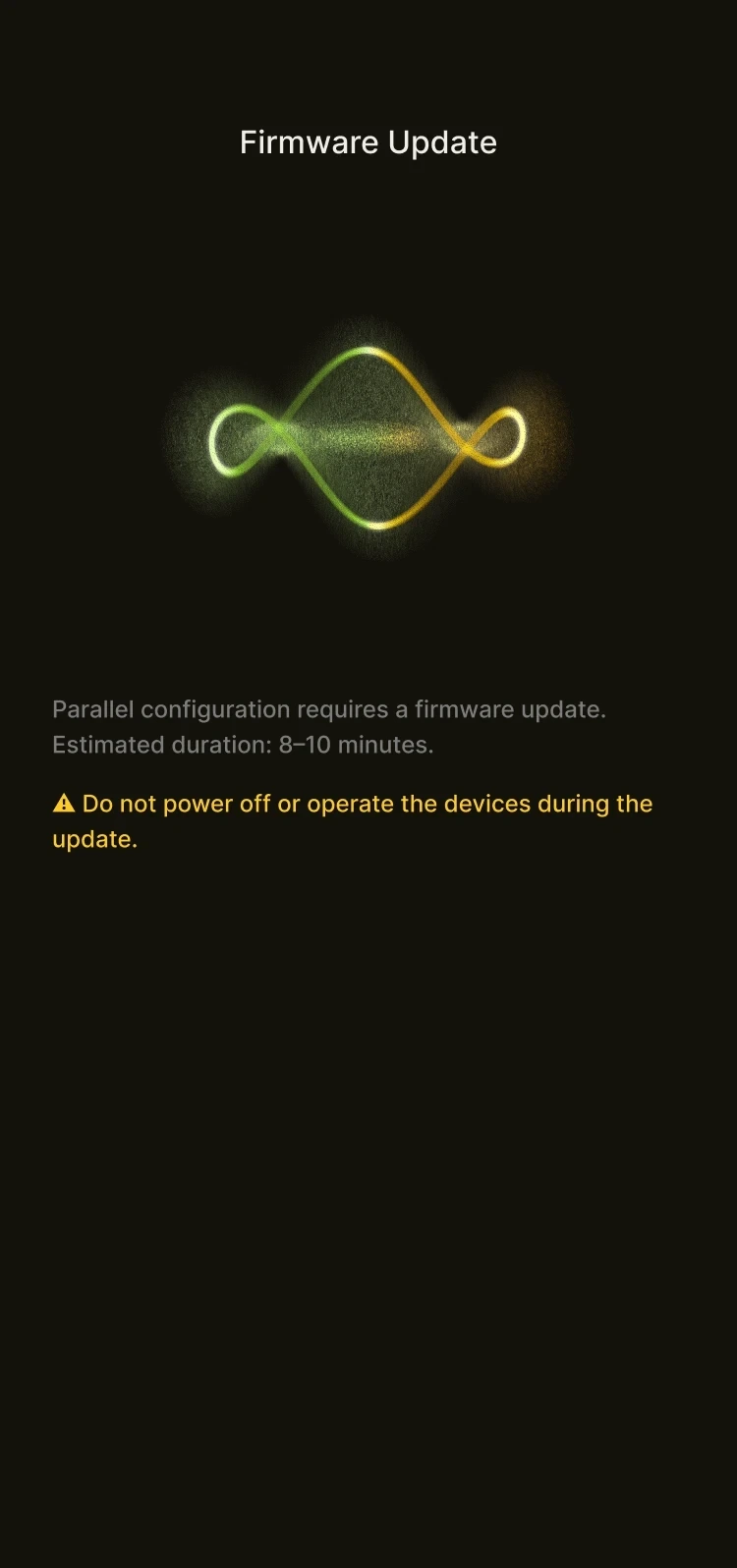
- Tap Submit. The parallel configuration requires a Firmware Update, which takes about 8–10 minutes. Once the update is complete, the parallel installation is finished.
WARNING
- Do not power off or operate the devices during the firmware update.
- The parallel system configuration cannot be modified directly. To make changes, disassemble the existing parallel setup first, then reconfigure the parallel system with the new settings.
Parallel System Management
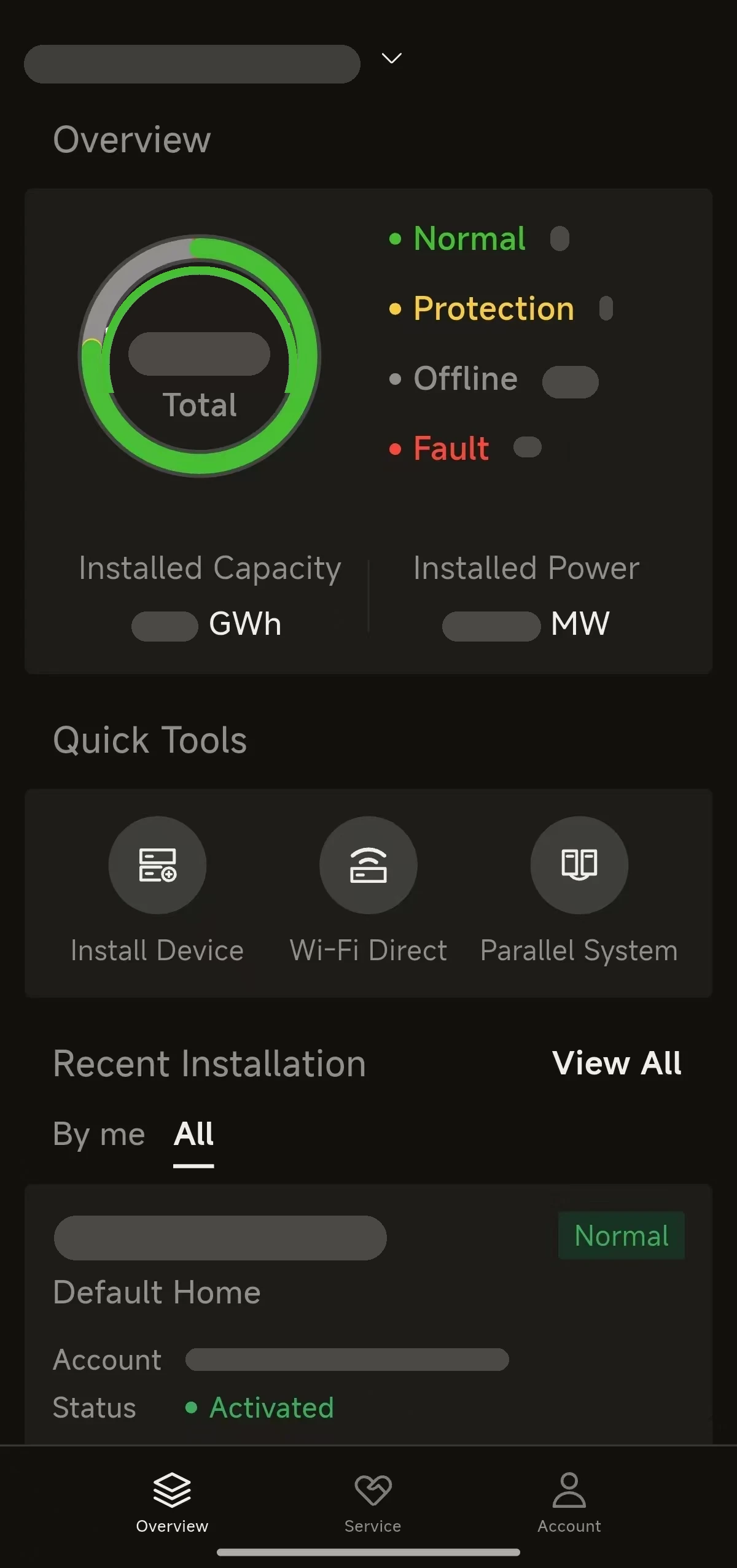
- Select Parallel System in the quick tools on the home page.
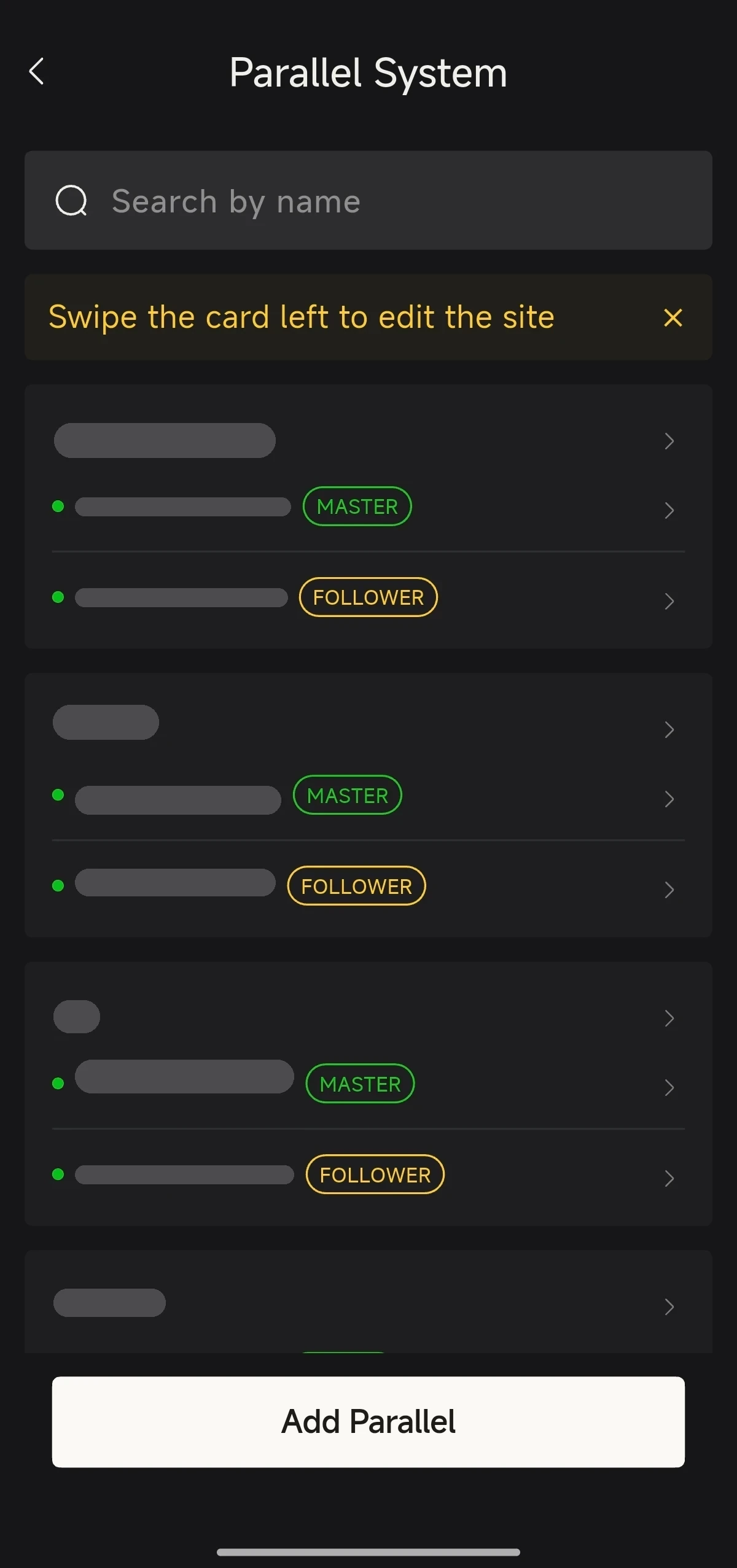
- View the parallel system list, where each site lists its devices labelled MASTER or FOLLOWER, and select a parallel system site to enter.
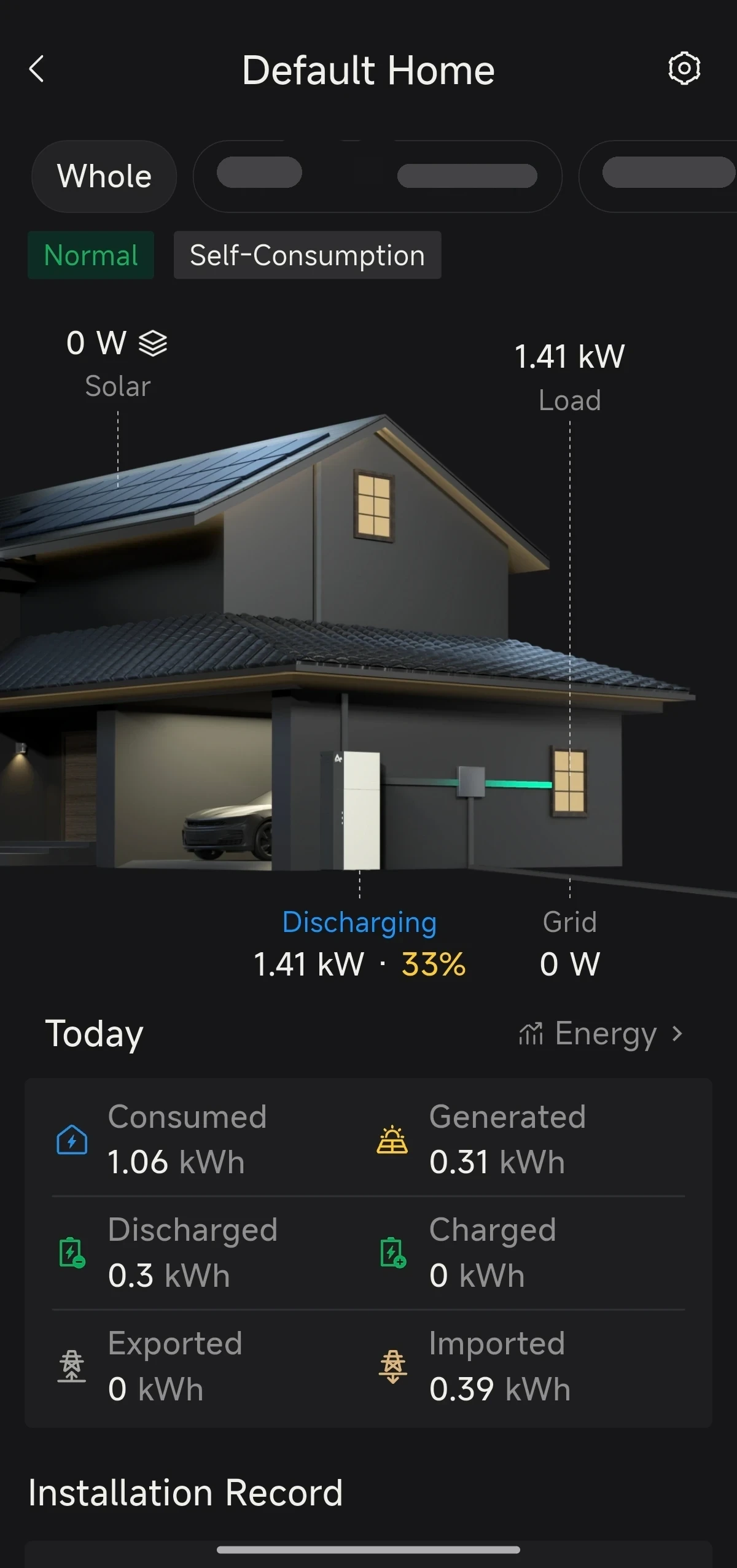
- View the overall operating information for the parallel system site. You can also switch to a single-unit view at the top.
Deleting a Parallel System
- In the parallel system list, swipe the card of the site you wish to remove to the left, then tap Edit.
- On the Station Maintenance page, tap Delete in the top right corner to remove the parallel system site.
Please note:
- Deleting a parallel system ≠ removing devices from the site: once the parallel relationship is dissolved, the devices remain in their original site.
- Removing devices from the site is a separate, second step that must be carried out on its own.