

Device Advanced Settings
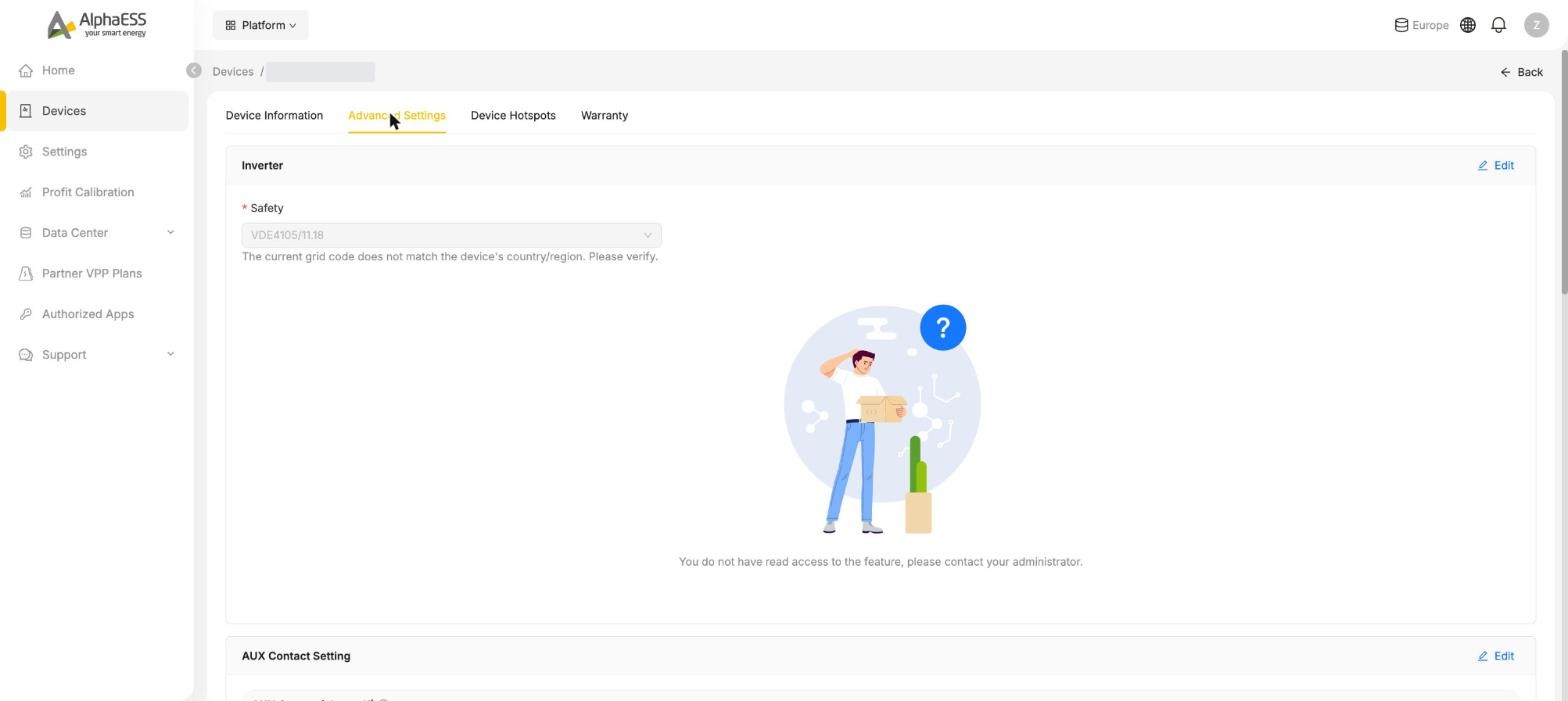
Open Devices, click your storage system's card, then the Advanced Settings tab. It holds the advanced settings that are opened up to homeowners — a subset of what your installer can configure. The tab is built from cards; each card has its own Edit button and is saved separately.
INFO
Availability depends on your device and region. Every card and every field on this tab is switched on per device model, firmware version and country — and the Portal can show a setting to installers but hide it from homeowners. Two systems of different models, or the same model in two countries, will not show the same set. This page is the union of what appears across models; your system shows the subset that applies to it, and a line reading You do not have read access to the feature means a setting exists for your system but is not exposed to homeowners.
WARNING
These settings change how your system actually runs. Not every setting shown here can be changed by you. For safety and regulatory reasons some settings take effect only for installers — they appear read-only or are hidden altogether — and others are locked while your system is enrolled in a VPP plan (see Partner VPP Plans). If you believe a setting is wrong, contact your installer first rather than changing it yourself.
What you may see
| Card | What it controls |
|---|---|
| Inverter | Grid code (Safety) plus model-specific inverter options |
| AUX Contact Setting | One or two dry-contact outputs |
| Diesel engine configuration | Whether a back-up generator is connected |
| Backup Box | Backup Box identity and load management |
| Other Settings | EMS language, Backup Box readiness, VPP dispatch permission |
| Feed/Buy power | Export ceiling and grid import limits |
| Feed-in Control | Scheduled discharge to the grid |
Which of these cards — and which fields inside them — you actually see varies with your device model, its firmware and your country. Please check your own system rather than relying on this list.
INFO
The descriptions on this page explain how a setting works where your device and region provide it. They are not a statement that any particular system has the feature: the functions available are defined by the device itself, and a card that does not appear on your system is not supported by it. Always go by what your actual device offers.
Inverter
- Safety — the grid code the inverter follows for your country (for example VDE4105/11.18 in Germany, G98 in the UK, CEI 0-21 in Italy). It is set during installation to match local grid regulations.
- Maximum Grid Charging Power (kW) — on some models: the most power the battery may draw from the grid when charging.
- Micro-load Power Support — on some three-phase models: keeps the inverter supporting very small loads instead of idling. On other models this switch sits under Other Settings.
- Shadow Scan — on some models: periodically re-scans the PV strings for the true maximum-power point when panels are partly shaded.
- System Lock with Clear the self-locking state — on some models: releases a protective lock the inverter has applied to itself.
WARNING
If the page warns that the grid code does not match your region, contact your installer — do not change it yourself. A wrong grid code can make the system non-compliant or stop it exporting.
AUX Contact Setting
Passive switch outputs that can switch an external load on or off — for example a heat-pump signal input, a pump or a contactor. Depending on the model you see one channel (AUX Contact) or two (AUX Contact1 / AUX Contact2, on some models labelled AUX Contact(channel1) / (channel2)). Use Open the dry contact to toggle a channel. The contacts must have been wired by your installer before the setting has any effect.
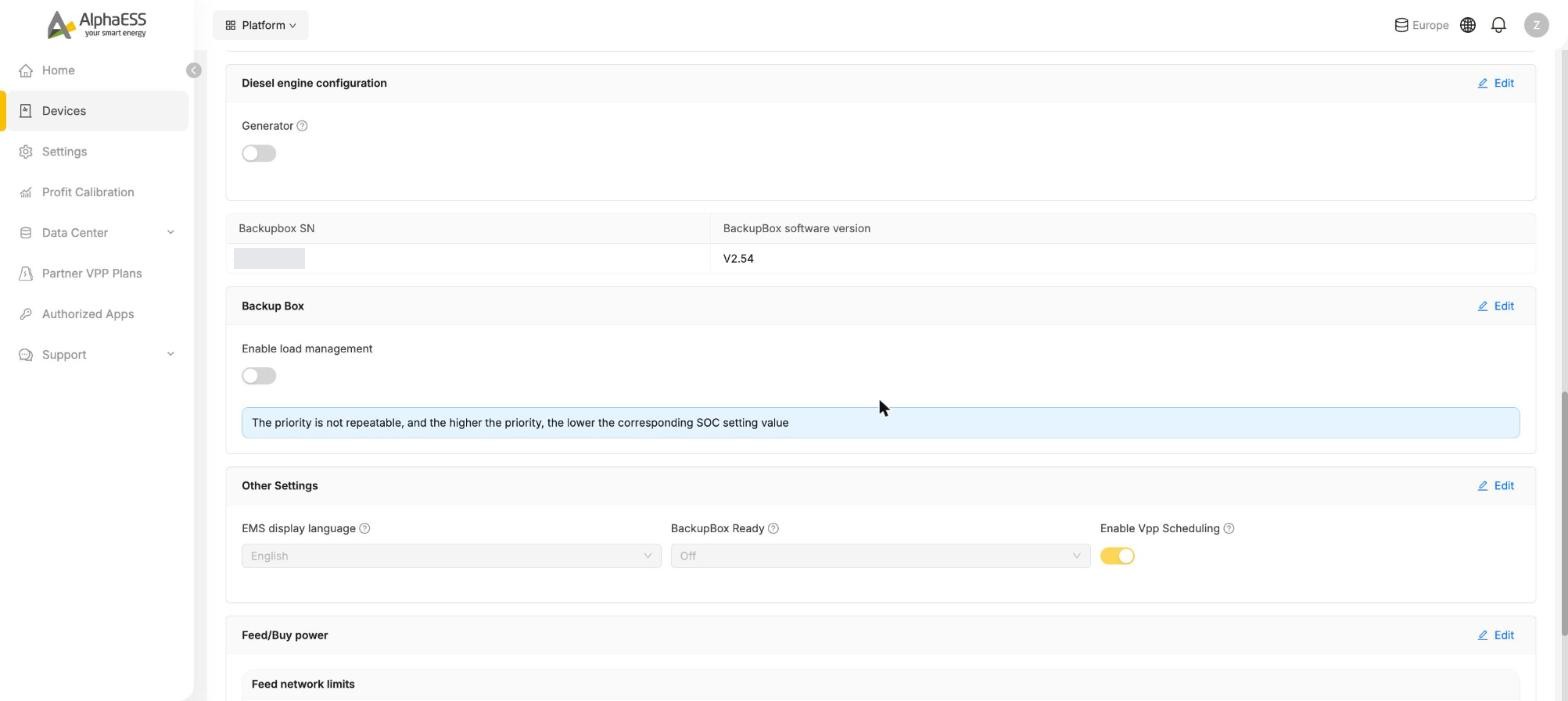
Diesel engine configuration
For systems that can work with a back-up generator. The Generator switch tells the system a generator is connected; further generator parameters appear once it is on. Leave it off if you have no generator.
Backup Box
Shown when a Backup Box is installed. The card lists the Backupbox SN and BackupBox software version, and Enable load management lets you prioritise backup loads: each load gets a priority and an SOC threshold — priorities must be unique, and the higher the priority, the lower the SOC at which that load is still supplied.
Other Settings
- EMS display language — the language used by the system's own energy management interface.
- BackupBox Ready — with a Backup Box: marks whether the backup wiring is ready for use.
- Enable Vpp Scheduling — allows a VPP partner you have joined to dispatch your system. Normally managed together with your VPP plan; switching it off pauses the partner's control.
- Micro-load Power Support — on some models this switch appears here instead of on the Inverter card.
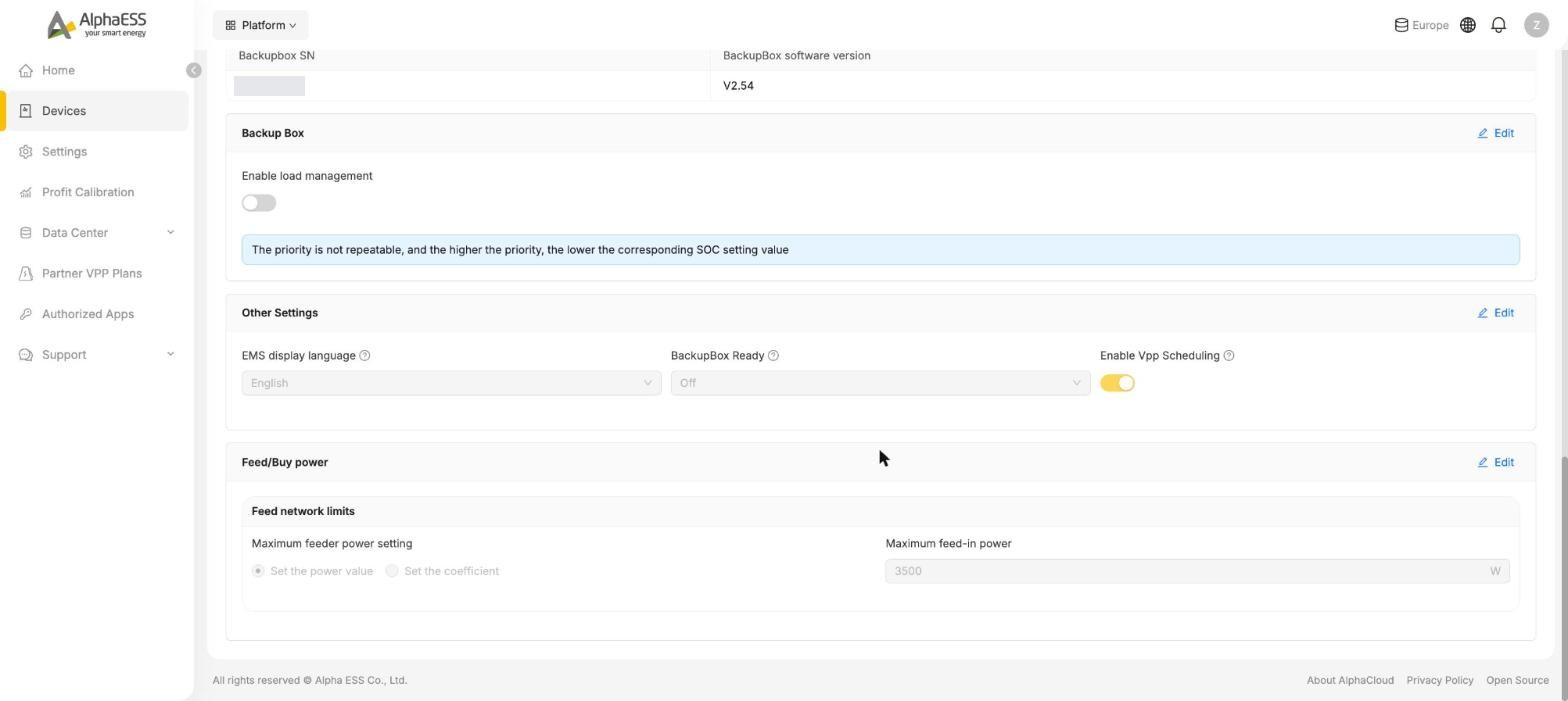
Feed/Buy power
System-wide limits at your grid connection point. The fields differ by model:
| Field | Meaning |
|---|---|
| Maximum feeder power setting | The most power the whole system may export to the grid. Choose Set the power value and enter Maximum feed-in power in W, or Set the coefficient and enter a Max Feed-in Factor as a percentage of the inverter's rated power. Use it where your grid operator caps export — for example a 70 % rule or a zero-export agreement. |
| Maximum feed/take-off power control → Set the feeder power | On some three-phase models: the master switch that turns the export limit on or off. |
| Maximum Current from Grid → Current Draw Current Limit | On some models: caps the current the system draws from the grid — for homes with a small main fuse or a limited connection. |
TIP
This card sets the ceiling on export. It is not the same as Feed-in Control, which actively discharges the battery to the grid in chosen time windows — the ceiling still applies to it.
Feed-in Control
Available only in markets where scheduled export to the grid is allowed. Feed-in Function switches the feature on; you then define when and at what power the battery may discharge to the grid, with cut-off SOC values so the battery is not emptied. Grid Feed-in Energy Report shows how much was exported under this control.
Cards that appear on selected models only
Depending on capability and country, some systems also show cards for SOC calibration (a manual Calibrate Now plus a periodic calibration that keeps the battery-level display accurate — note that a calibration may buy electricity from the grid), peak shaving (peak periods and a peak power value above which the battery covers household load) and power-rationing support (for regions where the utility limits the power a home may draw). If your system shows them, ask your installer before changing values.
💡 The same parameters are also available in the AlphaESS App under Advanced Settings, where you will find further guidance on battery calibration, AUX contacts and Feed-in Control.