Site and System Overview
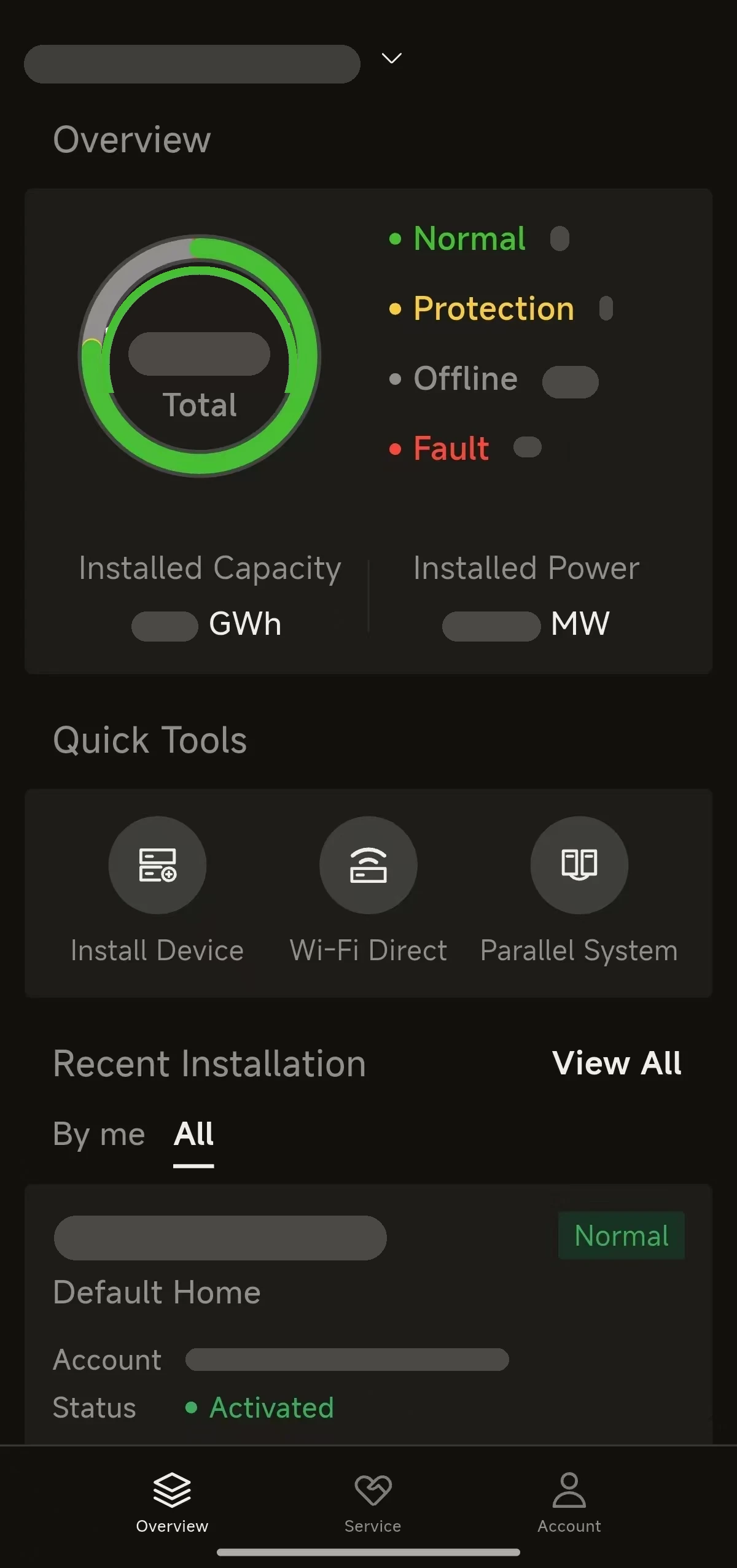
Once the equipment has been installed and commissioned, you can use the site / system overview for day-to-day monitoring. Log in and select your Workspace to access it.
Site / System List
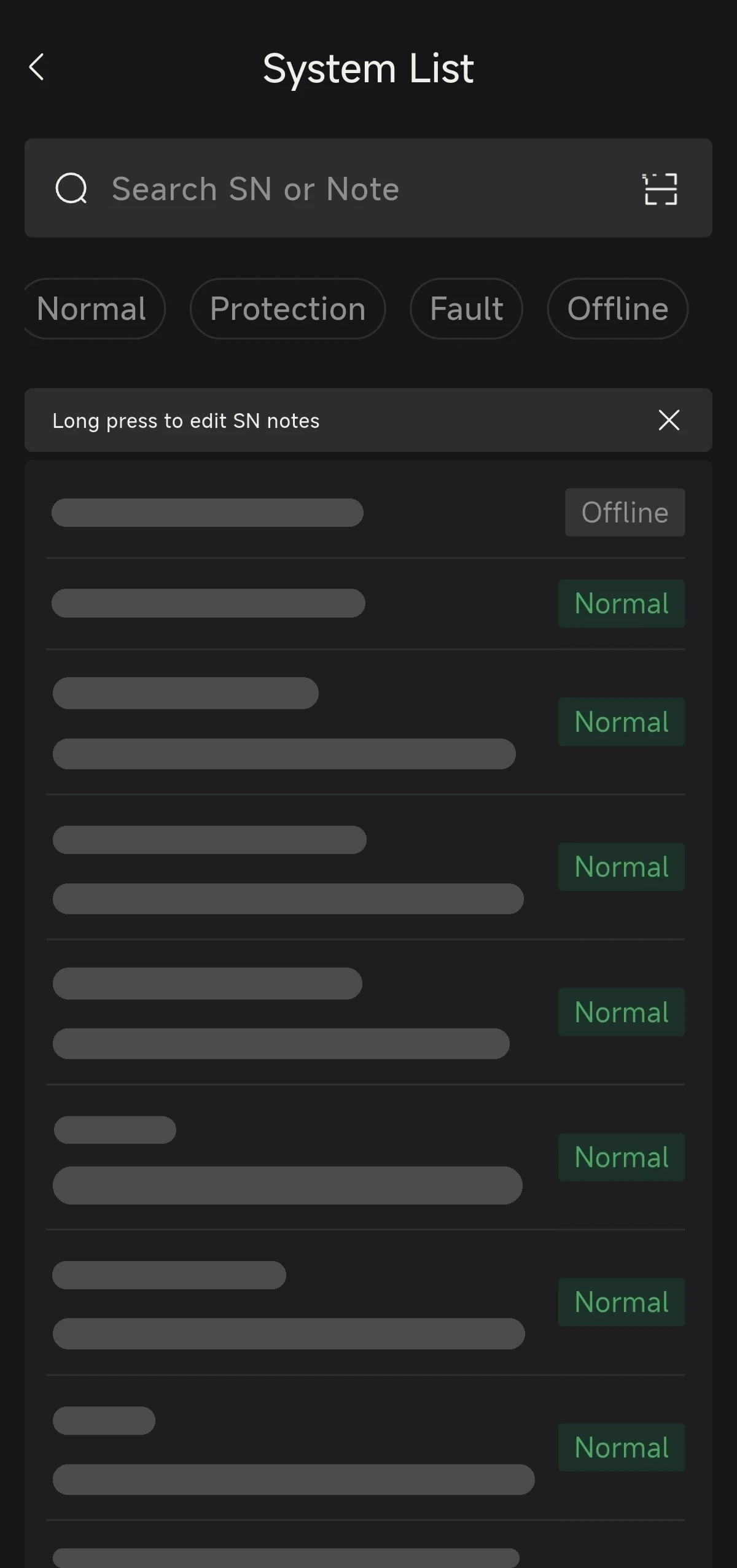
- On the home page, tap the Overview card to open the System List. Here you can search by site name / SN and filter by status: Normal, Protection, Fault or Offline.
- Tap the target site to open its overview.
Overview and Settings
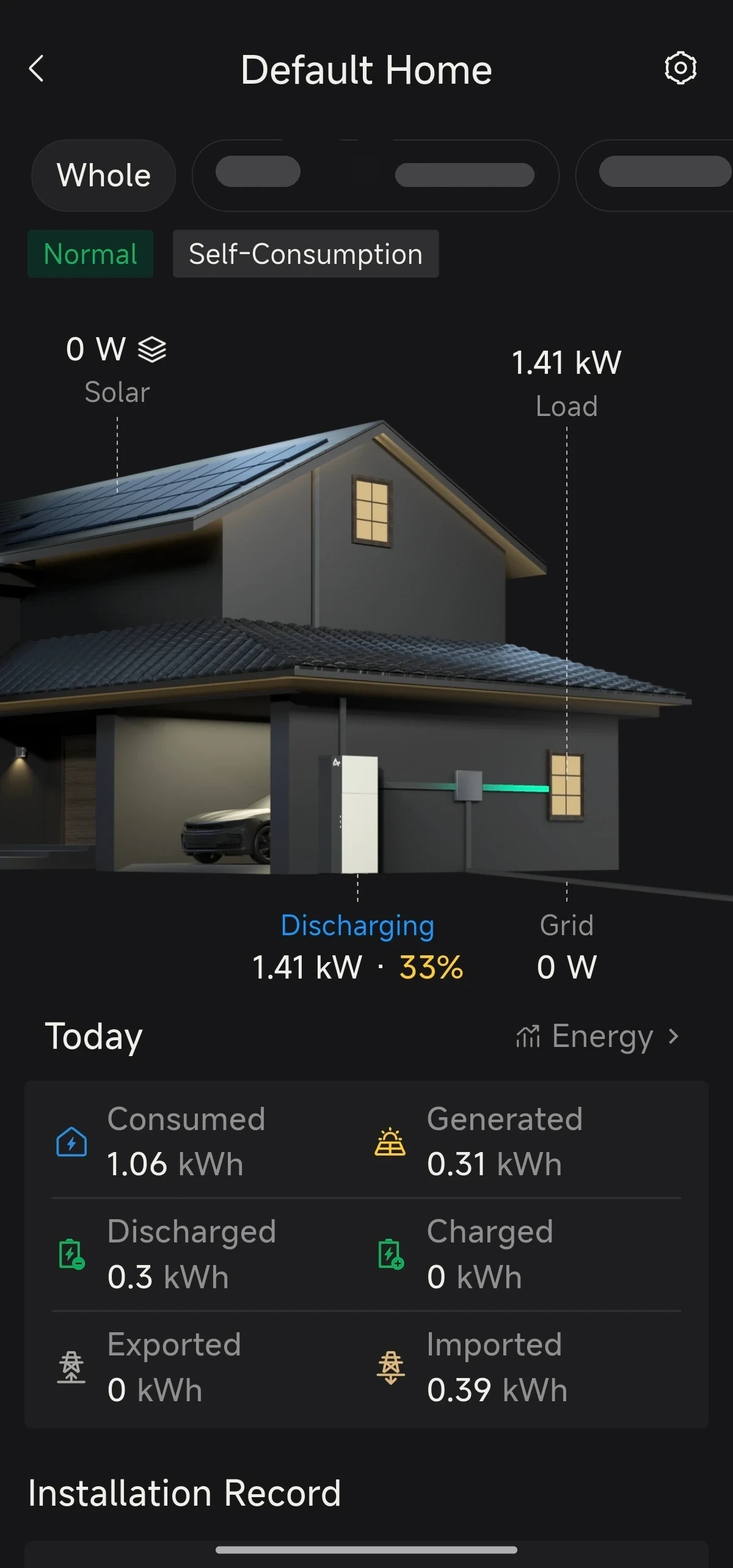
- Status indicator at the top: Normal (all online) / Offline (all offline) / Protection / Fault (a fault is present).
- Energy flow visualisation in the middle: shows the real-time power flow direction and current power values between PV, grid, load, battery (and the EV charger, etc.).
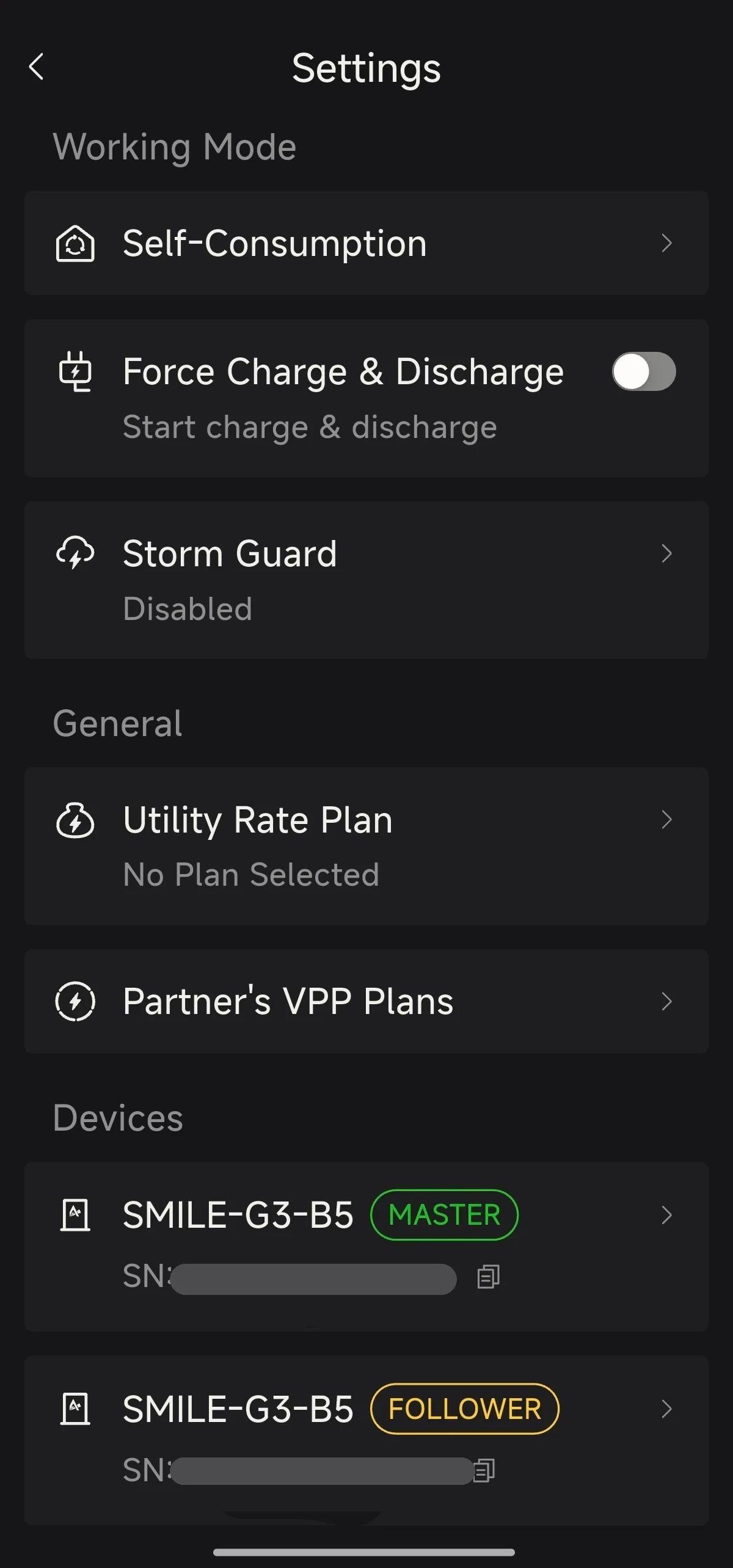
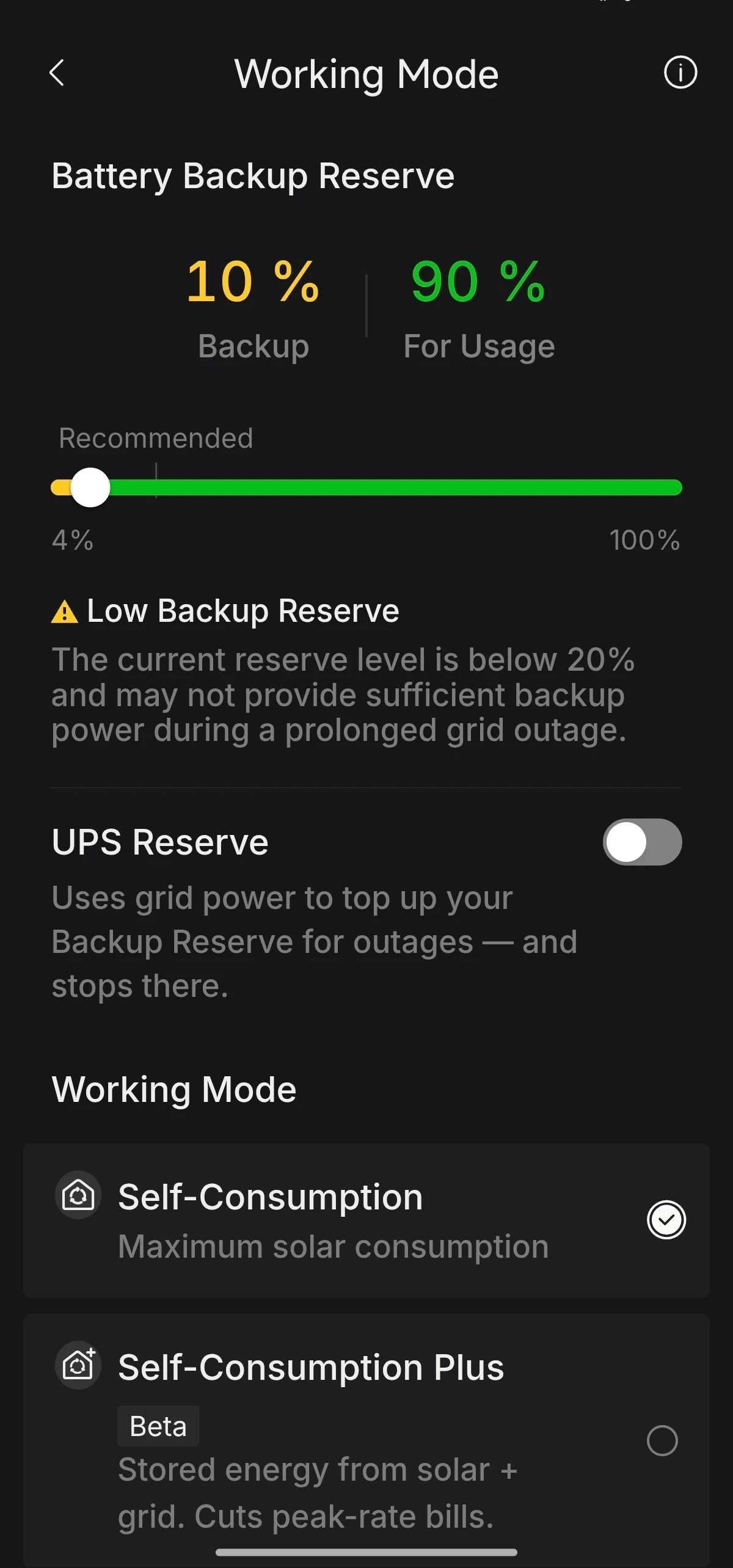
- Tap the settings icon in the top right corner to view and configure the site's work mode, tariff information, VPP dispatch and individual devices.
Energy Charts and Data
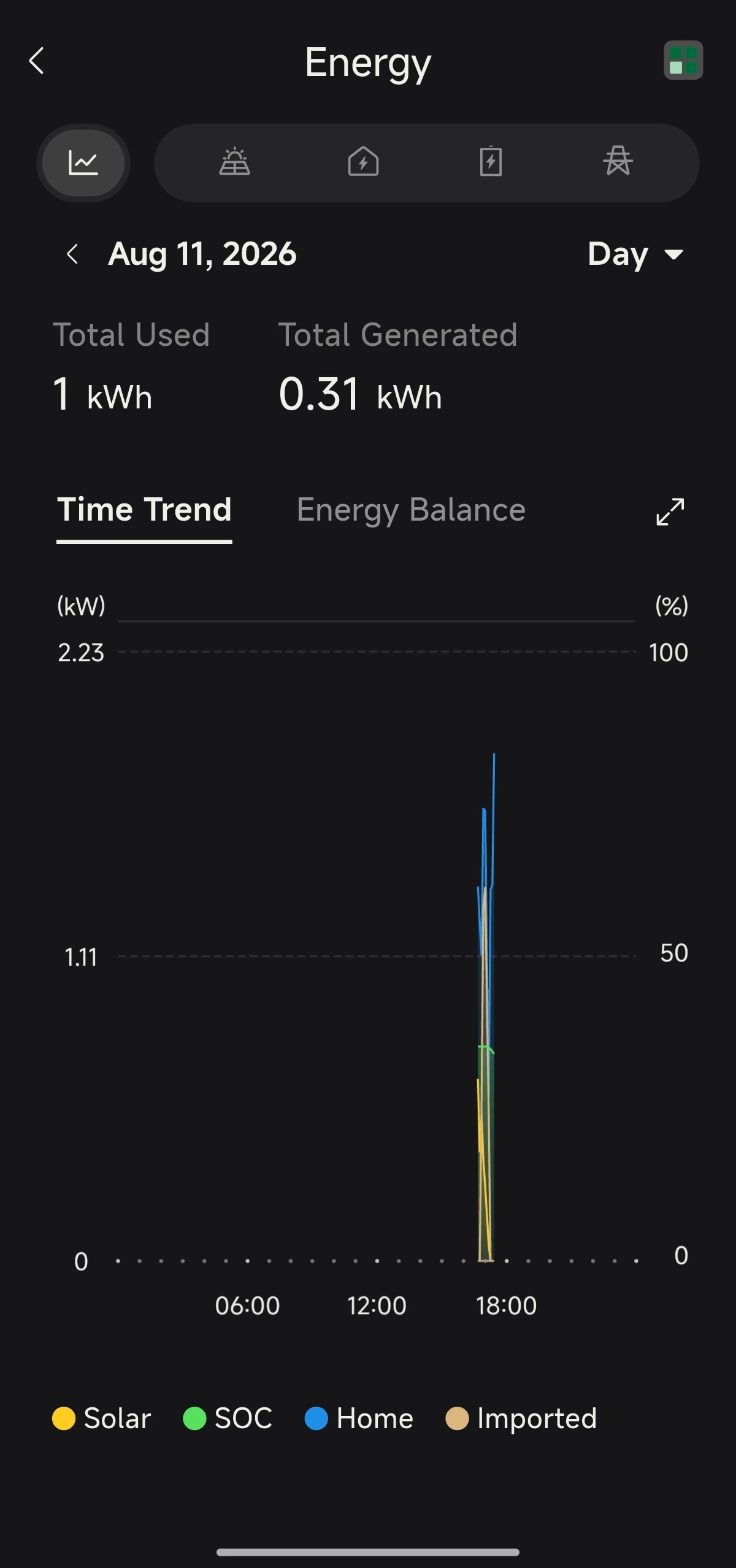
On the overview page, tap Energy in the Today section to open the Energy page.
- Switch between the Time Trend and Energy Balance views, and between Day / Month / Year, to see consumption trends and the balance between generation and consumption.
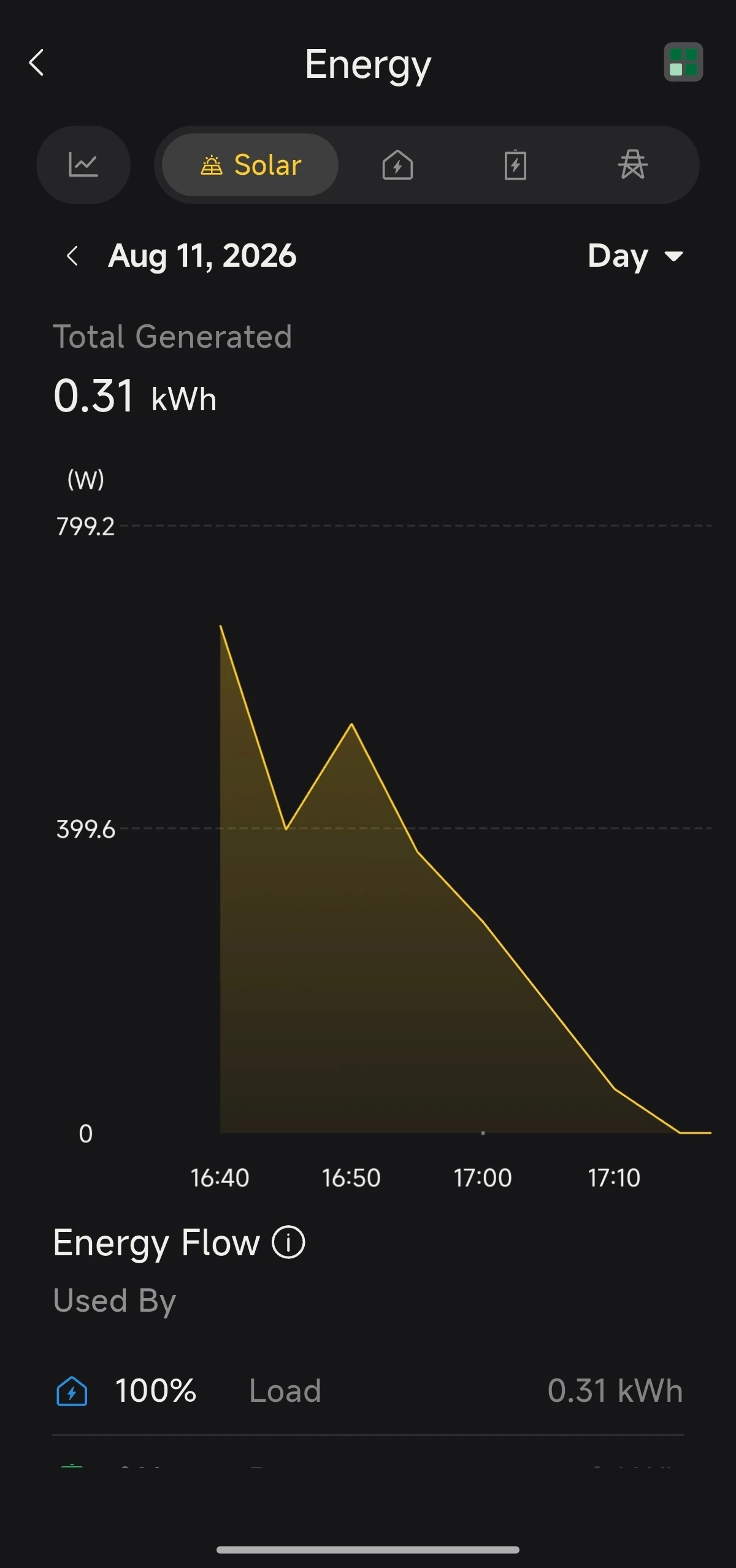
- Switch between the Solar, Load, Battery and Grid tabs to view the day / month / year energy data for each metric.
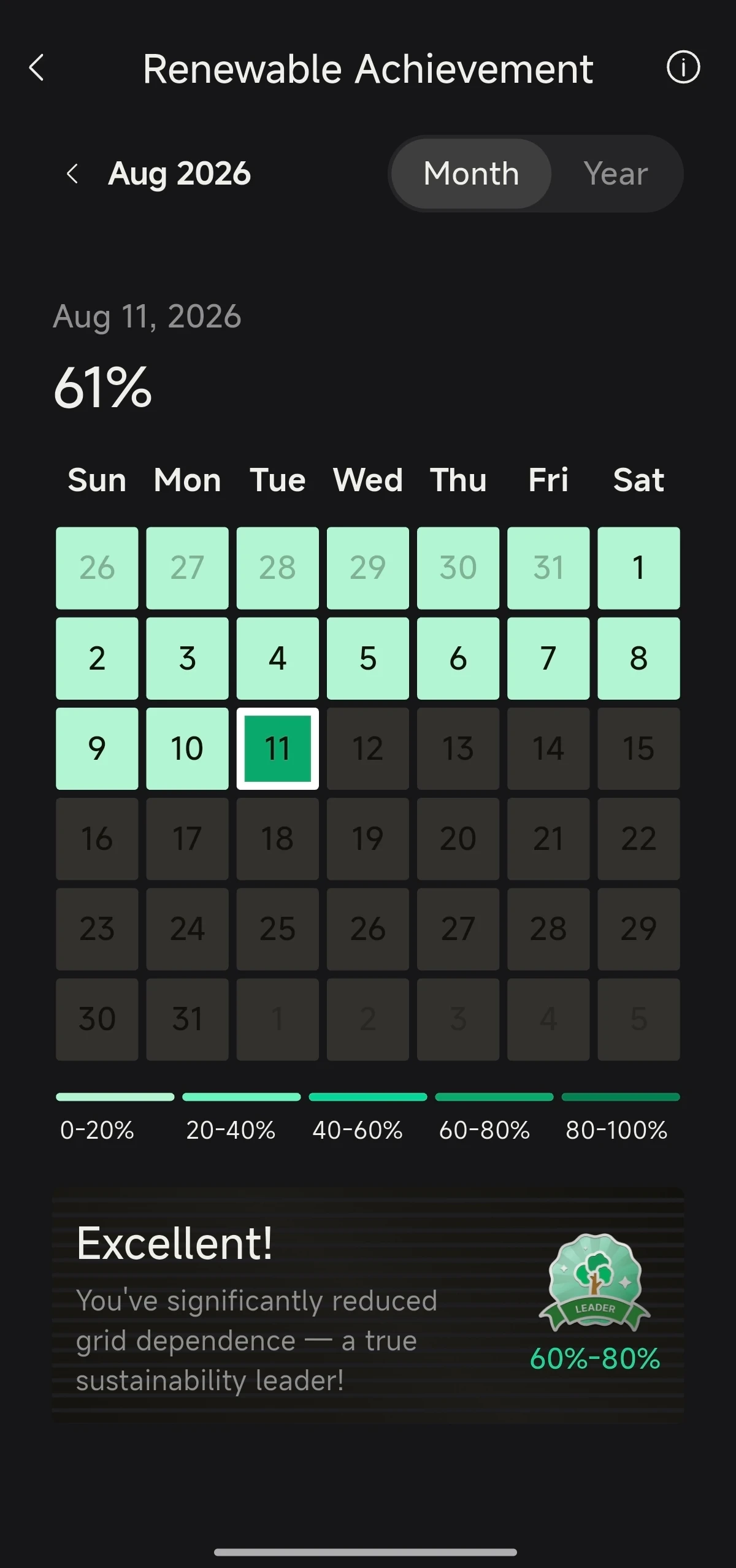
- Tap the green icon in the top right corner to view the site's Renewable Achievement data, by Month or Year.