

Troubleshooting
Find your symptom and carry out external checks only.
The system will not start
Check the external supply and start-up procedure
Check that the AC connector is locked and the wall socket has power, or hold POWER for 1–2 seconds.
If expansion batteries are installed, check the installation record
Check that the connector was moved and the modules were stacked and secured. Shut down completely before reinstalling anything.
If it still will not start, contact support
Prepare the device SN and photos of the indicators and external connections. Do not open the enclosure.
An indicator turns red
DANGER
Stop disassembly or repeated connection attempts
A steady red system indicator means a system fault; a steady red battery indicator means a battery fault. Do not open the equipment yourself.
Record which indicator is red
Photograph the entire display panel and save the fault message shown in the app.
Check for obvious abnormalities
If there is damage, water ingress, smoke or an unusual smell, stop using the system and read the emergency guidance.
Provide your records to support
Follow the service team’s instructions. Do not guess error codes or attempt internal repairs.
No charging or discharging
Distinguish standby from a fault
Check that the system indicator is normal and the grid indicator is lit. Note the current state of charge.
Check the Bottom Connector on expanded systems
Confirm that it is fitted underneath the lowest battery. Shut down completely before making any adjustment.
Check the operating mode and meter data
Charging and discharging also depend on app settings and meter data. Use the app manual to check them. A temporary lack of power flow alone does not indicate a fault.
Displayed capacity does not match the configuration
Check the actual number of modules
The main unit has a built-in 4 kWh battery; each VitaMate adds 4 kWh of installed energy. Do not confuse the remaining charge with installed capacity.
Review the charge levels before expansion
The SOC difference between the new battery and existing batteries must not exceed 5 percentage points.
Save the detection status and contact support
Provide the module count, an app capacity screenshot and records from before and after expansion. Never restack a powered system.
The P1 indicator is off
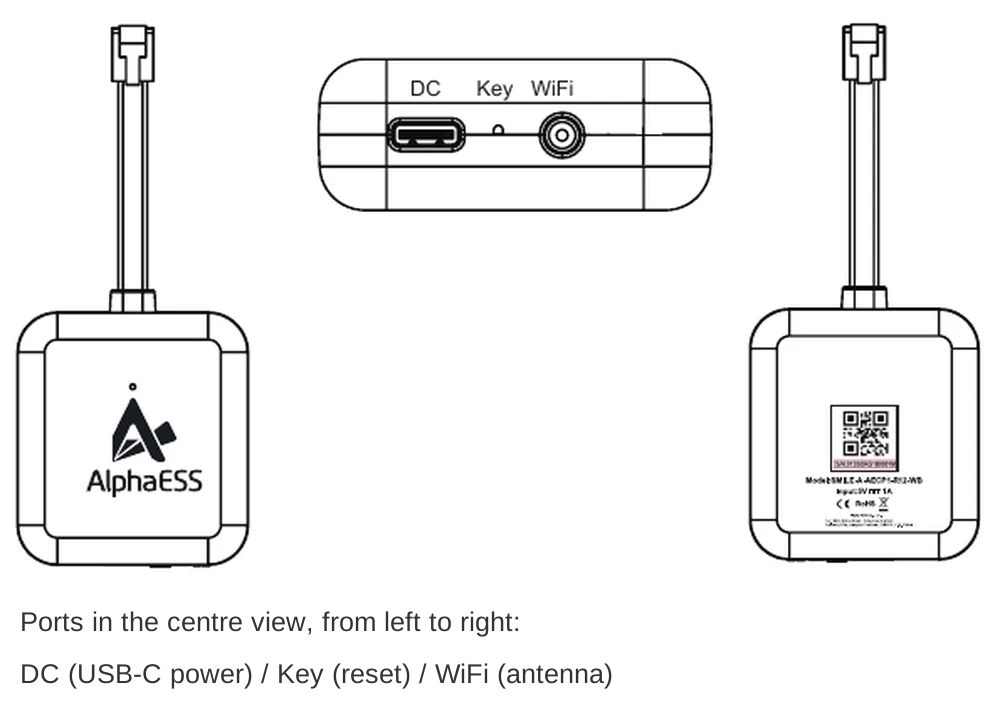
Check the plug and power supply first. Do not modify wiring inside the smart meter.
Check that the P1 plug is fully inserted
The port is usually labelled P1 or DATA.
Check additional power for older meters
DSMR 4.0 and earlier meters require a 5 V / 1 A USB-C power supply. If necessary, test with another suitable power adapter.
If the indicator stays off, contact support
Provide the meter model, dongle model and photos of the power connections.
P1 has no data or a connection problem
First check that the P1 port is enabled, then check the network and indicator. P1 indicator colours have different meanings from those on Alpha 3600 AC.
| Status | Indicator | Meaning |
|---|---|---|
| Meter disconnected | 🟢 Green | Fast flashing: searching for Wi-Fi. Slow flashing: Wi-Fi connected, server disconnected. Steady: server connected. |
| Meter connected | 🔵 Blue | Fast flashing: Wi-Fi disconnected. Slow flashing: Wi-Fi connected, server disconnected. Steady: server connected. |
| Invalid P1 data | 🔴 Steady red | The P1 port is not providing valid data. |
Check port and meter compatibility
Ask your grid operator to confirm that P1 data output is enabled.
Check 2.4 GHz Wi-Fi coverage
Check the external antenna position and router status. Keep the dongle powered during upgrades.
Check device linking and data updates
For linking, Wi-Fi setup or resetting, use the app manual or follow support instructions.
The device appears offline in the app
Check that the device is switched on, observe the network indicator and check home network coverage at the installation location.
What to prepare before contacting support
- Model and SN / serial number of Alpha 3600 AC and the relevant batteries.
- Number of VitaMate modules, and whether the system was recently expanded or moved.
- Photos of indicators, app fault messages or data screenshots.
- When the issue started and which external checks you have completed.
- For P1 issues: meter model and photos of the dongle’s power supply and connections.
Support in the Netherlands
You can also contact your supplier or installer first.