# Network
### When do I need to configure the network?
Your energy storage system is usually connected to the network during installation. However, you may need to do it manually in the following two cases:
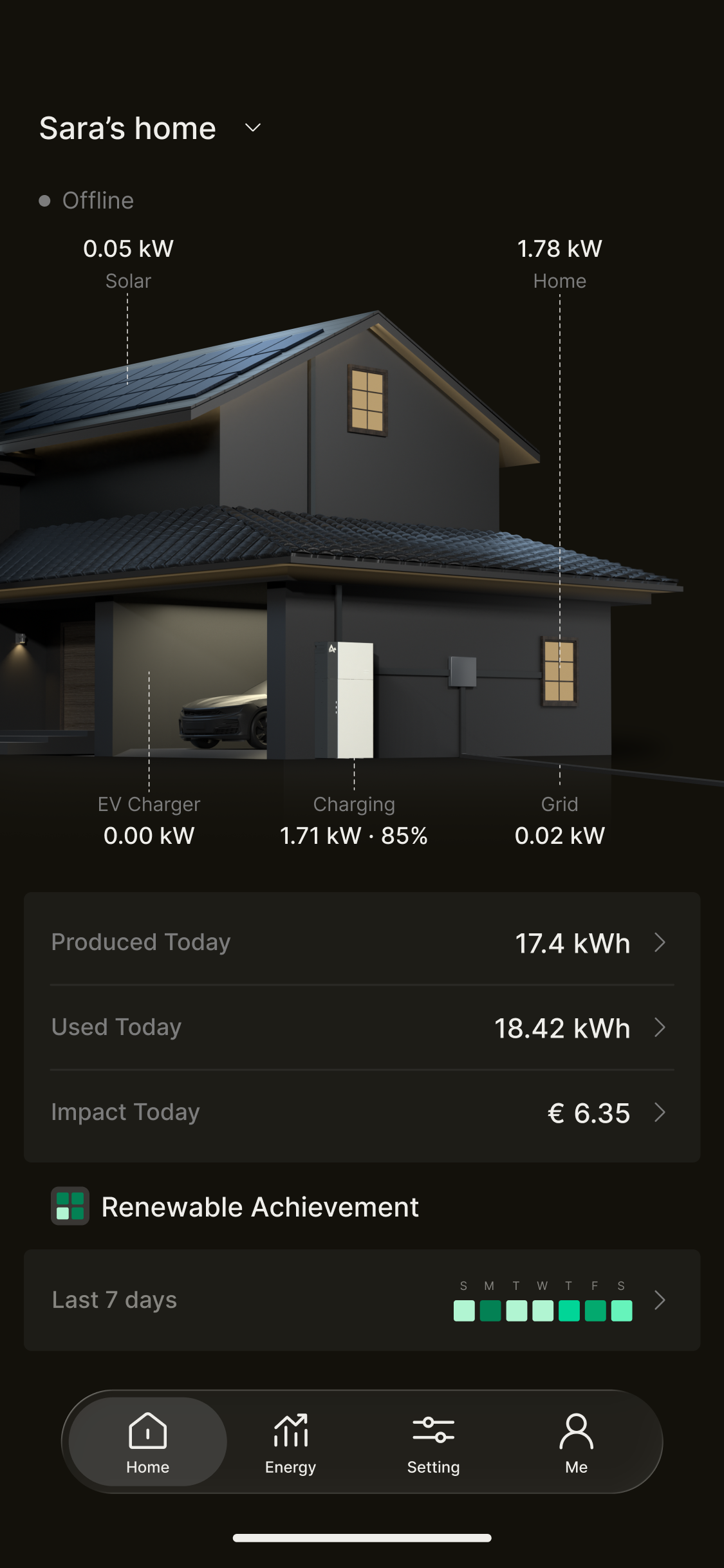
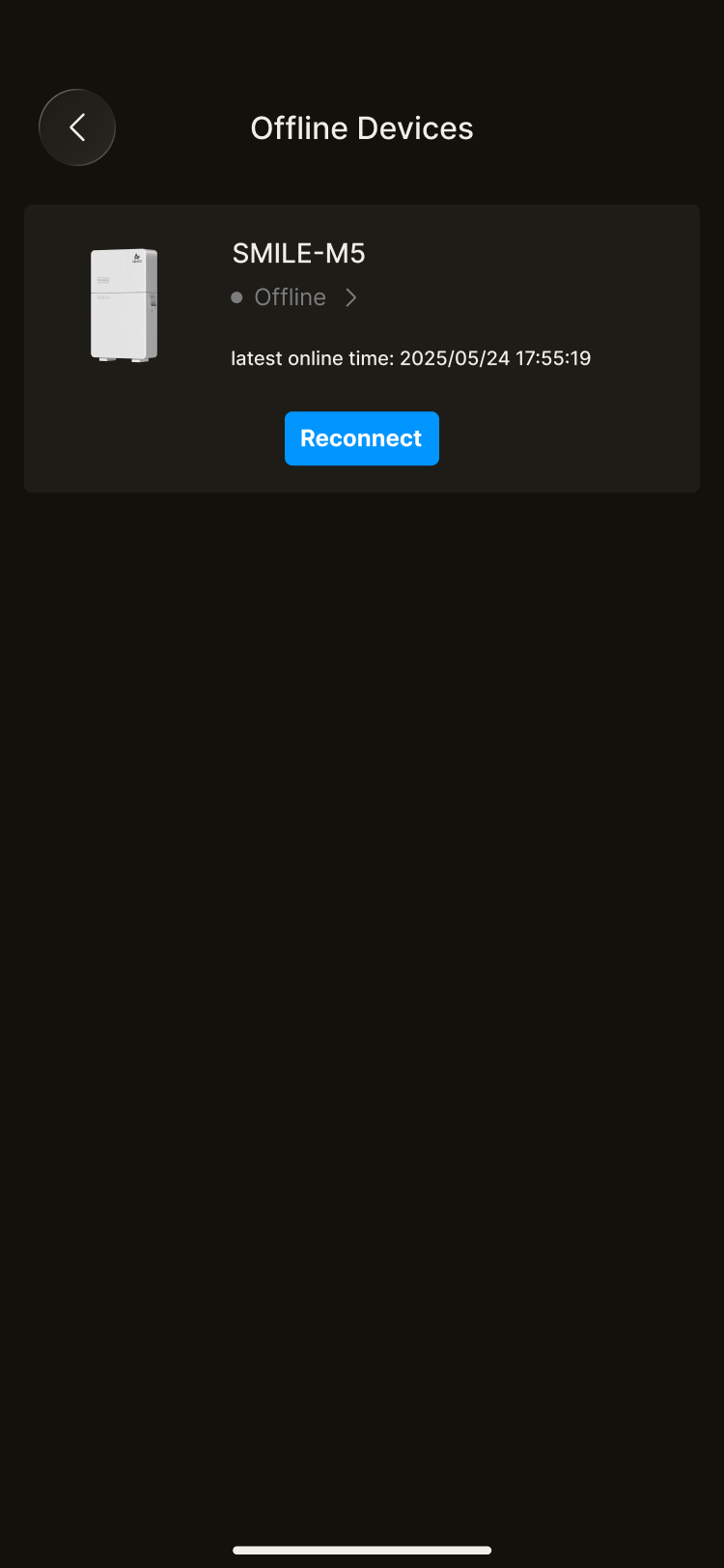
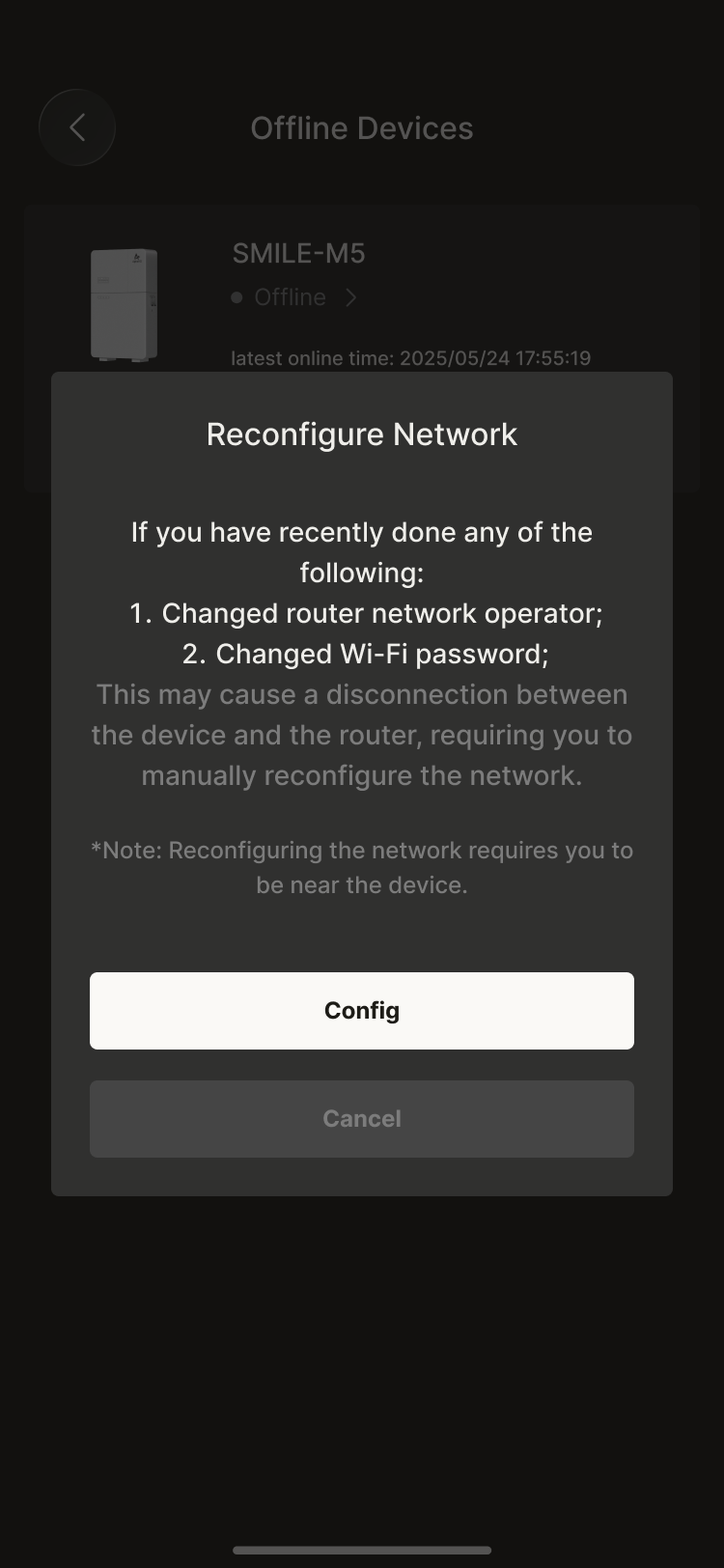
* Device shows “Offline”: When the connection is interrupted due to signal interference or a power outage, you will see the “Offline” status. Click “Reconnect” in the offline device list to reconfigure the network.
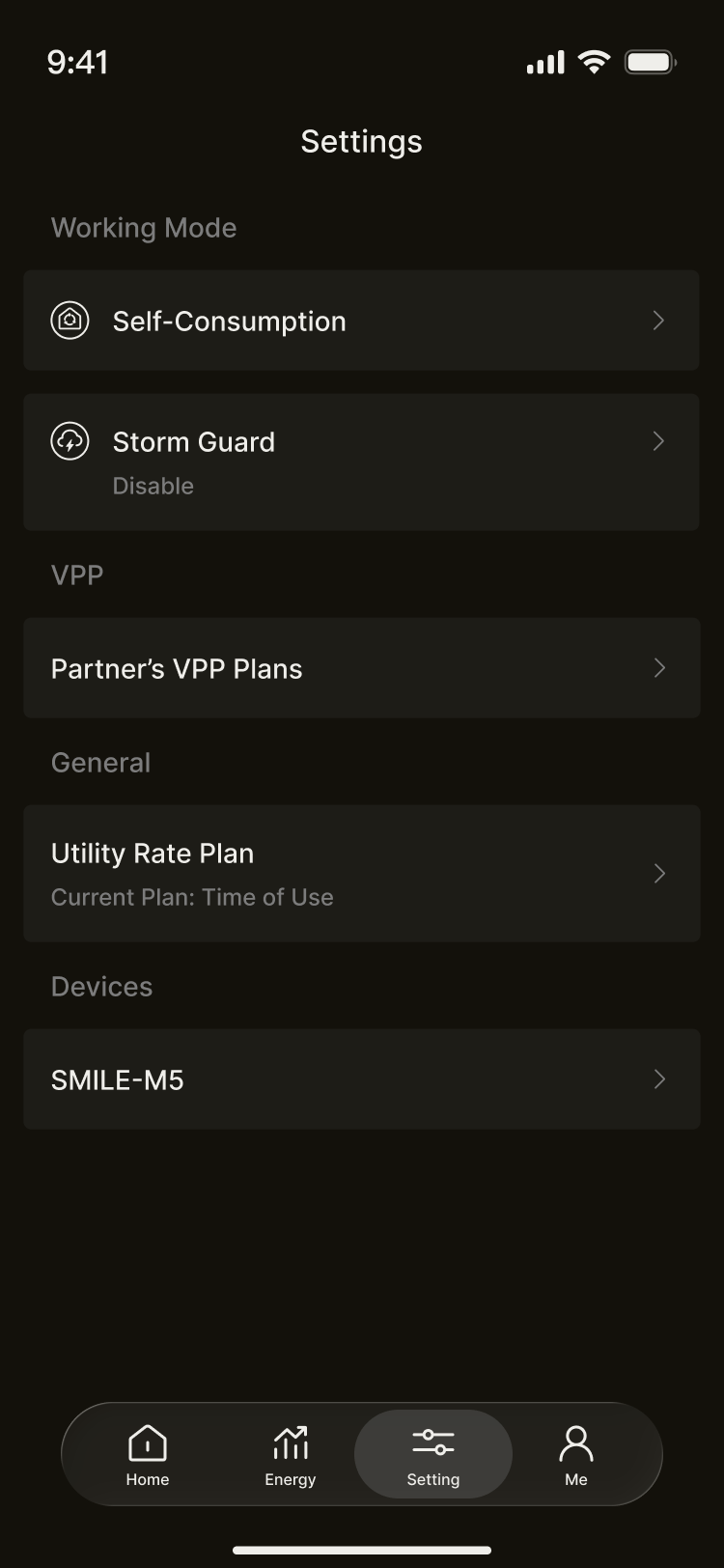
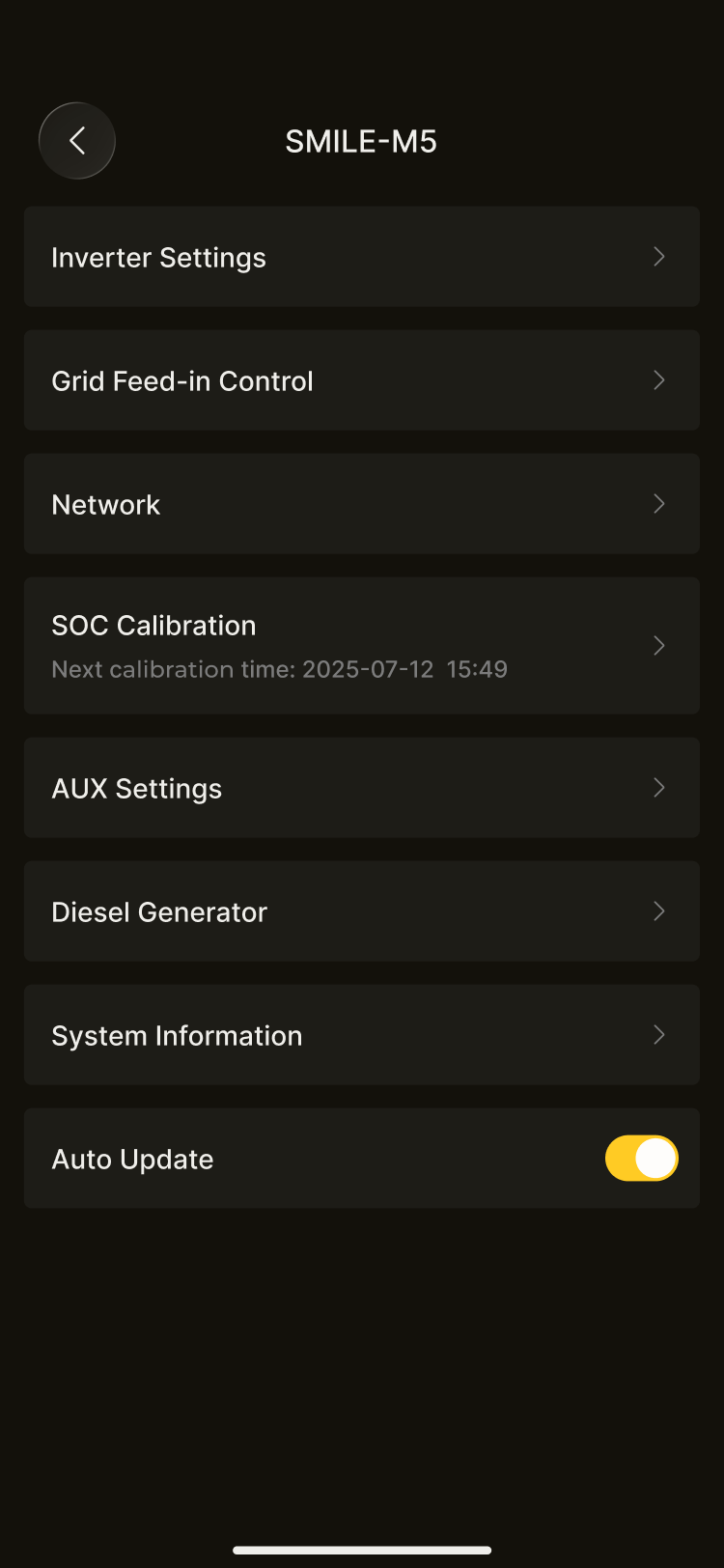
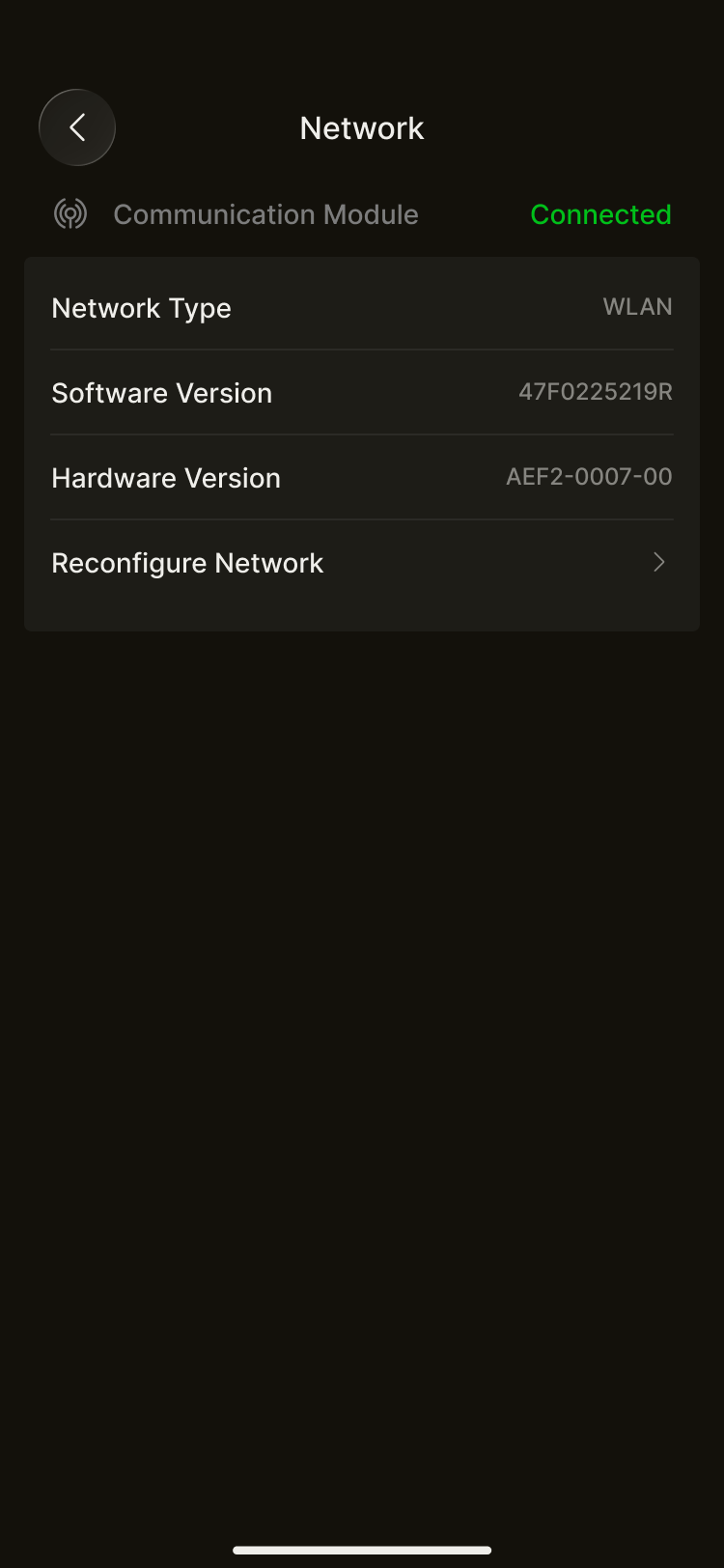
* Home network changes: If you have replaced the router or changed the Wi-Fi name or password, you can reconfigure the network in Device Settings - Network Configuration.
### Before You Start
Before configuring Wi-Fi, please confirm the following preparations:
* The communication module has been installed and its power indicator is on
* You know the network name and password of your home Wi-Fi
* Bluetooth and Wi-Fi on your phone are turned on
* The distance between the phone and the device is within 5 meters
{% hint style="info" %}
**Note**: Wi-Fi configuration only supports Wi-Fi networks in the 2.4 GHz band and does not support the 5 GHz band. Please make sure your router has the 2.4 GHz network enabled.
{% endhint %}
### Configuration Steps
#### Step 1: Connect to the communication module hotspot
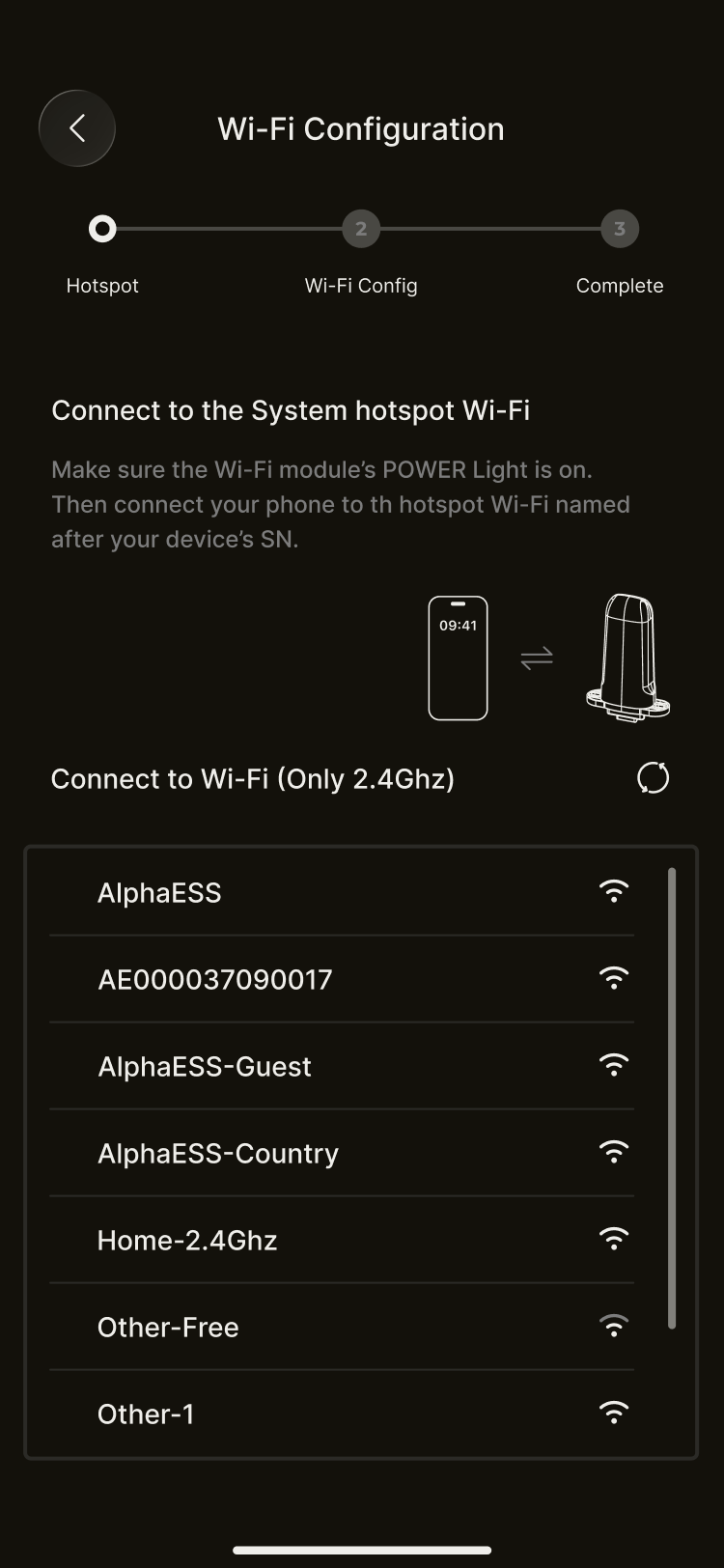
1. After entering the Wi-Fi configuration page, the App will automatically search for nearby communication module hotspots.
2. Find the hotspot named after your device SN in the list and tap to connect.
> **Tip**: The hotspot name is usually the device SN number, which can be found on the device nameplate or packaging box.
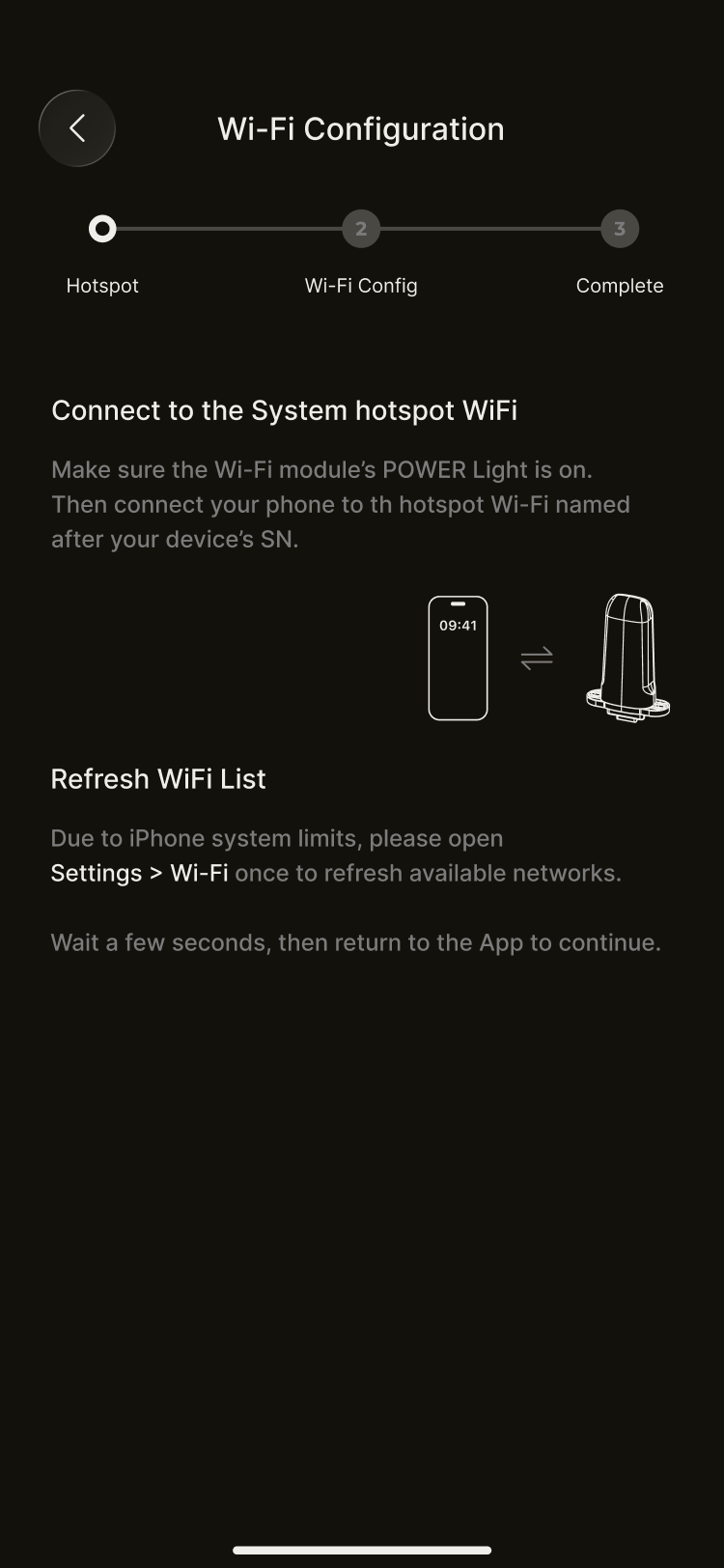
3. **iOS users**: Due to system differences, please manually go to the phone Wi-Fi settings and stay there for a few seconds so that AlphaESS can obtain the Wi-Fi list. After that, return to the App and tap the hotspot name. The App will automatically complete the connection.
4. **Android users**: Tap the hotspot name, and the App will automatically complete the connection.
{% hint style="info" %}
**Hotspot password**: The App will automatically fill in the hotspot password based on the device SN, and manual entry is usually not required. If automatic connection fails, please refer to the “FAQ” below.
{% endhint %}
#### Step 2: Connect to home Wi-Fi
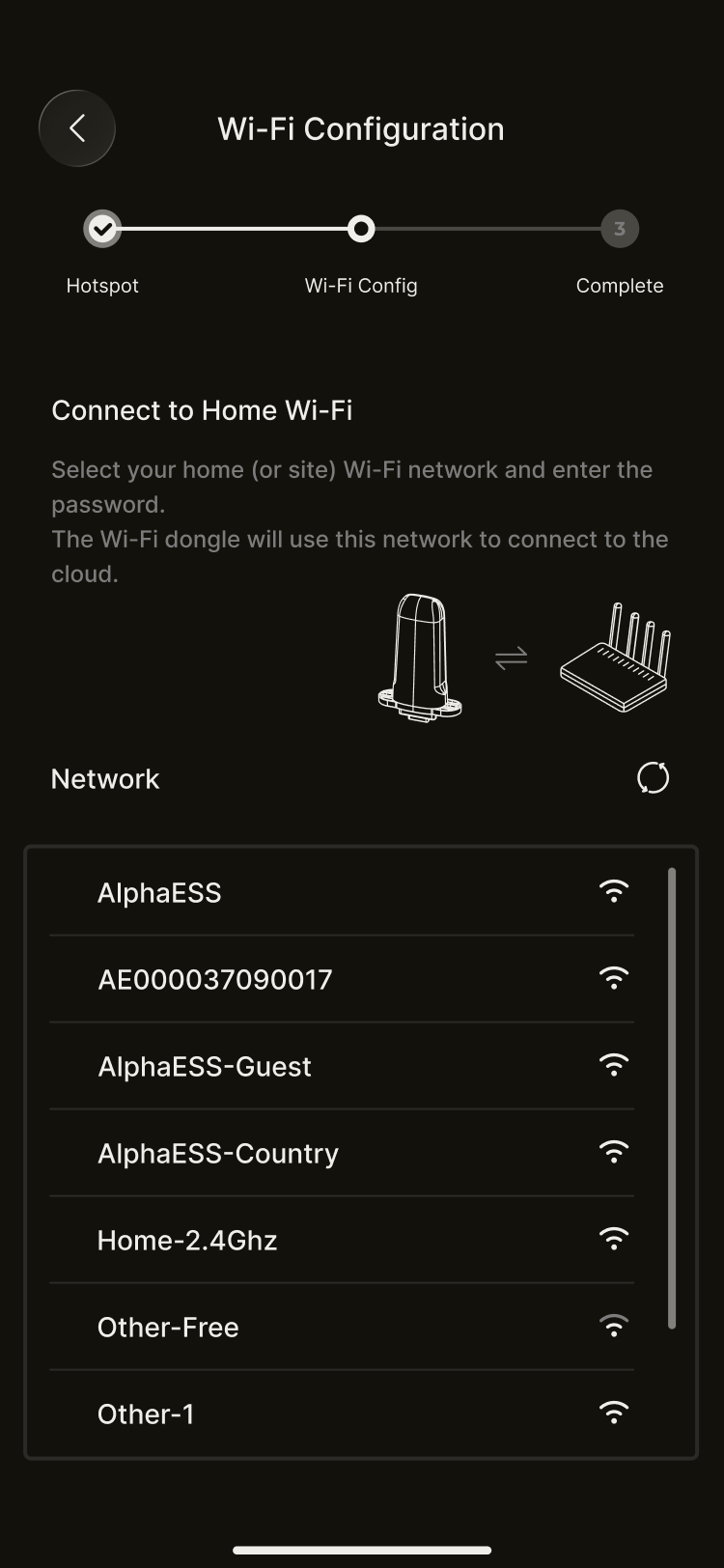
1. After successfully connecting to the communication module hotspot, the page will display a list of available Wi-Fi networks nearby.
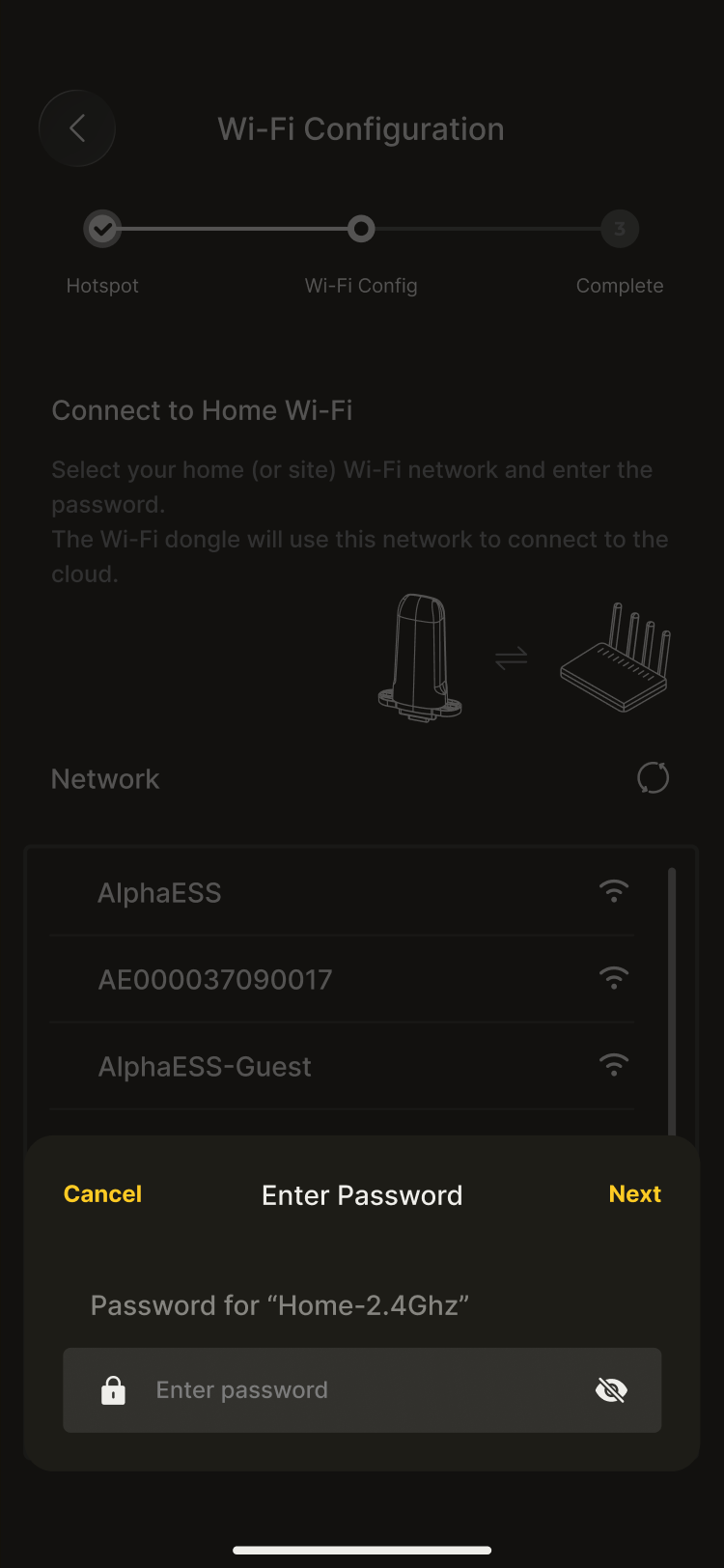
2. Select your**home Wi-Fi**(2.4 GHz band), enter the Wi-Fi password, and tap**Next**.
> **Tip**: The communication module will use this network to connect to the cloud platform for remote data monitoring.
3. Wait for the connection to complete. If the connection fails, the page will show the specific reason:
* **Wrong password**: Please re-enter the correct Wi-Fi password
* **Connection failed**: Please check the router status and try again after confirming the network is normal
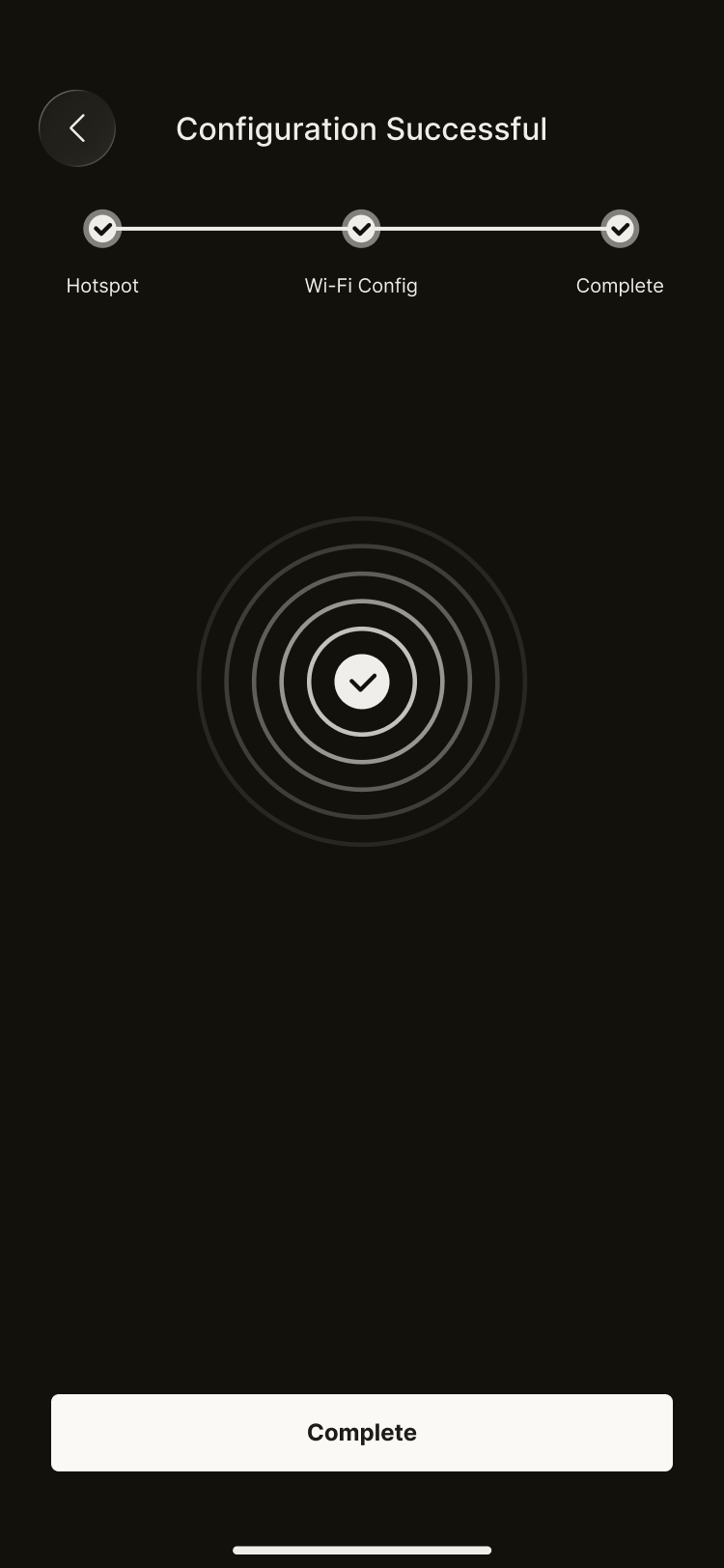
4. Connection complete: Tap**Done**, and the device network configuration is successful. Return to the previous page.
After configuration is complete, the device status will be updated to**Online**, and you can view real-time power data on the App home page.
### FAQ
#### Incorrect hotspot password, unable to connect to the communication module
If the password automatically filled in by the App cannot connect to the hotspot, the hotspot password may have been changed.
**Solution:**
1. On the password entry page, tap**Forgot Password**.
2. The App will scan nearby Bluetooth devices. After finding the Bluetooth name of the communication module, tap to connect.
3. Reset the hotspot password via Bluetooth. After completion, the App will automatically bring in the new password and reconnect to the hotspot.
> **Note**: To reset the password, Bluetooth on the phone must remain on, and the distance to the communication module must be within 5 meters. If your energy storage device does not support Bluetooth connection, please contact AlphaESS after-sales service for support.
#### The hotspot disconnects unexpectedly during network configuration
If the communication module hotspot disconnects during configuration, the App will automatically attempt to reconnect.
* **Automatic reconnection successful**: Continue with the following configuration steps
* **Automatic reconnection failed**: The page will show Retry or Exit options
* Tap**Retry**: Try connecting to the hotspot again
* Tap**Exit**: End the configuration, return to the device management page, and try again later
#### How to reconfigure after replacing the router or changing the Wi-Fi password
If you replace your home router or change the Wi-Fi password, you need to perform the Wi-Fi configuration again to connect the device to the new network.
**Operation Steps**: Enter **Device Management** → **Network**, and reconfigure according to the steps above. The existing device data and history will not be affected.
#### Network configuration failed, how to handle it
If you still cannot complete network configuration after multiple attempts, please:
1. Confirm that the communication module power indicator is on normally
2. Confirm that the phone is within 5 meters of the device
3. Check whether the home Wi-Fi network is functioning normally
4. Restart the router and try again
If the problem is still not resolved, please contact AlphaESS after-sales service for support.